# What is Bitfoot?

<figure><img src="https://3111015691-files.gitbook.io/~/files/v0/b/gitbook-x-prod.appspot.com/o/spaces%2FlwujP2ZYsEWYqnEdNMKG%2Fuploads%2FTzwo5OuJ7gtykcJdVFgR%2Fbg.jpg?alt=media&amp;token=6b523e23-af6c-4dd6-9ae8-078a074b3f7c" alt=""><figcaption></figcaption></figure>

Bitfoot is an all-in-one crypto trading platform designed to bring everything into one place — fast, secure, and easy to use.

Our core product is the Bitfoot Web App, currently in open beta, offering a multi-chain trading experience focused on speed, reliability, and simplicity.

We’re integrating AI across the platform to help users automate workflows and make smarter trading decisions.

The ecosystem is powered by the [**$FOOT token**](/foot-token/about-usdfoot) (currently pre-TGE), and everything we build is strongly community-driven, shaped by real user feedback.

Bitfoot is a complete trading environment for the next generation of crypto users.

### Bitfoot App Features Overview

[**Trade**](https://app.bitfoot.com) and automate across Solana, Ethereum, BSC, Polygon, Base, and Arbitrum — all in one place.

Bitfoot combines powerful tools like sniping, copy trading, perpetuals, prediction markets, and automated alpha calls, enhanced by AI-driven features to help you move faster and trade smarter.

<table data-view="cards"><thead><tr><th></th><th></th><th data-hidden data-card-cover data-type="image">Cover image</th></tr></thead><tbody><tr><td><strong>Prediction Markets</strong></td><td>Call the outcome. Trade politics, sports and crypto. Settled in USDC on Polygon.</td><td><a href="https://3111015691-files.gitbook.io/~/files/v0/b/gitbook-x-prod.appspot.com/o/spaces%2FlwujP2ZYsEWYqnEdNMKG%2Fuploads%2FasR8gBoK3YMFAJUDqdKZ%2Fpredictions.jpg?alt=media&amp;token=54219eec-eaac-4232-85ef-1f9583e52dbb">predictions.jpg</a></td></tr><tr><td><strong>Alpha Channels</strong></td><td>Auto-buy signals from legendary premium channels. Add your own or plug into ours.</td><td><a href="https://3111015691-files.gitbook.io/~/files/v0/b/gitbook-x-prod.appspot.com/o/spaces%2FlwujP2ZYsEWYqnEdNMKG%2Fuploads%2FgGjcNkTYje2XGeJ22SH7%2Fcalls.jpg?alt=media&amp;token=22bbed45-aead-4841-b2f6-46a67c493bd5">calls.jpg</a></td></tr><tr><td><strong>AI Features</strong></td><td>Automated agents, AI scoring and custom strategies. Built to give you the edge.</td><td><a href="https://3111015691-files.gitbook.io/~/files/v0/b/gitbook-x-prod.appspot.com/o/spaces%2FlwujP2ZYsEWYqnEdNMKG%2Fuploads%2FiLgfI3PEWrtzVdIMLUHM%2Fauto.jpg?alt=media&amp;token=04b5f3b4-2b22-42a9-8ef4-b5f129539555">auto.jpg</a></td></tr><tr><td><strong>Smart Trackers</strong></td><td>Track top KOLs and wallets in real time. Spot the pros and copy their moves fast.</td><td><a href="https://3111015691-files.gitbook.io/~/files/v0/b/gitbook-x-prod.appspot.com/o/spaces%2FlwujP2ZYsEWYqnEdNMKG%2Fuploads%2FghxmW5ciqvbJ03IRBnha%2Ftrackers.jpg?alt=media&amp;token=08d4b495-f052-4ddb-b032-394b208cbb5f">trackers.jpg</a></td></tr><tr><td><strong>Perpetuals</strong></td><td>Go leveraged on 500+ tokens. Hyperliquid execution, unmatched performance.</td><td><a href="https://3111015691-files.gitbook.io/~/files/v0/b/gitbook-x-prod.appspot.com/o/spaces%2FlwujP2ZYsEWYqnEdNMKG%2Fuploads%2FylLcbtjXxeyHwVWVlpoq%2Fperps.jpg?alt=media&amp;token=ad47ab3a-a4db-4529-8001-6b5fb8099666">perps.jpg</a></td></tr><tr><td><strong>Referral System</strong></td><td>Earn up to 30% on every trade your referrals make. Stack rewards across 3 tiers.</td><td><a href="https://3111015691-files.gitbook.io/~/files/v0/b/gitbook-x-prod.appspot.com/o/spaces%2FlwujP2ZYsEWYqnEdNMKG%2Fuploads%2Fskmm9tclWYyws1ONImJv%2Fref.jpg?alt=media&amp;token=ef3e6e03-84e2-45ec-abc3-ba29579e1d01">ref.jpg</a></td></tr></tbody></table>

### Our Products

**Available Now**

* [Bitfoot Web App](https://app.bitfoot.com) – All-in-one crypto trading platform in Open Beta
* [Bitfoot Alpha Pings](https://t.me/bitfootpings) – Real-time token calls and insights powered by AI
* [$FOOT Token](/foot-token/about-usdfoot) – The utility token powering the Bitfoot ecosystem.


# Why Use Bitfoot?

Bitfoot is an all-in-one trading platform designed to give users a real edge in fast-moving crypto markets. By combining speed, automation, and intelligent tooling into a single environment, Bitfoot helps traders execute faster, reduce risk, and act on opportunities instantly.

## 1. AI-Powered Trading

### **Follow Successful Traders with Ease**

Bitfoot integrates **AI** across the platform to help both beginners and advanced traders make better decisions and automate their strategies.

At the core is a system that analyzes multiple data sources and turns them into actionable signals.

> * **AI Scoring**
>
>   Each token is evaluated across multiple parameters and assigned a dynamic score, helping users quickly identify quality opportunities.
> * **Automated Bots**
>
>   Create your own AI-powered trading bots using custom or pre-built strategies, designed to react instantly to market conditions.
> * **AI Singnal Trading**
>
>   Automated trading powered by AI signals across multiple data sources:
>
>   * On-chain activity
>   * Social signals
>   * Technical indicators
> * **Perpetual Futures (Hyperliquid)**
>
>   AI-driven long and short positions with automated execution.
> * **Paper Trading Mode (In Private Testing)**
>
>   Test strategies risk-free before going live.

## 2. Speed & Execution

Speed is a core priority. We continuously test and optimize execution to stay at the top. Bitfoot became known for its exceptional speed during the Telegram bot era, outperforming other bots. We’re now bringing that same performance into the Web App — not perfect yet, but improving daily through constant testing and iteration.

## 3. Community-Driven Ecosystem

Bitfoot is more than just a trading platform — it’s a growing ecosystem built around its community.

We actively listen to our users, read their reports, and take their feature suggestions seriously. The platform is shaped through real feedback and continuous iteration — we’re building Bitfoot together with the community.

As Bitfoot grows, the community grows with it.


# Bitfoot Roadmap

<figure><img src="https://3111015691-files.gitbook.io/~/files/v0/b/gitbook-x-prod.appspot.com/o/spaces%2FlwujP2ZYsEWYqnEdNMKG%2Fuploads%2FpBE3FMS6lcdb1FoYx3qc%2FOpen%20Roadmap.png?alt=media&amp;token=5e0a0d14-1e88-4ab6-9c0c-38ec5c3b0257" alt=""><figcaption></figcaption></figure>

## History

#### 2020 - 2023 | Origins & Development

> * We started as traders, developing our own bots in-house to optimize our personal trading strategies.
> * At that time, no public trading bots existed—only developers like us were building their own and setting up nodes.
> * Our approach proved highly successful, generating over $30 million in trading volume.
> * In early 2023, we decided to make our technology accessible to everyone, leading to the inception of Bitfoot.

#### 2023 - 2024 | Building & Refining Bitfoot

> * We dedicated thousands of hours and reinvested $1.3 million of our own trading profits into development.
> * Our platform is fully custom-built, avoiding third-party tech to maintain full control over features across all chains.We dedicated thousands of hours and reinvested $1.3 million of our own trading profits into development.
> * Built during a bear market, Bitfoot was designed to thrive in any market condition.\
>   Our platform is fully custom-built, avoiding third-party tech to maintain full control over features across all chains.
> * By the end of 2024, the [Bitfoot Trading Bot](https://t.me/BitFootBot) entered closed testing, available exclusively for $FOOT token holders and private testers. This phase allowed us to gather critical feedback before the official public launch.

## 2025 Public Launch & Expansion

#### Q1 – Official Launch of the [Bitfoot Trading Bot](https://t.me/BitFootBot)

> * The [Telegram bot](https://t.me/BitFootBot) officially went live.
> * The presale raised over $1.3 million.
> * We prioritized refining and enhancing the bot while focusing on community growth through Academy video content and overall ecosystem expansion.
> * Simultaneously, we started development on the web extension and web app.

#### Q2 – Launch of Solana Alpha Pings & Bitfoot Speed Extension

> * We introduced [Bitfoot Alpha Solana Pings](https://t.me/+7QLaMYI58D0xODI9), a tool providing real-time insights and signals for Solana-based trading.
> * Initially launched in closed testing, the group was exclusive to select users.
> * After a few days of testing, **we opened it to the public** and continued improving its features.
>
> #### **Web Extension in Launch**
>
> * Bitfoot Bot now **fully supports Sonic Chain**, enabling ultra-fast and seamless trading.
> * The [Bitfoot Speed Web Extension](/bitfoot-speed-extension/about-extension) is currently in closed testing, undergoing final optimizations before public release.
> * The Web App in development, with continuous refinements to ensure seamless performance and usability
> * We’re working on a new **Alpha Pings group for BSC**, bringing the same real-time signal quality as on Solana.

#### Q3 + Early Q4 – Bitfoot Web App Development & BSC Pings Launch

> * During Q3, we significantly accelerated development of the Bitfoot Web App and transitioned into internal testing.
> * A public waitlist for the Web App was launched, attracting over **30,000 sign-ups**, confirming strong demand for an all-in-one Bitfoot trading platform.
> * At the same time, we announced and began rolling out new bot features, including **Webhooks integration** and the launch of a new [BSC Alpha Pings channel](https://t.me/bitfootbscpings), expanding Bitfoot’s real-time signal coverage beyond Solana.
> * Development efforts during this phase were focused on performance, scalability, and preparing the platform for a broader public release.
> * To fully focus on development and delivery, the $FOOT presale was temporarily paused for one month. After this period, a community vote was conducted regarding the Token Generation Event (TGE). The community decided to wait with the TGE to align it with the upcoming Web Terminal release, ensuring a stronger and more powerful launch of the Bitfoot ecosystem.

#### Late Q4 – Bitfoot Web App Development & Community voting

> * By late Q4, the Bitfoot Web App remained in active development, progressing more slowly than initially expected.
> * While a beta launch was considered, additional testing was required to ensure **performance stability, security, and completion of key missing features**. Bitfoot does not release unfinished products, and maintaining a high production standard was a priority.
> * To align the roadmap with community expectations, a **community and token holder vote** was conducted with two clear options:
>   * **Postpone the TGE** and prioritize completing and testing the Web App before launch
>   * **Proceed with an earlier TGE** and shift focus toward token launch preparations

## 2026 (Now)

#### Early Q1 – $FOOT Launch & Web App Open Beta

> * At the start of Q1, the community voted for an immediate $FOOT launch, shifting focus from Web App development to launch preparation. Over the following weeks, we completed the majority of the launch groundwork.
> * Due to market conditions, we decided to finalize the Web App before the token launch and successfully released the Bitfoot Web App in Open Beta (March 16).
> * The platform already includes core features such as AI tools, prediction markets, copy trading, smart tracking, and seamless multi-chain trading, forming the foundation of the Bitfoot ecosystem.
> * The $FOOT TGE is now in its final preparation stage.

## **The Future of Bitfoot**

> The primary focus is to launch the $FOOT token and continue expanding the Bitfoot Web App as the core utility of the ecosystem.
>
> Key priorities include:
>
> * $FOOT Token Generation Event (TGE)
> * Continuous improvement of the Bitfoot Web App
> * More AI-powered features and automation tools
> * Future Telegram Trading Bot fully synced with the Web App
> * Expansion into perpetual trading
> * Multi-chain support across additional blockchains
> * iOS and Android mobile applications
>
> Bitfoot is being built as a single platform where traders can manage everything in one place — fast, simple, and powerful.


# Become our Ambassador

Are you a KOL, pro trader, content creator, streamer, or a community leader on Telegram or Discord?

Join the **Bitfoot Ambassador Program** and earn exclusive rewards by introducing your audience to one of the fastest and most powerful trading bots on the market.

As a Bitfoot Ambassador, you will:

* **Unlock high commission rewards** through our **Bitfoot Bot** **VIP referral system**, with potential for **additional earning** opportunities
* Get **early access** to new features and tools
* **Help** your **community** trade smarter with automated technology
* Be part of a **fast-growing, trader-first ecosystem**

Interested in joining? **DM us at** [**X (Twitter)**](https://x.com/BitfootBot) or **email** [**support@bitfoot.com**](mailto:support@bitfoot.com) to apply.


# FAQ

<figure><img src="https://3111015691-files.gitbook.io/~/files/v0/b/gitbook-x-prod.appspot.com/o/spaces%2FlwujP2ZYsEWYqnEdNMKG%2Fuploads%2FzyXqOsj0vbT3DbOEeXlt%2FYou%20ask%2C%20we%20answer.png?alt=media&amp;token=10b42e6c-3578-4a57-8055-3869add2d58e" alt=""><figcaption></figcaption></figure>

## General Questions

<details>

<summary><strong>What is Bitfoot?</strong></summary>

Bitfoot is an all-in-one crypto trading platform built for serious traders. Access advanced trading tools across prediction markets, perpetuals, copy trading, alpha calls and AI-powered features. We're building a powerful ecosystem with the best trading experience out there. With our own token, everyone shares in the success.

</details>

<details>

<summary><strong>How is Bitfoot different from competitors?</strong></summary>

We actively build and listen. Every feature on this platform exists because our community asked for it and we delivered. Bitfoot ships AI-powered tools across the entire app, constantly expanding scope. Our execution speed is legendary for a reason. We test daily, improve daily, and speed is never an afterthought. This is not a finished product. It's a living platform that grows with its traders.

</details>

<details>

<summary><strong>Is Bitfoot safe?</strong></summary>

At Bitfoot, we are dedicated to providing the highest level of security for our users, earning recognition as one of the safest trading platforms available. Our expert developers have extensive experience building apps for millions of users, and we place the utmost priority on ensuring the safety of our platform.

</details>

<details>

<summary><strong>Who is behind the project?</strong></summary>

Bitfoot was built by a team of experienced traders with years in the crypto space. It started the way most great tools do — out of necessity. We built Telegram bots for ourselves that became legendary in the community. From there, we decided to go all in and launch a full ecosystem. Everything we've built is made by traders, for traders. That's not a tagline. It's the whole story.

</details>

<details>

<summary><strong>How can I learn to use Bitfoot?</strong></summary>

Our Web App is built to be intuitive from day one. For deeper guidance, our Docs cover everything from getting started to advanced features. We're also bringing back the Bitfoot Academy with tutorials and strategies. In the meantime, our YouTube channel has educational content to get you up to speed.

</details>


# About $FOOT

<figure><img src="https://3111015691-files.gitbook.io/~/files/v0/b/gitbook-x-prod.appspot.com/o/spaces%2FlwujP2ZYsEWYqnEdNMKG%2Fuploads%2F2G2OY1hSYNTsMn9ug2JL%2FGroup%202607360%20(3).png?alt=media&amp;token=6f8b1d2a-caf4-444f-89f4-1f0438e98bc9" alt=""><figcaption></figcaption></figure>

### Presale Completed

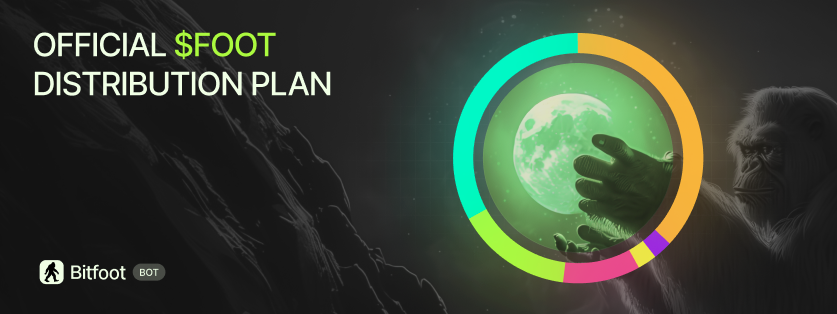
The Bitfoot presale was **officially concluded on January 23, 2026**, following the outcome of the token holder community vote.

A total of $1.5M USD was raised out of the planned $3M, with the presale ending in Round 4 of 7 at a final token price of $0.10 per $FOOT. Based on community consensus and strategic alignment, the presale was ended early to proceed with the next phase of the project.

***

### Token Generation Event (TGE)

The Token Generation Event (TGE) is **scheduled and currently in preparation**. The exact date will be announced soon via our official channels.

For the latest updates, make sure to follow:

* [**Bitfoot Updates**](https://t.me/bitfootupdates) on Telegram
* [**Bitfoot on X (Twitter)**](https://x.com/bitfootbot)

Detailed information about vesting schedules, allocations, and full tokenomics can be found in the section below.

{% content-ref url="/pages/yJO6Zu5sts2muo57RZhm" %}
[Tokenomics](/foot-token/tokenomics)
{% endcontent-ref %}

For step-by-step instructions on how to **claim $FOOT tokens**, continue to the Claiming Guide below.

{% content-ref url="/pages/HZLnjBJtWbgBEWQWkBMm" %}
[Claiming](/foot-token/claim)
{% endcontent-ref %}

***

### What This Means Going Forward

We will be sharing clear next steps, timelines, and ongoing updates through our [**official communication channels**](https://t.me/bitfootupdates) as Bitfoot continues to evolve.

Thank you to everyone who participated in the presale and community voting. This marks an important milestone in Bitfoot’s journey.


# Claiming

## Overview

The Bitfoot presale officially ended on January 23, 2026, following a community and token holder vote. The <mark style="color:$warning;">**$FOOT Token Generation Event (TGE) is scheduled and currently in preparation**</mark><mark style="color:$danger;">.</mark> The exact date will be announced soon via our official channels.

Once the TGE goes live, **$FOOT token claiming will be enabled immediately** for all eligible presale participants. Users will be able to claim their tokens according to the vesting rules outlined in the official [$FOOT tokenomics.](/foot-token/tokenomics)

The claiming process described below **will apply once the TGE is live**.

Claiming is accessible through the official Bitfoot website: [**https://bitfoot.com/claim**](https://bitfoot.com/claim)

{% hint style="info" %}
*This process applies to all users who purchased $FOOT during the presale.*
{% endhint %}

***

### <mark style="color:$warning;">Important Notes Before Claiming</mark>

* $FOOT was **originally sold via Ethereum wallets** during the presale.
* The $FOOT token was **launched on Solana**.
* Because of this, the claiming process requires:
  * **Ethereum wallet** for ownership verification
  * **Solana wallet** as the receiving wallet

This is expected behavior and part of the official migration to Solana.

{% hint style="warning" %}

## Warning

*Claiming is **only available via the official*** [***Bitfoot website***](https://www.bitfoot.com/claim)

***Never** share your private keys!*

***Bitfoot will never** reach you first, be aware of scammers!*

***Always** double-check wallet addresses before claiming!*
{% endhint %}

***

## How to Claim $FOOT Tokens

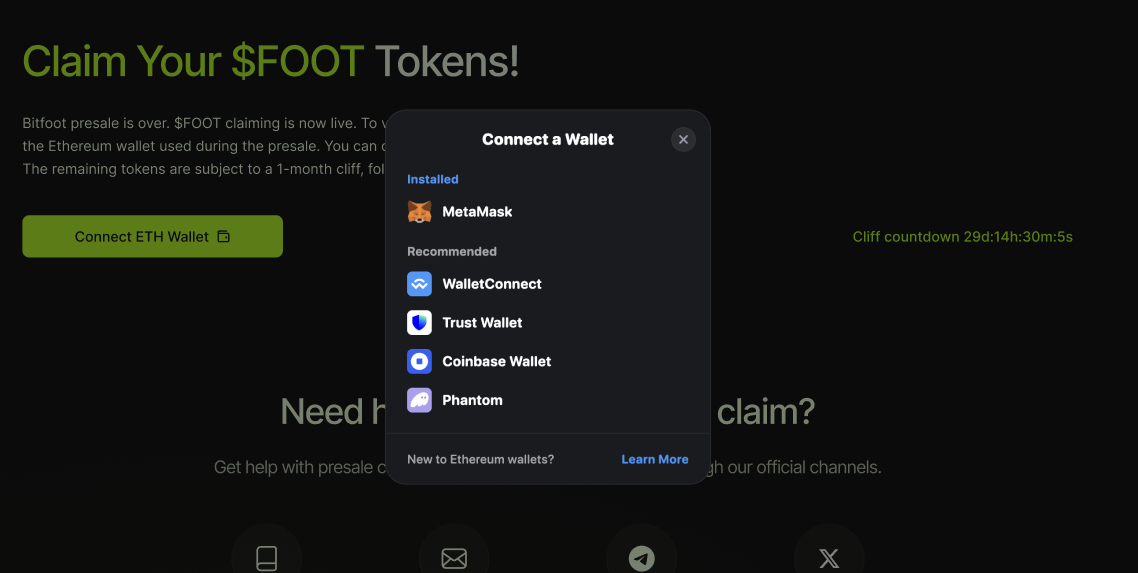
### Step 1: Connect Your Ethereum Wallet

1. Go to [**https://bitfoot.com/claim**](https://bitfoot.com/claim)
2. Connect and verify the **Ethereum wallet** you used to purchase $FOOT during the presale

<figure><img src="https://3111015691-files.gitbook.io/~/files/v0/b/gitbook-x-prod.appspot.com/o/spaces%2FlwujP2ZYsEWYqnEdNMKG%2Fuploads%2F2jzAzbgmCJ0qQpgKc0zZ%2Fimage.png?alt=media&amp;token=118c4f40-7c43-40ff-b224-70659f09221e" alt=""><figcaption></figcaption></figure>

This step verifies your presale participation and token allocation.

***

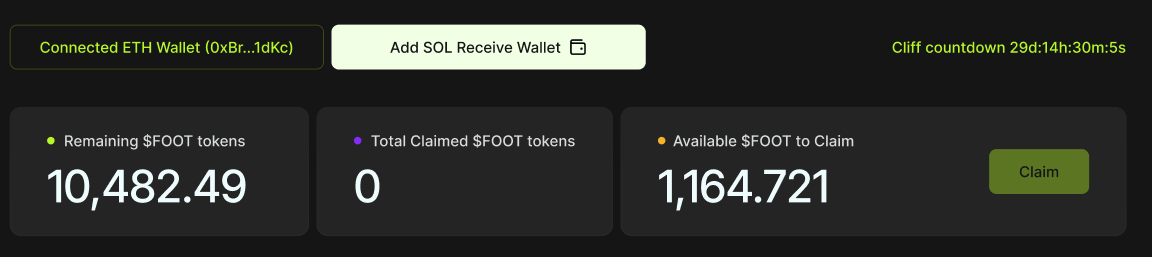
### Step 2: Review Your Allocation

After verification, you will see a dashboard displaying:

* **Total (Remaining) $FOOT allocated**
* **Already claimed tokens**
* **Currently available to claim**

<figure><img src="https://3111015691-files.gitbook.io/~/files/v0/b/gitbook-x-prod.appspot.com/o/spaces%2FlwujP2ZYsEWYqnEdNMKG%2Fuploads%2F1mDW6sUckcQ8NmUXunOS%2Fimage.png?alt=media&amp;token=29c6c46c-da29-4711-93d8-860e2adb0260" alt=""><figcaption></figcaption></figure>

{% hint style="info" %}
**All values already include:**

* Presale purchases
* Referral rewards
* Any additional allocations tied to your wallet

*Everything is calculated **on-chain** and shown per wallet.*
{% endhint %}

***

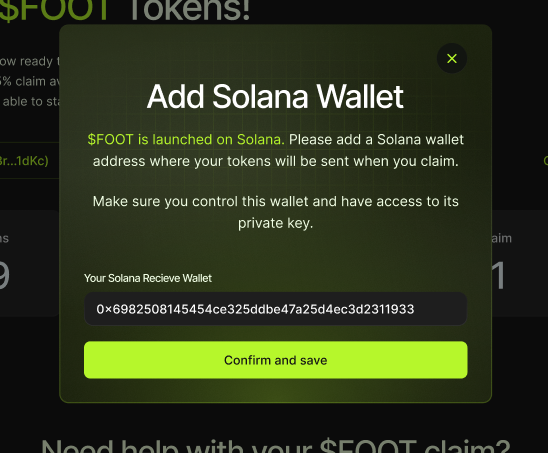
### Step 3: Add a Solana Receiving Wallet

To receive your $FOOT tokens:

1. Connect or enter a **Solana wallet address**
2. This wallet will be used as the **receiving address** for claimed tokens (can be changed anytime)

<div align="left"><figure><img src="https://3111015691-files.gitbook.io/~/files/v0/b/gitbook-x-prod.appspot.com/o/spaces%2FlwujP2ZYsEWYqnEdNMKG%2Fuploads%2F515w63kl0vinOYV7Kkh4%2Fimage.png?alt=media&amp;token=cf4b70cc-9caa-4a3b-84f7-78b2afe0c648" alt="" width="411"><figcaption></figcaption></figure></div>

Make sure you control this wallet. Once claimed, tokens are sent directly to it.

***

### Step 4: Claim Available Tokens

* Claiming follows the official **vesting and release schedule**
* Only the available amount can be claimed at any given time
* Vesting rules are defined in the [$FOOT tokenomics](/foot-token/tokenomics)

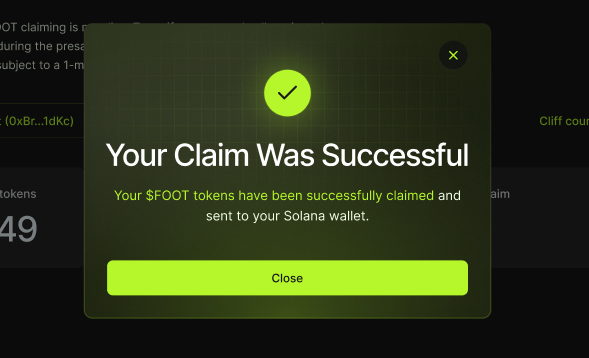
Once you confirm the claim:

* Tokens are sent on-chain to your Solana wallet
* You can hold, transfer, or trade them immediately

<div align="left"><figure><img src="https://3111015691-files.gitbook.io/~/files/v0/b/gitbook-x-prod.appspot.com/o/spaces%2FlwujP2ZYsEWYqnEdNMKG%2Fuploads%2F6DPlvj1ChDsazKVOD273%2Fimage.png?alt=media&amp;token=a538fb88-4b3d-4c22-a86d-a3bba70754a6" alt=""><figcaption></figcaption></figure></div>

***

## Vesting & Tokenomics

$FOOT claiming is governed by predefined vesting rules.

These rules determine:

* When tokens become available
* How much can be claimed at each stage

Full vesting details are documented separately in the [**$FOOT Tokenomics**](/foot-token/tokenomics) section.

***

## Referral Rewards & Allocations

All referral-related rewards are **already included** in your wallet allocation.

If you:

* Used a referral
* Earned referral bonuses
* Participated in referral programs

Your displayed balance already reflects the **final and correct amount**.

No additional action is required.

***

## Need Help With Claiming?

If you experience any issues, such as:

* Wallet not showing the correct balance
* Claim button not available
* Problems connecting wallets
* Anything that doesn’t look right

Please contact us at: [**support@bitfoot.com**](mailto:support@bitfoot.com)

Our team will help you verify your allocation and resolve any claiming issues.

***

{% hint style="info" %}

## Final Notes

*Claiming is **only available via the official*** [***Bitfoot website***](https://www.bitfoot.com/claim)

***Never** share your private keys!*

***Bitfoot will never** reach you first, be aware of scammers!*

***Always** double-check wallet addresses before claiming!*

*Thank you for being part of Bitfoot and the $FOOT community. 👣*
{% endhint %}


# Tokenomics

<figure><img src="https://3111015691-files.gitbook.io/~/files/v0/b/gitbook-x-prod.appspot.com/o/spaces%2FlwujP2ZYsEWYqnEdNMKG%2Fuploads%2F9WrF7cXgE7pkZW1Rhpdj%2FScreenshot%202024-10-24%20at%2014.26.50.png?alt=media&amp;token=29d9b92a-3e07-445a-b75c-ae099b4e4d93" alt=""><figcaption></figcaption></figure>

## $FOOT Information

| $FOOT Token Info      |                        |
| --------------------- | ---------------------- |
| Total Supply          | 100,000,000            |
| Ticker                | FOOT                   |
| Token Name            | Bitfoot                |
| Chain                 | Solana                 |
| Where To Buy          | <https://bitfoot.com/> |
| Initial Presale Price | $0.07                  |
| Final Presale Price   | $0.14                  |
| Presale Phases        | 7                      |
| TGE (Coming soon)     | 2026                   |

## $FOOT Tokenomics

<table><thead><tr><th width="158">%</th><th width="159">Round</th><th>Vesting Period</th></tr></thead><tbody><tr><td>33%</td><td>Presale</td><td>25% TGE unlock, 1 month cliff, 9 months vesting</td></tr><tr><td>5%</td><td>LP</td><td>Locked for 24 months</td></tr><tr><td>2.5%</td><td>Airdrop</td><td>TBD</td></tr><tr><td>10%</td><td>Team</td><td>Locked for 24 months, eligible for rewards</td></tr><tr><td>2.5%</td><td>Advisors</td><td>3 month cliff, 16 months vesting</td></tr><tr><td>47%</td><td>Treasury</td><td>Locked</td></tr></tbody></table>


# ToS & PP

<details>

<summary><strong>Terms of Service</strong></summary>

1. **Introduction**

Welcome to **Bitfoot** ("Company," "we," "us," or "our"). These Terms and Conditions ("Terms") govern your access to and use of our cryptocurrency trading services and related offerings (collectively, the "Services"). By accessing or using our Services, you agree to be bound by these Terms. If you do not agree with any part of these Terms, you must not access or use our Services.

2. **Eligibility and Acceptance**

By using our Services, you represent and warrant that:

* You are at least 18 years old or of legal age to form a binding contract in your jurisdiction.
* You have full legal capacity and authority to enter into these Terms.
* Your use of the Services does not violate any applicable laws, regulations, or agreements.
* You are not a resident or located in any **Restricted Jurisdiction** (as defined below).

3. **Restricted Jurisdictions**

**3.1 Prohibited Jurisdictions**

Our Services are **not intended for use** by individuals or entities in jurisdictions where cryptocurrency trading or similar financial operations are **illegal**. This includes, but is not limited to: United States of America, Algeria, Belarus, Bolivia, Cuba, Crimea Region, Democratic Republic of Congo, Iran, Iraq, Ivory Coast, Liberia, Libya, North Korea, Somalia, Sudan, Syria, Venezuela, Yemen, Zimbabwe.

**3.2 Representation and Warranties**

By accessing or using our Services, you confirm that:

* You are not a resident of any Restricted Jurisdiction.
* You are not subject to any sanctions or restrictions imposed by the **European Union, United Nations**, or any applicable governmental authority.
* You will not use VPNs or other means to bypass these restrictions.

4. **Account Registration**

4.1 **Account Creation** To access certain features of the Services, you may need to create an account ("Account"). You agree to:

* Provide accurate, current, and complete information during registration.
* Keep your account details updated.
* Secure your login credentials.
* Accept responsibility for all activities occurring under your Account.

4.2 **Security Responsibilities** You are solely responsible for safeguarding your credentials, including passwords, private keys, or authentication methods. **Bitfoot is not liable** for any loss or damage resulting from your failure to protect your credentials.

4.3 **Unauthorized Access** If you suspect unauthorized access, notify us immediately at **<support@bitfoot.com>**.

5. **Use of the Services**

5.1 **Third-Party Services** Bitfoot interacts with **third-party cryptocurrency exchanges** and protocols ("Third-Party Services"). You acknowledge that:

* Bitfoot does not **control or operate** any Third-Party Services.
* All transactions are executed **directly through third parties**, not Bitfoot.
* Bitfoot is **not responsible** for losses or issues caused by Third-Party Services.

5.2 **Transaction Risks**

* Transactions executed via Third-Party Services are **irreversible**.
* Bitfoot does **not guarantee** the identity of any counterparty in a transaction.
* You are solely responsible for verifying the accuracy and legality of your trades.

6. **Fees and Payments**

6.1 **Service Fees** We may charge fees for certain transactions or services ("Service Fees"). Any applicable fees will be disclosed **before** you confirm a transaction.

6.2 **Third-Party Fees** Third-Party Services may charge **network fees (gas fees)** or other charges. You are responsible for covering these costs.

6.3 **Fee Changes** We reserve the right to modify our fee structure at any time. If fees change, we will make reasonable efforts to notify you.

7. **Intellectual Property Rights**

7.1 **Ownership** All content, trademarks, and software related to Bitfoot are the property of **Bitfoot** or its licensors and are **protected by intellectual property laws**.

7.2 **License Grant** We provide you a **limited, non-exclusive, non-transferable** license to use Bitfoot **for personal use only**.

7.3 **Restrictions** You agree **not** to:

* Modify, reproduce, or distribute our Services without permission.
* Reverse-engineer or attempt to extract source code.

8. **Privacy Policy**

Your use of the Services is subject to our **Privacy Policy**. By using the Services, you consent to the data practices described therein.

9. **Prohibited Uses**

You agree **not** to use Bitfoot for:

* Fraudulent or deceptive activities.
* **Market manipulation** or **money laundering**.
* Any illegal or unauthorized purpose.

10. **Risks & Disclaimers**

10.1 **No Security Guarantee** We do not **guarantee absolute security** of your assets or data. Cryptocurrency trading **carries inherent risks**, including hacking threats.

10.2 **No Investment Advice** Bitfoot does **not provide financial, investment, or legal advice**. You should consult professionals before making investment decisions.

10.3 **Trading Risks**

* Crypto markets are **highly volatile**.
* You assume full responsibility for your trades and potential **losses**.

11. **Taxes**

You are **responsible for reporting and paying any applicable taxes** related to your cryptocurrency transactions. Bitfoot does not provide tax advice.

12. **Limitation of Liability**

12.1 **No Liability for Losses** To the maximum extent permitted by law, Bitfoot is **not liable** for:

* Losses from failed transactions.
* Unauthorized access to your account.
* Any damages arising from Third-Party Services.

12.2 **Liability Cap** Bitfoot’s total liability **shall not exceed** the amount you have paid to us in the 12 months preceding any claim.

13. **Indemnification**

You agree to indemnify and hold harmless **Bitfoot** and its affiliates from any claims, liabilities, or expenses arising from:

* Your use of the Services.
* Your violation of these Terms.
* Your infringement of third-party rights.

14. **Termination & Changes**

14.1 **Termination Rights** We may **suspend or terminate** your access at any time if you violate these Terms.

14.2 **Modifications to Terms** We may update these Terms from time to time. Changes will take effect upon posting. Continued use of the Services after updates constitutes acceptance.

15. **Governing Law & Dispute Resolution**

These Terms shall be governed by and construed in accordance with applicable laws without regard to conflict of law principles.

16. **Class Action Waiver**

You agree to resolve disputes **individually** and waive any right to participate in class-action lawsuits.

17. **Contact Information**

For any questions about these Terms, contact us at: **Email:** <support@bitfoot.com>

</details>

<details>

<summary><strong>Privacy Policy</strong></summary>

1. **Introduction**

**Bitfoot** ("Company," "we," "us," or "our") respects your privacy and is committed to protecting your personal data. This Privacy Policy ("Policy") explains how we collect, use, disclose, and safeguard your information when you use our cryptocurrency trading services (collectively, the "Services"). It also informs you about your privacy rights and how the law protects you. This Policy is part of our Terms and Conditions, and by accessing or using our Services, you agree to both this Policy and the Terms and Conditions. If you do not agree with the terms of this Policy, please do not use our Services.

2. **Data Controller Contact Information**

For the purposes of the General Data Protection Regulation ("GDPR") and other applicable data protection laws, the data controller is:

* **Bitfoot**
* **Email:** <support@bitfoot.com>

3. **Scope of This Policy**

This Policy applies to information we collect:

* Through our Services.
* In email, text, and other electronic communications between you and the Services.
* When you interact with our advertising and applications on third-party websites and services.

This Policy does not apply to information collected by:

* Us offline or through any other means not specified above.
* Any third party, including through any application or content that may link to or be accessible from the Services.

4. **Children Under the Age of 16**

Our Services are not intended for children under 16 years of age. We do not knowingly collect personal data from children under 16. If you are under 16, do not use or provide any information on our Services. If we learn we have collected or received personal data from a child under 16 without verification of parental consent, we will delete that information. If you believe we might have any information from or about a child under 16, please contact us at **<support@bitfoot.com>**.

5. **Information We Collect About You**

5.1 **Personal Data**

We may collect, use, store, and transfer different kinds of personal data about you, including:

* **Identity Data:** Username, real name, or other identifiers.
* **Contact Data:** Email address, telephone numbers.
* **Technical Data:** IP address, login data, browser type and version, time zone setting, browser plug-in types, operating system, and platform.
* **Usage Data:** Information about how you use our Services.
* **Transaction Data:** Details of cryptocurrency transactions you carry out through the Services.
* **Wallet Information:** Cryptocurrency wallet addresses, transaction history.

5.2 **Aggregated Data**

We also collect, use, and share Aggregated Data such as statistical or demographic data. Aggregated Data may be derived from your personal data but is not considered personal data under the law as it does not directly or indirectly reveal your identity.

5.3 **Special Categories of Personal Data**

We do not collect any Special Categories of Personal Data about you (e.g., details about your race, religion, sexual orientation, health, or biometric data).

6. **How We Collect Your Personal Data**

6.1 **Direct Interactions**

You may give us your Identity and Contact Data by:

* Filling in forms on our Services.
* Corresponding with us by email or otherwise.
* Registering for an account (if applicable).
* Participating in surveys or promotions.

6.2 **Automated Technologies**

As you interact with our Services, we may automatically collect Technical Data and Usage Data about your equipment, browsing actions, and patterns. We collect this personal data by using cookies, server logs, and other similar technologies.

6.3 **Third Parties or Public Sources**

We may receive personal data about you from various third parties:

* Technical Data from analytics providers.
* Contact and Transaction Data from providers of technical, payment, and delivery services.
* Identity and Contact Data from publicly available sources.

7. **Cookies and Similar Technologies**

We use cookies to distinguish you from other users of our Services and to improve your experience. You can set your browser to refuse all or some browser cookies or to alert you when websites set or access cookies.

8. **How We Use Your Personal Data**

We use your personal data for the following purposes:

* **To Provide Services:** Facilitate your use of the Services, including processing transactions and providing customer support.
* **Account Management:** Manage your account, including verifying your identity and maintaining your profile.
* **Improve Services:** Analyze how you use our Services to improve functionality and user experience.
* **Marketing:** Provide you with information about goods and services that may interest you.
* **Legal Obligations:** Comply with legal and regulatory obligations, such as anti-money laundering and fraud prevention.
* **Security:** Ensure the security of our Services and prevent fraudulent activities.

9. **Disclosure of Your Personal Data**

We may share your personal data with:

* **Service Providers:** Third parties who provide services on our behalf, such as payment processing, data analysis, and marketing assistance.
* **Affiliates:** Our subsidiaries and affiliates for business purposes.
* **Legal and Regulatory Authorities:** When required by law or necessary to comply with legal processes.
* **Business Transfers:** In connection with a merger, sale, or reorganization of all or part of our business.

10. **International Data Transfers**

Your personal data may be transferred to and processed in countries outside the European Economic Area ("EEA"). We ensure that appropriate safeguards are in place to protect your personal data in accordance with this Policy and applicable laws.

11. **Data Security**

We have implemented appropriate security measures to prevent your personal data from being accidentally lost, used, or accessed in an unauthorized way. These measures include encryption and access controls. However, no security measures are entirely secure.

12. **Data Retention**

We will only retain your personal data for as long as necessary to fulfill the purposes we collected it for, including satisfying any legal, accounting, or reporting requirements.

13. **Your Legal Rights**

Under certain circumstances, you have rights under data protection laws in relation to your personal data, including:

* **Access:** Request access to your personal data.
* **Correction:** Request correction of inaccurate or incomplete personal data.
* **Erasure:** Request deletion of your personal data.
* **Restriction:** Request restriction of processing your personal data.
* **Objection:** Object to processing of your personal data.
* **Data Portability:** Request transfer of your personal data to you or a third party.
* **Withdraw Consent:** Withdraw consent where we are relying on consent to process your personal data.

14. **Changes to This Privacy Policy**

We may update this Policy from time to time. We will notify you of any significant changes by posting the new Policy on this page. Your continued use of the Services after any changes indicates your acceptance of the updated Policy.

15. **Contact Information**

If you have any questions or concerns about this Policy or our privacy practices, please contact us:

* **Email:** <support@bitfoot.com>

</details>


# Contact Support

If you need assistance or have questions about using Bitfoot, our support team is here to help.

### **Email Support**

You can reach us at [**support@bitfoot.com**](mailto:support@bitfoot.com) for any inquiries or troubleshooting needs. Our team will respond as promptly as possible.

### **Official Telegram Channel**

The only official Telegram channel at the moment is [**@bitfootupdates**](https://t.me/bitfootupdates). Follow this channel for the most important updates and announcements.

***

{% hint style="warning" %}

## Security Reminder

*The Bitfoot team will **never contact you first directly**. If someone claiming to be from Bitfoot messages you directly, it is likely a scam.*
{% endhint %}


# Media Kit

<figure><img src="https://3111015691-files.gitbook.io/~/files/v0/b/gitbook-x-prod.appspot.com/o/spaces%2FlwujP2ZYsEWYqnEdNMKG%2Fuploads%2FmSi0JCu3V5MCsoJDx2BE%2FGroup%202607356.png?alt=media&amp;token=4c4855c6-766e-472f-987f-e83af2a44406" alt=""><figcaption></figcaption></figure>

### [🔗](https://emojipedia.org/link) [**MEDIA KIT AND MARKETING MATERIALS**](https://drive.google.com/drive/folders/1XYlOTzpb2ValDpgJhMXvBfeTkwRxJUTR?usp=drive_link)

Here you will find everything from logos, fonts, banner ads to plain images.


# Error Messages

In this section, you’ll find explanations for common error messages you might encounter while using Bitfoot, along with guidance on what they mean and how to resolve them.

<figure><img src="https://3111015691-files.gitbook.io/~/files/v0/b/gitbook-x-prod.appspot.com/o/spaces%2FlwujP2ZYsEWYqnEdNMKG%2Fuploads%2FLlEhpM4qjAoHGknmXZMp%2FGroup%202607368.png?alt=media&amp;token=4c336f7e-285f-481b-9e91-802a26a68c14" alt=""><figcaption></figcaption></figure>

## **Error Messages and Solutions**

***

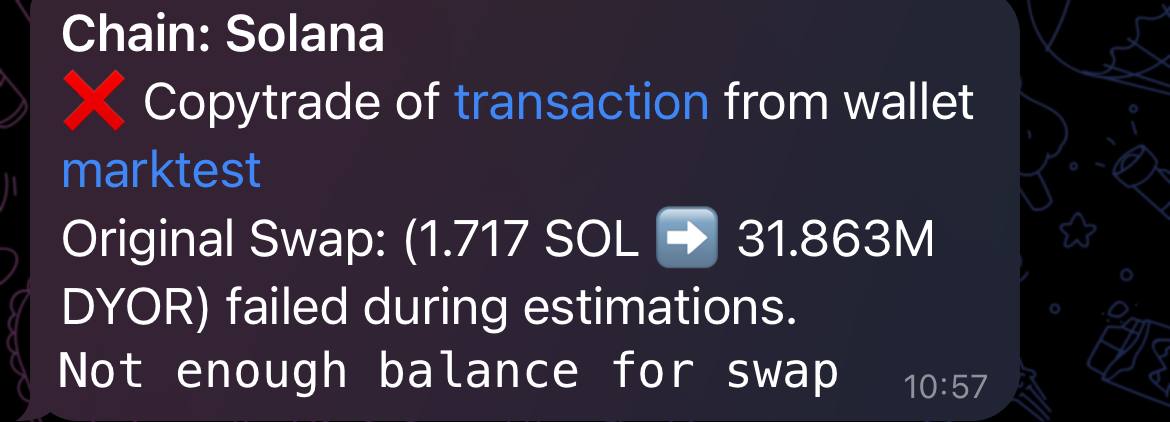
### **1. "**❌ **Not enough balance for swap"**

<figure><img src="https://3111015691-files.gitbook.io/~/files/v0/b/gitbook-x-prod.appspot.com/o/spaces%2FlwujP2ZYsEWYqnEdNMKG%2Fuploads%2FyOYes5ZHlAJHP2vMcsP7%2Fphoto_2024-11-13%2012.10.25.jpeg?alt=media&amp;token=8701daee-c91d-4ab8-9a51-5ea9a8ae469b" alt=""><figcaption></figcaption></figure>

* **Description**: This error occurs when there aren’t enough funds in your wallet to complete the swap.
* **Solution**: Check your wallet balance to ensure you have enough SOL (or ETH depending on network you trade on) to cover both the swap amount and any associated fees. Add more funds if needed, or lower the swap amount.

***

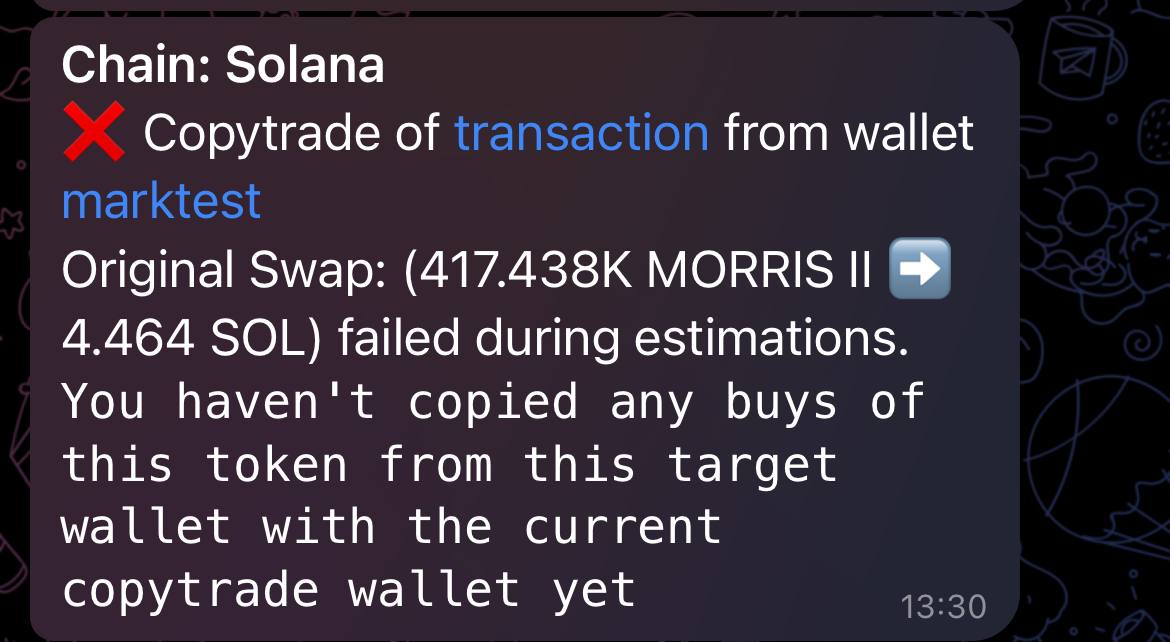
### **2. "**❌ **You haven't copied any buys of this token from this target wallet with the current copytrade wallet yet"**

<figure><img src="https://3111015691-files.gitbook.io/~/files/v0/b/gitbook-x-prod.appspot.com/o/spaces%2FlwujP2ZYsEWYqnEdNMKG%2Fuploads%2FJt0sqrAYK04uI7OF9Xw6%2Fphoto_2024-11-13%2012.10.29.jpeg?alt=media&amp;token=2d211600-e6d2-4ecb-b3a4-1aae96d204d3" alt=""><figcaption></figcaption></figure>

* **Description**: This message appears when the bot tries to sell a token that wasn’t bought through copy trading with the specified target wallet.
* **Solution**: This error is usually due to a missing initial buy transaction. To resolve this, ensure you have correctly set up the copy trading settings to follow all buys and sells from the target wallet. If you missed the initial buy, you can ignore this message.

***

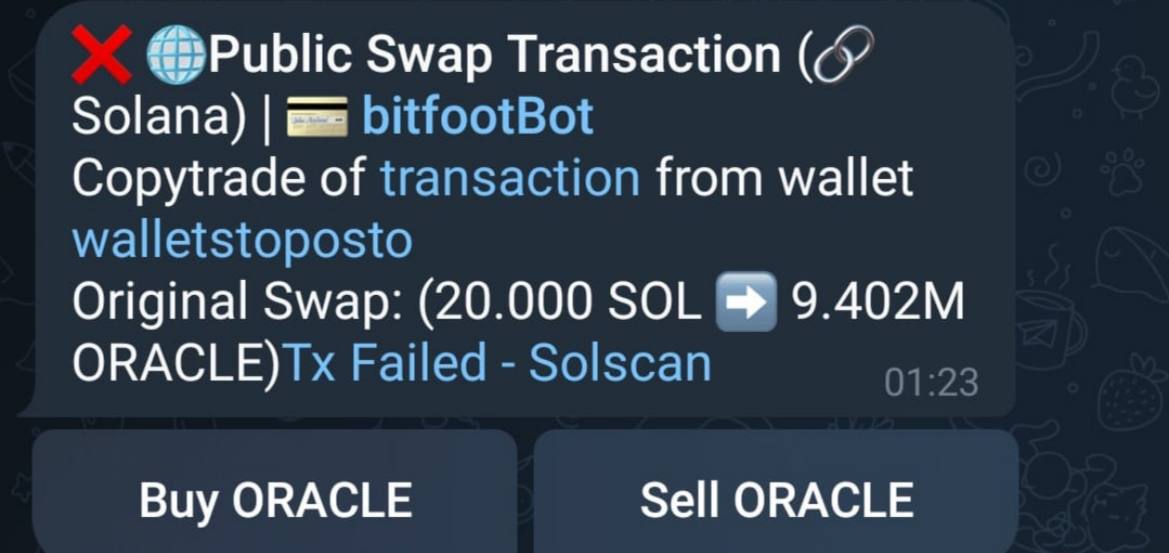
### **3. "**❌ **Tx Failed - Solscan"**

<figure><img src="https://3111015691-files.gitbook.io/~/files/v0/b/gitbook-x-prod.appspot.com/o/spaces%2FlwujP2ZYsEWYqnEdNMKG%2Fuploads%2FnLBBMlV4Q9waQJPvIZsm%2Fphoto_2024-11-13%2012.10.33.jpeg?alt=media&amp;token=914c6070-725e-475d-a931-a661e2c71328" alt=""><figcaption></figcaption></figure>

* **Description**: This generic error message indicates that the transaction failed. Clicking the Solscan link provides more details.
* **Solution**: Visit the linked Solscan transaction to review specific reasons for the failure. Common causes include **network congestion**, **insufficient network fees**, or **low liquidity** for the token. You need to check wallet balance to make sure you have enough funds and you may need to increase your priority/tip fee and slippage.

***

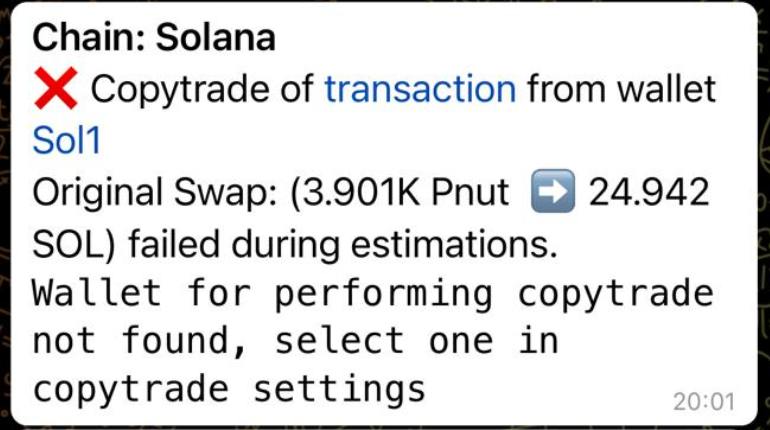
### **4. "**❌ **Wallet for performing copytrade not found, select one in copytrade settings"**

<figure><img src="https://3111015691-files.gitbook.io/~/files/v0/b/gitbook-x-prod.appspot.com/o/spaces%2FlwujP2ZYsEWYqnEdNMKG%2Fuploads%2FpvubktMfdo43KUlfMZHK%2Fphoto_2024-11-13%2013.36.23.jpeg?alt=media&amp;token=7ec7498b-53ef-466b-989a-beeaef760750" alt=""><figcaption></figcaption></figure>

* **Description**: This error appears when no wallet has been selected for executing copy trades in the Bitfoot settings. Without an assigned wallet, the bot cannot complete the copy trade.
* **Solution**:
  * Go to [**Copytrade Settings**](/bitfoot-bot/solana-trading/copy-trading) in the Bitfoot bot.
  * Ensure that you have selected a wallet to use for copy trading. If you haven't added a wallet yet, add one and then select it as your copy trading wallet.
  * Once a wallet is assigned, the bot will be able to perform copy trades successfully.

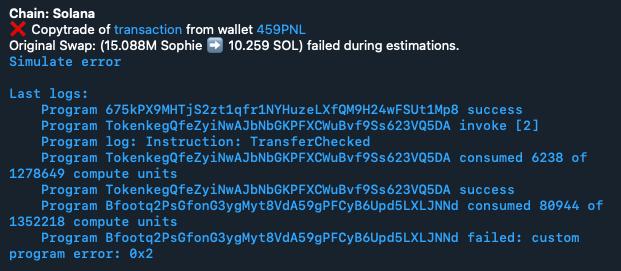
### **5. "**❌ **Failed during estimations"**

<figure><img src="https://3111015691-files.gitbook.io/~/files/v0/b/gitbook-x-prod.appspot.com/o/spaces%2FlwujP2ZYsEWYqnEdNMKG%2Fuploads%2F4GWT9py9DKN5og0AeKCD%2FWhatsApp%20Image%202024-11-12%20at%2012.44.28.jpeg?alt=media&amp;token=c12cd643-b050-4ee9-a2d1-a3a49f54fd83" alt=""><figcaption></figcaption></figure>

* **Description**: This error typically occurs when the transaction fails during the initial estimation phase, often due to low funds on your wallet.
* **Solution:** Check that you have sufficient funds in your wallet for transactions, network fees, and priority/tip fees.

***

### **6. "**❌ **Unexpected number of instructions"**

<figure><img src="https://3111015691-files.gitbook.io/~/files/v0/b/gitbook-x-prod.appspot.com/o/spaces%2FlwujP2ZYsEWYqnEdNMKG%2Fuploads%2FkILGRJTwGTb0VU4WqBYx%2FWhatsApp%20Image%202024-11-12%20at%2018.17.53.jpeg?alt=media&amp;token=d47f617a-1d1f-429f-bb3a-f55bcb39c5c3" alt=""><figcaption></figcaption></figure>

* **Description**: This error typically occurs when the transaction fails during the initial estimation phase, often due to low funds on your wallet.
* **Solution:** Check that you have sufficient funds in your wallet for transactions, network fees, and priority/tip fees.

***

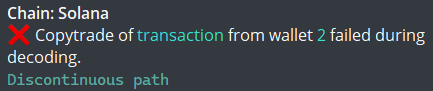
### **7. "**❌ **Discontinuous path"**

<figure><img src="https://3111015691-files.gitbook.io/~/files/v0/b/gitbook-x-prod.appspot.com/o/spaces%2FlwujP2ZYsEWYqnEdNMKG%2Fuploads%2FKD0xodTZEkOCCrZirtiR%2Fimage.png?alt=media&amp;token=e6e54057-22e1-4ef2-805f-3a23bbdafb49" alt=""><figcaption></figcaption></figure>

* **Description**: The "Discontinuous Path Error" occurs when a transaction includes multiple independent swap paths instead of a single continuous swap sequence. The bot currently only supports uninterrupted swap flows.&#x20;
* A valid transaction must follow a continuous swap path, such as:
  * **Token1 -> Token2 -> Token3**.&#x20;
* The error occurs when: Multiple independent swap paths exist in a single transaction.&#x20;
  * **Token1 -> Token2 & Token3 -> Token4**.
    * More than one wallet executes swaps within the same transaction, which is not supported<br>
* **Solution:** This is a known limitation in the current copy-trade algorithm. The development team is working on an update to handle these cases. Until then:

  * Ensure copy-trading transactions maintain a single, continuous swap path.
  * Avoid executing swaps from multiple wallets in the same transaction.
  * Copying trades from another wallet should not cause this issue, as long as each transaction follows a continuous swap path.

  Future updates will improve trade execution to support more complex swap scenarios.

***

### **Additional Tips**

* **Insufficient SOL for Fees**: Many of these errors can be avoided by ensuring your wallet has sufficient SOL to cover transaction fees.
* **Use Moderate Slippage**: High slippage can sometimes cause transactions to fail or result in unexpected prices. Adjust your slippage tolerance carefully based on the token’s volatility.
* **Network Congestion**: If errors continue, the Solana network may be experiencing high traffic. Try your transaction again later.

***

By following these solutions, you can resolve most common errors and keep your copy trading running smoothly on Bitfoot. If you encounter persistent issues, feel free to reach out to our support team.


# About Alpha Pings

<figure><img src="https://3111015691-files.gitbook.io/~/files/v0/b/gitbook-x-prod.appspot.com/o/spaces%2FlwujP2ZYsEWYqnEdNMKG%2Fuploads%2FJalmzaVLuuMpBRUGE1Sz%2FPINGS.png?alt=media&amp;token=d64591de-0e9a-4c6c-acc6-b46e0a140403" alt=""><figcaption></figcaption></figure>

## **What is Bitfoot Alpha Pings?**

Bitfoot Alpha Pings is the **ultimate trading intelligence tool** for spotting **high-potential Solana and BSC tokens before the market reacts**. Using **premium custom-built filters**, it scans the blockchain in real time and automatically pings only **the most promising tokens** into a **public Telegram group**.

This eliminates the need for manual market research—users get **instant alerts** on tokens that meet **strict performance criteria**, allowing them to react faster than ever.

{% hint style="info" %}
💡 *Note: Bitfoot Alpha Pings filters potential breakout projects using premium algorithms and volume analysis, helping you identify winners early before they gain traction. Use this tool as a premium filter to navigate through the thousands of projects launching daily. However, not every token will be successful—always do your own research (DYOR) before making any investment decisions.*
{% endhint %}

**Join for free:** [Bitfoot Alpha Pings SOL](https://t.me/bitfootpings)

**Join for free:** [Bitfoot Alpha Pings BSC](https://t.me/bitfootbscpings)

## **How It Works**

Bitfoot Alpha Pings gives traders an unmatched edge by continuously monitoring Solana and BSC blockchains and identifying breakout tokens before they pump. Instead of manually searching for opportunities, users receive real-time alerts based on **advanced premium filters**, ensuring that only **high-quality tokens** get pinged.

The system analyzes key factors like **volume, liquidity, age, and buy activity**, filtering out noise and delivering **high-impact trades** directly to your feed. Once a token is pinged, you can **instantly buy it via the Bitfoot Trading Bot**, ensuring you **execute faster than the competition**.

For a **detailed breakdown** of how to use Bitfoot Alpha Pings effectively, see the [**How to Use**](/alpha-pings/how-to-use).

#### **Key Features:**

* **Instant Token Alerts** – Real-time pings on **top-performing tokens** before they gain traction.
* **AI Driven Premium Filters** – Advanced on-chain analysis ensures **only the best opportunities** make the cut.
* **Real-Time Multiplier Tracking** – Monitor how much previously pinged tokens have multiplied in value.
* **Seamless Bitfoot Trading Bot Integration** – **One-click trading** straight from the alert.
* **Essential Trading Data** – Every ping includes key metrics like **trading volume, token age, and growth potential**.

## **Why Join Bitfoot Alpha Pings?**

* **Trade Before the Masses** – Get early access to **high-growth tokens** before they explode.
* **The Fastest Trading Execution** – Instant **one-click trading** via **Bitfoot Trading Bot**.
* **Save Hours of Market Scanning** – No more searching—our filters **deliver only the best**.
* **Data-Driven Trading Decisions** – Each ping includes **key token metrics** to maximize your edge.

### **How to Join?**

Joining **Bitfoot Alpha Pings** is completely free and takes one click:

👉 [**Join Bitfoot Alpha Pings**](https://t.me/bitfootpings)

* Open for all – No restrictions, just click and join.
* Automatic Access – If you have Telegram, the group opens instantly.
* Always Stay Updated – The latest pings appear at the bottom of the chat.


# How To Use

This guide covers how to use Bitfoot Alpha Pings, apply your own filters, and trade efficiently with the Bitfoot Trading Bot.

{% embed url="<https://www.youtube.com/watch?t=5s&v=d5BWW90MxQE>" %}

## **Getting Started!**

{% stepper %}
{% step %}

## Join the group

* Click this link: [**Join Bitfoot Alpha Pings**](https://t.me/bitfootpings)
* If you have Telegram installed, the group will open automatically.
* Tap **"Join Group"** to get instant access to all pings.
  {% endstep %}

{% step %}

## Inside the Group

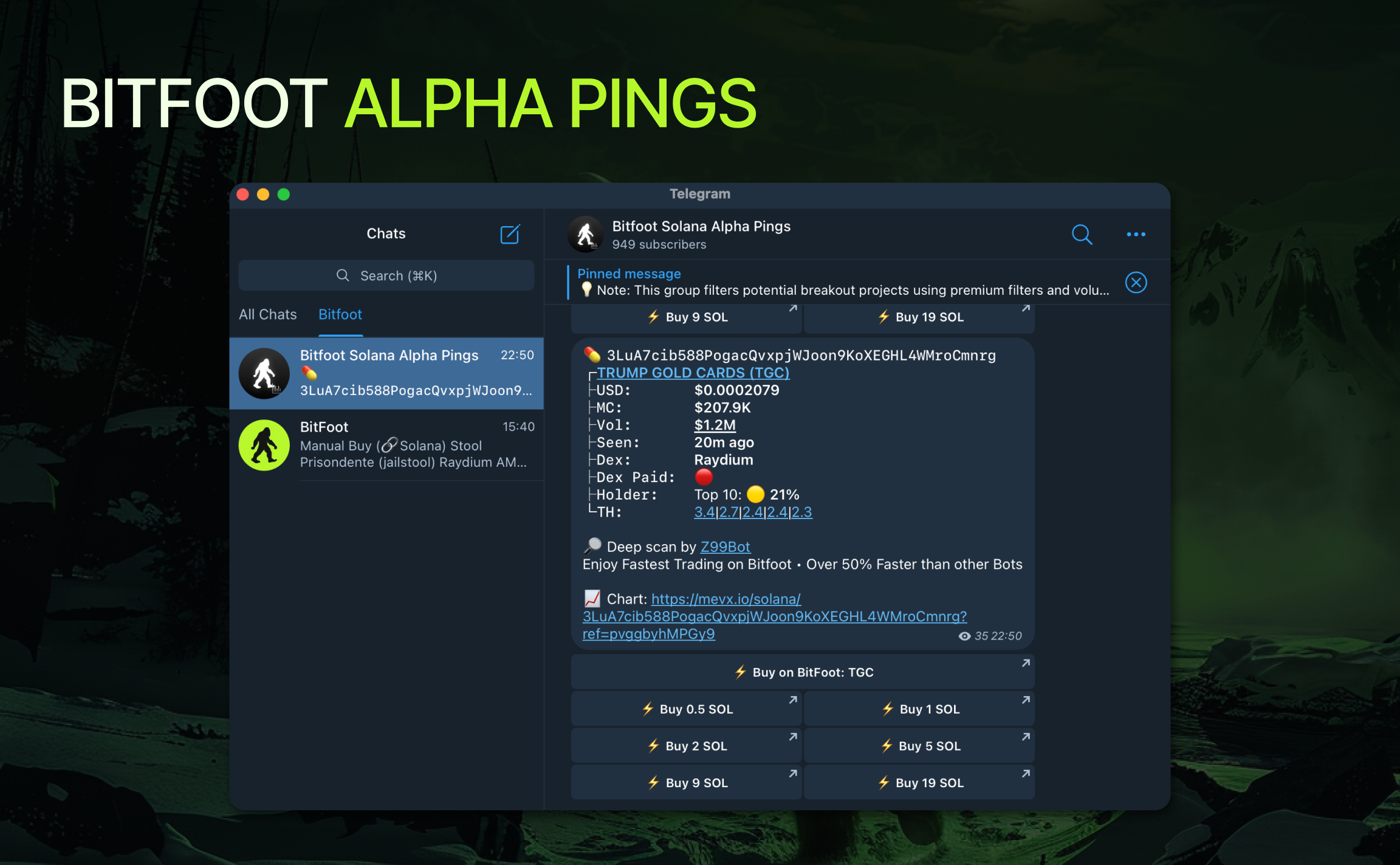
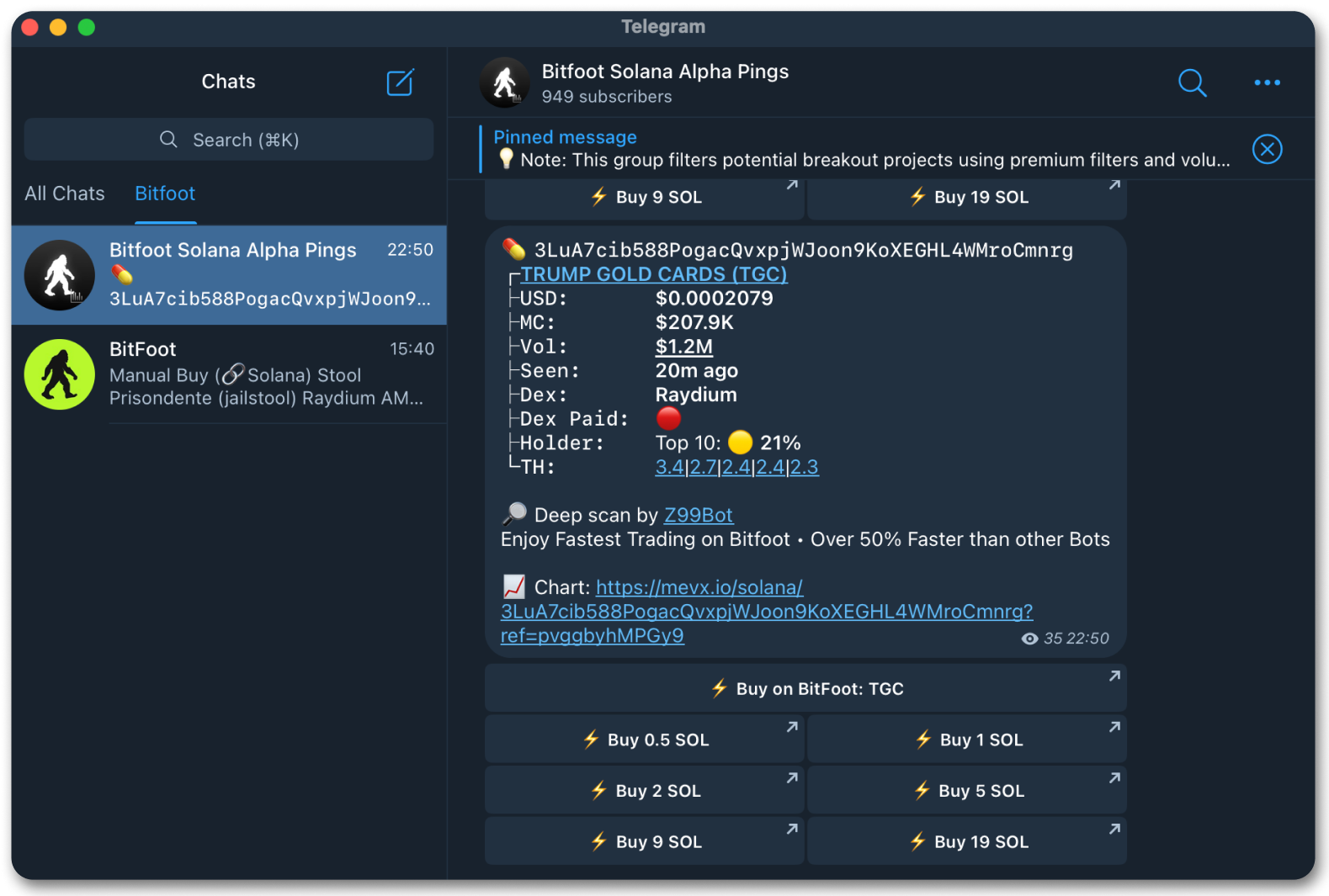
Once you join **Bitfoot Alpha Pings**, you'll see a **Telegram chat** where all real-time alerts (pings) are posted. Here’s what you’ll find inside:

* **Live Pings** – Every new token alert appears at the **bottom of the chat** in real time.
* **Multipliers Tracking** – The group also tracks **how much previously pinged tokens have multiplied in value**, giving you insights into their performance.
* **Full History Access** – The chat is **not deleted**, so you can scroll up and **review past pings** to analyze trends.
* **Organized Feed** – Only **high-potential token alerts** are posted, keeping the group clean and easy to navigate.

<figure><img src="https://3111015691-files.gitbook.io/~/files/v0/b/gitbook-x-prod.appspot.com/o/spaces%2FlwujP2ZYsEWYqnEdNMKG%2Fuploads%2F9rduSNbV8e6MTfQW6zwJ%2FFrame%2026081071.png?alt=media&amp;token=979ae43c-6531-4972-8f31-ffe13e6bb0cc" alt=""><figcaption></figcaption></figure>
{% endstep %}

{% step %}

## Understanding a Ping

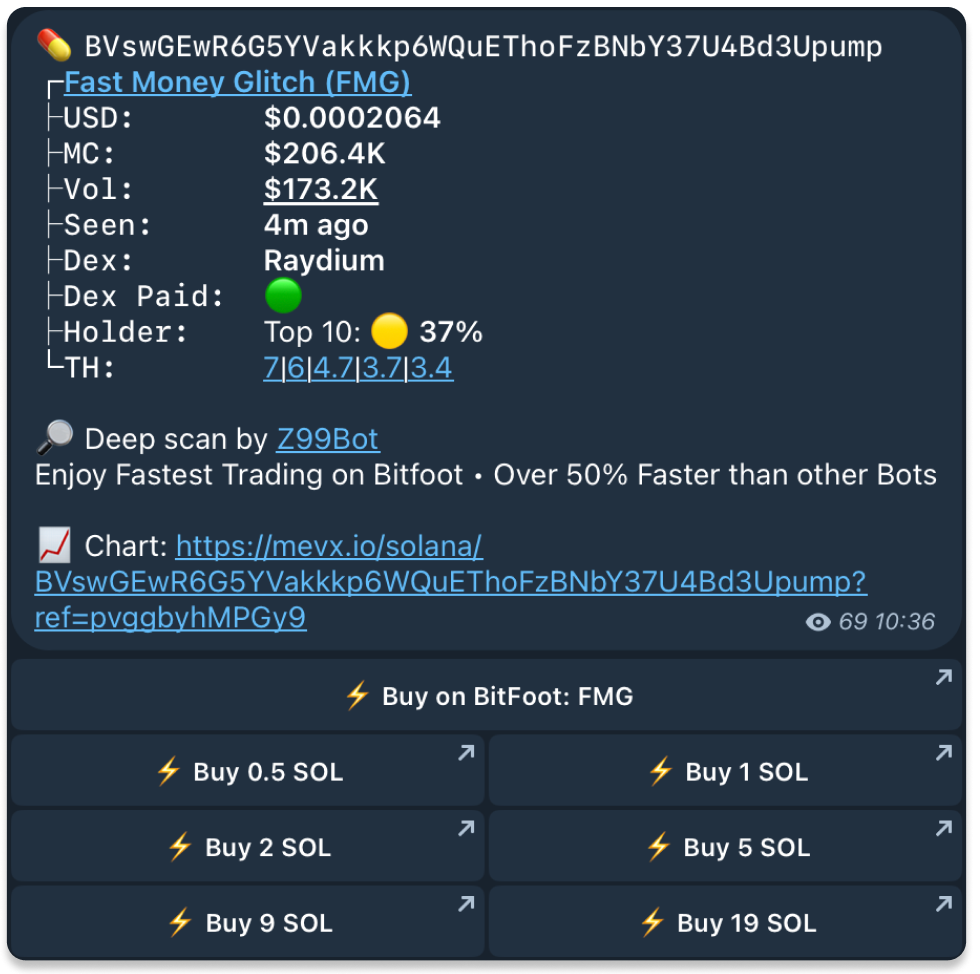
Each ping in **Bitfoot Alpha Pings** provides key data about a detected Solana token. Let’s break down each element of the ping message and what it means.

*💡 Note: Bitfoot Alpha Pings filters potential breakout projects using premium algorithms and volume analysis, helping you identify winners early before they gain traction. However, not every ping is an automatic buy signal—users must learn to apply their own filters and assess each opportunity based on their strategy.*

This tool is designed to **narrow down the thousands of tokens launching daily**, but **final decision-making is up to the trader**. To help with this, we’ve included **tips on effective filtering strategies at the end of this guide**.

<figure><img src="https://3111015691-files.gitbook.io/~/files/v0/b/gitbook-x-prod.appspot.com/o/spaces%2FlwujP2ZYsEWYqnEdNMKG%2Fuploads%2F6r0tXoATIjoVubKB9JlY%2Fframe2.png?alt=media&amp;token=480d47bd-e9cc-477d-959f-df8f46b853e4" alt=""><figcaption><p>Example of a token alert in <strong>Bitfoot Alpha Pings</strong>.</p></figcaption></figure>

### **Token Address & Name**

The first line displays the **unique contract address** of the token, which is essential for verifying its legitimacy. Clicking on the address **automatically copies it to your clipboard**, allowing you to quickly paste it into **Bitfoot Trading Bot** or any other tool for further analysis.

Below the address, the **token name and ticker** (Fast Money Glitch – FMG) help traders quickly identify the asset.

### **Price Information**

* **USD** – The current token price in US dollars.
* **Market Cap (MC)** – The total market capitalization of the token, indicating its overall valuation.
* **Volume (Vol)** – The amount of capital currently flowing into the token, showing how actively it is being traded.

### **Listing Time & Ping Timestamp**

* **Seen** – Indicates when the token was first listed on the blockchain, helping traders understand how new the token is.
* Ping Timestamp – The time at the bottom right corner of the message shows when the alert was sent to the group.

### **Exchange & Liquidity**

* **Dex** – The decentralized exchange (DEX) where the token is actively traded.
* **Dex Paid** – Indicates whether the project has **paid for promotional placement** on the DEX.
  * 🟢 **Green** – The token has **paid promotion**, meaning the team is actively marketing it.
  * 🔴 **Red** – No paid promotion, meaning the token is growing organically.

### **Holder & Distribution Data**

* **Top 10 Holders** – Displays the percentage of the total supply held by the top 10 wallets, which can indicate potential risks:
  * 🟢 **Green (0-19%)** – Low concentration, generally safer distribution.
  * 🟡 **Yellow (20-79%)** – Risky zone, whales hold a significant portion.
  * 🔴 **Red (80%+)** – High risk of a rug pull, extreme centralization.

### **TH - Top Holders**

* **TH** stands for **Top Holders** and displays the percentage of the token supply held by the top wallets. When available, it includes a **clickable link to view these wallet addresses on Solscan**, allowing you to track their activity and gain deeper insights into token distribution.

### **Analysis Tools**

* **Chart Link** – Provides a **direct link to the real-time price chart**, helping users quickly analyze price trends and market activity before making a decision.

{% endstep %}

{% step %}

## **One-Click Trading with Bitfoot Bot**

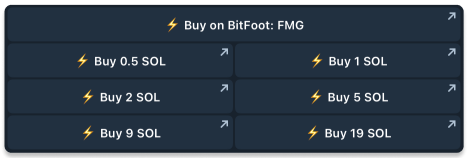
<figure><img src="https://3111015691-files.gitbook.io/~/files/v0/b/gitbook-x-prod.appspot.com/o/spaces%2FlwujP2ZYsEWYqnEdNMKG%2Fuploads%2FJ1v3YvdtXhk9gavkJvR6%2Fframe3.png?alt=media&amp;token=b5545da0-4a08-4280-ab73-b7616ec0ae9b" alt=""><figcaption><p>Example of fast buy buttons integrated with <strong>Bitfoot Trading Bot</strong>.</p></figcaption></figure>

* Bitfoot Alpha Pings seamlessly integrates with **Bitfoot Trading Bot**, allowing users to execute trades instantly in two ways:

**⚡Buy on Bitfoot: \[COIN]**

* Clicking **"Buy on Bitfoot"** opens the **Bitfoot Trading Bot** and directs users to the **TX Monitor**, the same interface they are used to in the bot. From there, users can manually adjust their **buy settings** based on their preferences before confirming the transaction.

#### **⚡ Fast Buy Buttons**

* Pre-set buy buttons allow users to **instantly purchase the token** through Bitfoot Trading Bot **without opening the TX Monitor**. The transaction is executed immediately based on the **predefined SOL amounts** (e.g., 0.5 SOL, 1 SOL, 2 SOL, etc.), ensuring **the fastest possible entry**.
* These buttons use **fixed preset amounts that cannot be changed**. If users want to customize their buy settings, they can do so directly in the **Bitfoot Trading Bot**.
* More details on custom presets can be found below in Other Tips.

This system provides both **flexibility for custom trades** and **speed for quick execution**, giving traders an edge in the market.

{% endstep %}

{% step %}

## Understanding Multipliers

<figure><img src="https://3111015691-files.gitbook.io/~/files/v0/b/gitbook-x-prod.appspot.com/o/spaces%2FlwujP2ZYsEWYqnEdNMKG%2Fuploads%2Fajmi4gU3zrx7pHas54Vh%2Fframe4.png?alt=media&amp;token=50d86580-782e-40a6-9a93-37b3585b63ce" alt=""><figcaption><p>Example of a multiplier alert in <strong>Bitfoot Alpha Pings</strong>.</p></figcaption></figure>

Multipliers in **Bitfoot Alpha Pings** track how much a previously pinged token has increased in value over time. This helps users evaluate the **historical performance** of past alerts and identify trends in the market.

**How to Read a Multiplier Alert**

* **342.5x** → The token has multiplied **342.5 times** since the ping was posted in the group.
* **323.3K to 110.8M** → The market cap of the token has grown from **$323.3K to $110.8M** since it was first pinged.

*Note: Multipliers do not guarantee future success but offer valuable insights into past token performance within the Alpha Pings system*

{% endstep %}

{% step %}

### Applying your own filters (DYOR)

How to Use It:

* Identify Trends – Look for patterns in recently successful tokens.
* Check the Token Name – Does it fit a current meta or have viral potential?
* Research the Project – Review the Twitter, website, and branding to see if it looks solid.
* Monitor Early Volume – Is buying momentum continuing, or does it stall after launch?
* Take Profits Smartly – 90% of tokens don’t pump longer than 24 hours—secure profits along the way.
* Use Bitfoot Quick Buttons – Instantly buy tokens through Bitfoot Trading Bot for the fastest execution.

By combining Bitfoot Alpha Pings with your own filtering strategy, you increase your chances of catching strong plays early while avoiding weak projects.

{% embed url="<https://www.youtube.com/watch?t=11s&v=M_ESssLYO0A>" %}
Watch this video for more **tips for filtering pings**
{% endembed %}
{% endstep %}
{% endstepper %}


# Quick Start Guide

In this quick start guide, we’ll walk you through how to set up Bitfoot Bot for the first time so you can start trading right away.

{% embed url="<https://youtu.be/xvZec-eCLqo>" %}

## Step by Step Guide

{% stepper %}
{% step %}

### **Open the Bitfoot Bot**

You can use the link [**https://t.me/BitFootBot**](https://t.me/BitFootBot) or search for **@BitFootBot** directly in Telegram.

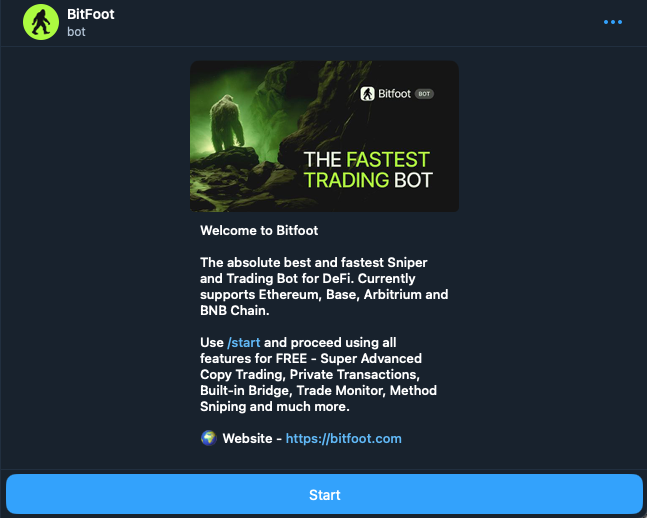
Continue by clicking the **Start** button.

<img src="https://3111015691-files.gitbook.io/~/files/v0/b/gitbook-x-prod.appspot.com/o/spaces%2FlwujP2ZYsEWYqnEdNMKG%2Fuploads%2FC4YgbrW7SY6cACgRV00w%2FScreenshot%202024-11-01%20at%2012.47.46.png?alt=media&amp;token=c9a04d5c-76dc-4fb0-bcc5-5d137d909253" alt="" data-size="original">
{% endstep %}

{% step %}

### Default Settings

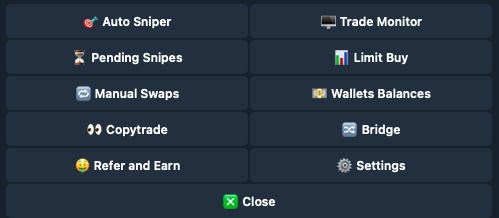
The first time you start Bitfoot, it will automatically be set to the Ethereum chain, which you can check in the main menu by clicking **Start** or using the **/start** command.
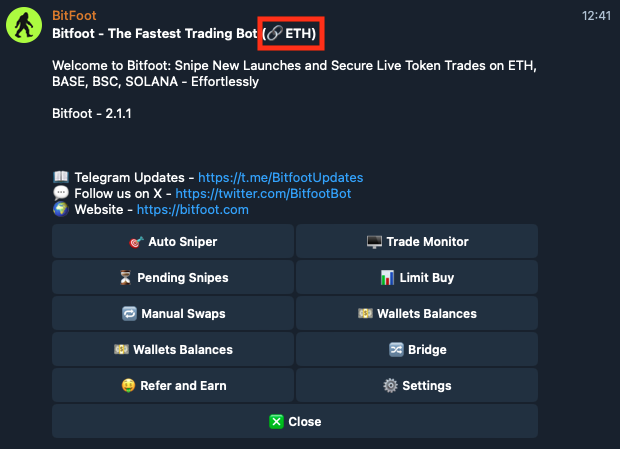
<img src="https://3111015691-files.gitbook.io/~/files/v0/b/gitbook-x-prod.appspot.com/o/spaces%2FlwujP2ZYsEWYqnEdNMKG%2Fuploads%2FJbd1BLBn4nRCnqD267io%2FScreenshot%202024-11-01%20at%2012.41.49.png?alt=media&amp;token=79322862-f341-49c4-8eb2-9dc371d20c09" alt="" data-size="original">
{% endstep %}

{% step %}

### Choose Your Preferred Trading Chain

If you want to trade on a chain other than Ethereum, it's easy to switch:

* Go to **Settings → Chains**
* Select your preferred chain: **ETH** / **Solana / BASE / BSC**
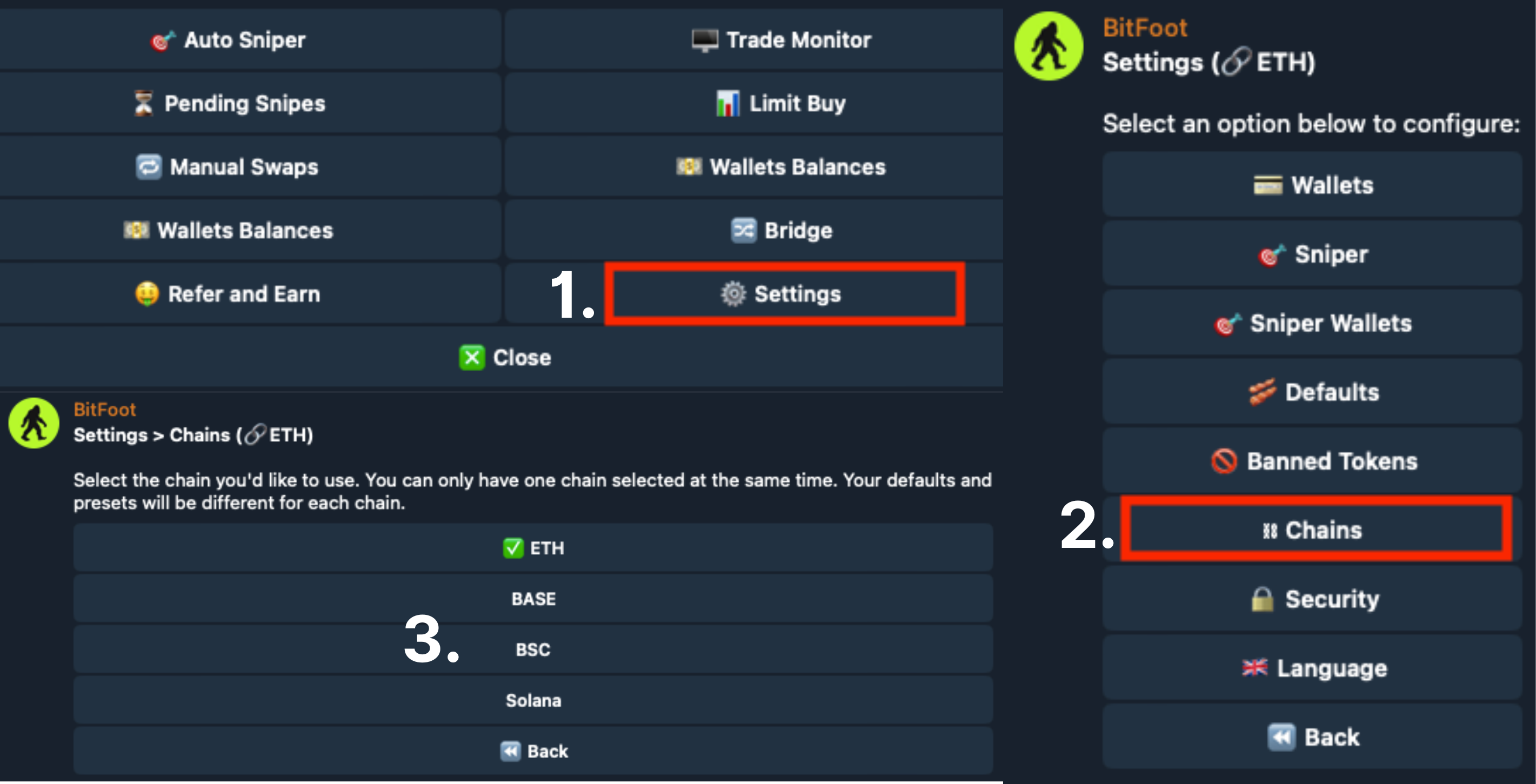
<img src="https://3111015691-files.gitbook.io/~/files/v0/b/gitbook-x-prod.appspot.com/o/spaces%2FlwujP2ZYsEWYqnEdNMKG%2Fuploads%2F12O0wM95fzABKqcxZUEg%2F1..png?alt=media&amp;token=0beb0e6d-0451-423c-b718-b46155e49671" alt="" data-size="original">

{% endstep %}

{% step %}

### Setup Your Wallet

* By default, Bitfoot creates a new wallet for you the first time you start it.&#x20;
* By default, Bitfoot creates a new wallet for you when you first start it. Check it out in **Settings -> Wallets**. You will see its address. You can retrieve its private keys if you want to import it into your other extension-based or hardware wallets.
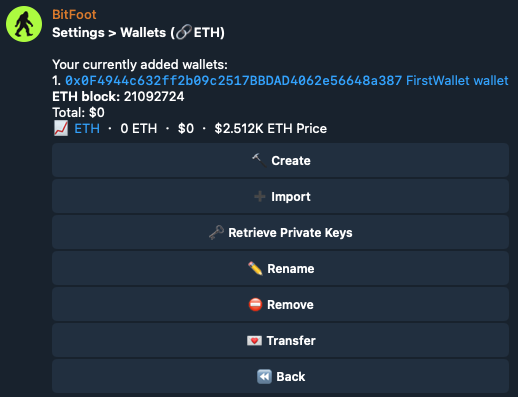
<img src="https://3111015691-files.gitbook.io/~/files/v0/b/gitbook-x-prod.appspot.com/o/spaces%2FlwujP2ZYsEWYqnEdNMKG%2Fuploads%2FIDb1JCRdPpHvtZ1E0d1e%2FScreenshot%202024-11-01%20at%2013.14.08.png?alt=media&amp;token=67112818-d8af-4241-9e31-ab92861d9e47" alt="" data-size="original">

* You can give your wallet a name for easier recognition.&#x20;
* If you want to import your existing wallet. Use the **Import** button.&#x20;
  * Enter a name for your wallet&#x20;
  * Enter the wallet private key
* *Note:* [*We don’t store private keys.*](broken://pages/9gj9skE8NjZlkO1pblyf)&#x20;
  {% endstep %}

{% step %}

### Deposit Funds

Ensure that your connected wallets have sufficient funds to trade with.&#x20;

* If you want to use a newly created wallet without funds, you can either fund it from your other wallets or from CEX. Go to **Settings -> Wallets**. You will see a list of your connected wallets.&#x20;
* Copy the address of the wallet and use it to fund it either from your existing wallet or from CEX.
  {% endstep %}

{% step %}

### Start Trading!

You are now ready to start trading. You can choose from several trading options:

* ETH, BSC, Base, Sonic
  * [Copy Trade](/bitfoot-bot/evm-trading/copy-trading)
  * [Auto Sniper ](/bitfoot-bot/evm-trading/auto-sniper)
  * [Limit Buy](/bitfoot-bot/evm-trading/limit-buy)
  * [Manual Swaps](/bitfoot-bot/evm-trading/manual-swaps)
* Solana
  * [Copy Trade](/bitfoot-bot/solana-trading/copy-trading)
  * [Pump.fun](/bitfoot-bot/solana-trading/pump.fun-snipping) [ ](/bitfoot-bot/evm-trading/auto-sniper)
  * [Limit Buy](/bitfoot-bot/solana-trading/limit-buy)
  * [Manual Swaps](/bitfoot-bot/solana-trading/manual-swaps)

And start trading.
{% endstep %}
{% endstepper %}


# Solana Trading

Bitfoot makes trading on **Solana** seamless, fast, and efficient. With full support for the **most popular Solana DEXes**, you can snipe, buy, and sell tokens in real time—**proven by** [**real speed testing**](https://www.youtube.com/watch?v=K9qCU4f1mEE). Whether you're aping into new launches or managing active positions, Bitfoot gives you the edge you need to move faster than the rest of the market.

{% embed url="<https://www.youtube.com/watch?v=K9qCU4f1mEE>" %}

{% content-ref url="/pages/cPYZoT2Ir7ZaiDGNskcJ" %}
[Copy Trading](/bitfoot-bot/solana-trading/copy-trading)
{% endcontent-ref %}

{% content-ref url="/pages/Jy9iNAwnts8PfTPHqpvn" %}
[Pump.fun Snipping](/bitfoot-bot/solana-trading/pump.fun-snipping)
{% endcontent-ref %}

{% content-ref url="/pages/GUdwOYokHX81EODAnhZ4" %}
[Auto Sniper](/bitfoot-bot/solana-trading/auto-sniper)
{% endcontent-ref %}

{% content-ref url="/pages/naRuyQCWsZJzXbTpJApt" %}
[Manual Swaps](/bitfoot-bot/solana-trading/manual-swaps)
{% endcontent-ref %}

{% content-ref url="/pages/r2nF7QCgFOY3VvFSSaVT" %}
[Limit Buy](/bitfoot-bot/solana-trading/limit-buy)
{% endcontent-ref %}

{% content-ref url="/pages/A43T2eEggHL2rXu1c2Yw" %}
[Settings](/bitfoot-bot/solana-trading/settings)
{% endcontent-ref %}


# Copy Trading

This feature lets you mirror the trades of selected high-performing wallets while keeping full control. Customize the settings to match your own risk profile and strategy.

### Main Menu > 👀 Copytrade

<figure><img src="https://3111015691-files.gitbook.io/~/files/v0/b/gitbook-x-prod.appspot.com/o/spaces%2FlwujP2ZYsEWYqnEdNMKG%2Fuploads%2FHgaLHGmY8jh3oiLGsA51%2FScreenshot%202024-11-02%20at%2012.21.29.png?alt=media&amp;token=be545e34-8e90-4f85-b3db-d9773f583c7d" alt=""><figcaption></figcaption></figure>

## Video Guide

{% embed url="<https://www.youtube.com/watch?v=smmAxD8rgO0>" %}

## How to Start Copy Trading

### Choose Your Mode

Bitfoot offers two modes for copy trading:

1. **Simple Copy Trade Mode**

<figure><img src="https://3111015691-files.gitbook.io/~/files/v0/b/gitbook-x-prod.appspot.com/o/spaces%2FlwujP2ZYsEWYqnEdNMKG%2Fuploads%2FXxVK9zL2Njd6SdddvbgB%2FScreenshot%202024-11-02%20at%2015.50.32.png?alt=media&amp;token=e5690e5c-84ec-4556-8a52-d3ae78576249" alt=""><figcaption></figcaption></figure>

When **Simple mode** is enabled, all copy trades will use default settings and a common fixed amount for your trades.

2. **Advanced Copy Trade Mode**

<figure><img src="https://3111015691-files.gitbook.io/~/files/v0/b/gitbook-x-prod.appspot.com/o/spaces%2FlwujP2ZYsEWYqnEdNMKG%2Fuploads%2FoJAiqz1kFVsZsVjFMR6C%2FScreenshot%202024-11-02%20at%2015.51.16.png?alt=media&amp;token=b805135e-0fc5-4c0f-b8b1-bc1fb933b545" alt=""><figcaption></figcaption></figure>

&#x20;Advanced mode allows you to set additional parameters for the copy trade.

## Setting Copy Trade in Simple Mode

{% stepper %}
{% step %}

### Add Wallet

* Click on the **Add Wallet** button

<img src="https://3111015691-files.gitbook.io/~/files/v0/b/gitbook-x-prod.appspot.com/o/spaces%2FlwujP2ZYsEWYqnEdNMKG%2Fuploads%2FBKpCMOwc7JZtPkhbNEtP%2FScreenshot%202024-11-11%20at%2012.56.22.png?alt=media&amp;token=3f6fe000-709d-453b-a1ca-9a24d637ea07" alt="" data-size="original">

* Name the wallet

<img src="https://3111015691-files.gitbook.io/~/files/v0/b/gitbook-x-prod.appspot.com/o/spaces%2FlwujP2ZYsEWYqnEdNMKG%2Fuploads%2FLUpi71wbJaUPkhdbUhTb%2FScreenshot%202024-11-11%20at%2017.03.41.png?alt=media&amp;token=24eb7167-afc9-463f-9cb3-4e93dc182e95" alt="" data-size="original">

* Enter wallet address

<img src="https://3111015691-files.gitbook.io/~/files/v0/b/gitbook-x-prod.appspot.com/o/spaces%2FlwujP2ZYsEWYqnEdNMKG%2Fuploads%2FrrK3QGCOLH4wttkzp3no%2FScreenshot%202024-11-11%20at%2017.04.38.png?alt=media&amp;token=44c90e78-783f-4489-bd36-94799c6a243e" alt="" data-size="original">

* Wallet for copy trading is set.

<img src="https://3111015691-files.gitbook.io/~/files/v0/b/gitbook-x-prod.appspot.com/o/spaces%2FlwujP2ZYsEWYqnEdNMKG%2Fuploads%2F1BE4nPv7ToeOxSrojLum%2FScreenshot%202024-11-11%20at%2017.06.11.png?alt=media&amp;token=c87c4853-59a7-4ed3-9e0d-3e6d3f57c9b3" alt="" data-size="original">

* You will see the wallet in the Copy Trade menu with an option to delete it from Copy Trade. If you wish to remove it, simply click on it and confirm.
  {% endstep %}

{% step %}

### Adjust the Amount

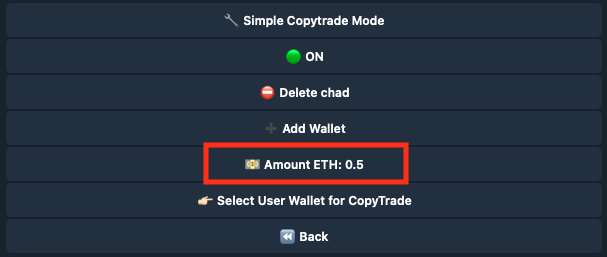
* Click on the **Amount SOL:** button
* Enter the amount in SOL you wish to copy trade with

**How Auto Buying and Selling Works**

* This amount is always used to mimic trades.&#x20;
  * If the followed wallet buys tokens for 6 SOL, Bitfoot will only buy 0.1 SOL.
* Bitfoot will always sell based on the proportions of the followed wallet.&#x20;
  * If the followed wallet sells tokens for 3 SOL, Bitfoot will also sell proportionally for 0.05 SOL.

<img src="https://3111015691-files.gitbook.io/~/files/v0/b/gitbook-x-prod.appspot.com/o/spaces%2FlwujP2ZYsEWYqnEdNMKG%2Fuploads%2FLtqeq10R9Qz0iqVcfQUP%2FScreenshot%202024-11-02%20at%2015.56.17.png?alt=media&amp;token=f6b95914-0c82-42cb-a3b0-166e4f4e6e67" alt="" data-size="original">

{% endstep %}

{% step %}

### Choose the Wallet You Want to Use for Copy Trading

* Click on the **Select User Wallet for CopyTrade** button.

<img src="https://3111015691-files.gitbook.io/~/files/v0/b/gitbook-x-prod.appspot.com/o/spaces%2FlwujP2ZYsEWYqnEdNMKG%2Fuploads%2FTqy0aWdIBzj9VOsVFRJQ%2FScreenshot%202024-11-02%20at%2015.57.00.png?alt=media&amp;token=83e2ff4e-71b7-4502-bf0a-f18054e20ef0" alt="" data-size="original">

A menu will appear with all your connected wallets. Click on the one you want to use for copy trading.
{% endstep %}

{% step %}

### Start / Pause Your Copy Trade

* You are now ready for copy trading. You can start and stop this automation with the ON / OFF button.

<img src="https://3111015691-files.gitbook.io/~/files/v0/b/gitbook-x-prod.appspot.com/o/spaces%2FlwujP2ZYsEWYqnEdNMKG%2Fuploads%2FbkRBbTj5TG9gKaFRTqRw%2FScreenshot%202024-11-02%20at%2015.57.38.png?alt=media&amp;token=eac2f62e-8ed6-4de0-836d-17d6862979c9" alt="" data-size="original">
{% endstep %}

{% step %}

### And You Are Ready! Now Just Monitor Your Trades

* Your copy trading is set!&#x20;
* Bitfoot will send you notifications when trades occur in the wallet you are tracking along the copy trade transaction you made.
  {% endstep %}
  {% endstepper %}

### Settings Tips:

#### Slippage

Main Menu > Settings > Defaults

In the [Default settings](/bitfoot-bot/solana-trading/settings/defaults) set slippage to 30-35%. This will make sure your transctions will go smoothly even on very frequented tokens.

#### Tip/Priority Fee

Main Menu > Settings > Defaults

In the [Default settings](/bitfoot-bot/solana-trading/settings/defaults), set the Tip/Priority fee to 0.001 SOL. This tip should be enough for your transactions to go among the first ones and thus capture a better price.

<figure><img src="https://3111015691-files.gitbook.io/~/files/v0/b/gitbook-x-prod.appspot.com/o/spaces%2FlwujP2ZYsEWYqnEdNMKG%2Fuploads%2F3YMbRYq38PUUtYP7PFLK%2FScreenshot%202024-11-11%20at%2017.26.21.png?alt=media&amp;token=d94024cb-60bb-4d18-b7cb-bcab3bb00ee1" alt=""><figcaption></figcaption></figure>

## Setting Copy Trade in Advanced Mode

{% stepper %}
{% step %}

### Add Wallet

* Click on the **Add Wallet** button

<img src="https://3111015691-files.gitbook.io/~/files/v0/b/gitbook-x-prod.appspot.com/o/spaces%2FlwujP2ZYsEWYqnEdNMKG%2Fuploads%2FmBOX4xEnzJC8qbgmlZ5J%2FScreenshot%202024-11-02%20at%2012.46.44.png?alt=media&amp;token=0309c5a4-86f2-47fa-b9c6-d4088b1297a9" alt="" data-size="original">

* Assign a unique name to your target wallet.

<img src="https://3111015691-files.gitbook.io/~/files/v0/b/gitbook-x-prod.appspot.com/o/spaces%2FlwujP2ZYsEWYqnEdNMKG%2Fuploads%2FLUpi71wbJaUPkhdbUhTb%2FScreenshot%202024-11-11%20at%2017.03.41.png?alt=media&amp;token=24eb7167-afc9-463f-9cb3-4e93dc182e95" alt="" data-size="original">

* Enter the target wallet address to copy trade.

<img src="https://3111015691-files.gitbook.io/~/files/v0/b/gitbook-x-prod.appspot.com/o/spaces%2FlwujP2ZYsEWYqnEdNMKG%2Fuploads%2FrrK3QGCOLH4wttkzp3no%2FScreenshot%202024-11-11%20at%2017.04.38.png?alt=media&amp;token=44c90e78-783f-4489-bd36-94799c6a243e" alt="" data-size="original">

* Toggle on Copy Buys and/or Copy Sells to copy the swaps of the target wallet

<img src="https://3111015691-files.gitbook.io/~/files/v0/b/gitbook-x-prod.appspot.com/o/spaces%2FlwujP2ZYsEWYqnEdNMKG%2Fuploads%2Fop4VcnqoX331AXhBJCdz%2FScreenshot%202024-11-11%20at%2017.17.39.png?alt=media&amp;token=034e6ffa-7065-4f15-a2ca-5bf9cf7e95dd" alt="" data-size="original">

* Amount Multiplier Range for Default Range mode is configured in Copytrade > Copytrade Settings.
* You can choose between a fixed amount or a custom range for the amount you want to copy the trade with.

<img src="https://3111015691-files.gitbook.io/~/files/v0/b/gitbook-x-prod.appspot.com/o/spaces%2FlwujP2ZYsEWYqnEdNMKG%2Fuploads%2FBorFmiFpiEasvpBRtyIw%2FScreenshot%202024-11-11%20at%2017.19.07.png?alt=media&amp;token=d405de27-6a34-4637-bd2a-a458f771399d" alt="" data-size="original">

You can set more various settings such as amount mode (fixed or custom range), if you want to copy trade only buys or sells, front running buys and sells, minimum and maximum original transaction amount and maximum SOL you want to spend per transaction.

<img src="https://3111015691-files.gitbook.io/~/files/v0/b/gitbook-x-prod.appspot.com/o/spaces%2FlwujP2ZYsEWYqnEdNMKG%2Fuploads%2FTRkfUcb8fEDiFO0EYBKh%2FScreenshot%202024-11-02%20at%2015.58.47.png?alt=media&amp;token=7ca325b9-0378-423d-b7e8-7a720bb8cc14" alt="" data-size="original">

* Click **Confirm Add button** to create and activate the Copy Trade.
  {% endstep %}

{% step %}

### Choose the Wallet You Want to Use for Copy Trading

* Click on the **Select User Wallet for CopyTrade** button.

<img src="https://3111015691-files.gitbook.io/~/files/v0/b/gitbook-x-prod.appspot.com/o/spaces%2FlwujP2ZYsEWYqnEdNMKG%2Fuploads%2FqEblxF0iaPJDKjl8MnzP%2FScreenshot%202024-11-02%20at%2012.52.11.png?alt=media&amp;token=458b4c44-0a0a-4c34-b550-23b622b38ca3" alt="" data-size="original">

A menu will appear with all your connected wallets. Click on the one you want to use for copy trading.
{% endstep %}

{% step %}

### Adjust Your Copytrade Settings

* Click on the **Copytrade Settings** button

<img src="https://3111015691-files.gitbook.io/~/files/v0/b/gitbook-x-prod.appspot.com/o/spaces%2FlwujP2ZYsEWYqnEdNMKG%2Fuploads%2FMK2GaW4pMBqapSHNblW0%2FScreenshot%202024-11-02%20at%2012.45.56.png?alt=media&amp;token=fe420403-4524-4eaf-9fe5-dd1345bf9d83" alt="" data-size="original">

Here you can customize more parameters for your copy trade.

<img src="https://3111015691-files.gitbook.io/~/files/v0/b/gitbook-x-prod.appspot.com/o/spaces%2FlwujP2ZYsEWYqnEdNMKG%2Fuploads%2FBa92Ie5gt0BZOC1Y6z34%2FScreenshot%202024-11-02%20at%2016.01.04.png?alt=media&amp;token=cfa6df69-06b6-4123-8724-1af236ac4399" alt="" data-size="original">

These settings are explained below.
{% endstep %}

{% step %}

### Start / Pause Your Copy Trade

* You are now ready for copy trading. You can start and stop this automation with the ON / OFF button.

<img src="https://3111015691-files.gitbook.io/~/files/v0/b/gitbook-x-prod.appspot.com/o/spaces%2FlwujP2ZYsEWYqnEdNMKG%2Fuploads%2Ff0cOWBho8xCAcNdLO2dy%2FScreenshot%202024-11-02%20at%2012.58.16.png?alt=media&amp;token=3bf2d331-6e6a-4108-9d5c-f85e85bfe193" alt="" data-size="original">
{% endstep %}

{% step %}

### Monitor Your Trades

Bitfoot will send you notifications when trades occur in the wallet you are tracking along the copy trade transaction you made.
{% endstep %}
{% endstepper %}

<details>

<summary>Copy Trading FAQ</summary>

**1. How can I troubleshoot slow execution or high slippage in my copy trades?**

* If trades are executing too slowly, consider increasing your gas/tip settings for faster processing.
* To manage slippage, adjust your slippage tolerance to better fit the market conditions and your risk comfort level. Start with an increase of 3-5% if you’re seeing failures, then dial it back by 1-2% increments until you find a stable setting.

**2. What should I do if my copy trades are failing due to "slippage exceeded"?**

* Increase your slippage settings in the copy trading module gradually until trades go through reliably. Adjust by increments of 3-5% if necessary, then decrease in 1-2% steps to minimize slippage without causing failures.

**3. Why is my copy trade execution so slow?**

* Double-check your gas/tip settings; a tip of around 0.0075 or higher is usually recommended. Additionally, verify that you’re not attempting to copy a "sniper" (see below) as their fast-paced trades are often unmatchable for most users. Use tools like Dexscreener to see when the wallet you’re copying places trades. If they’re executing within the first few seconds of a new block, they are likely using sniper tactics.

**4. My copy trades aren’t working—what should I check?**

* First, make sure you’ve activated the copy trade module by clicking **Add** and have set up the correct target wallet.
* Use solscan.io to verify that your target wallet is trading in supported pools. Check bellow.
* Ensure that you’re not trying to copy a sniper or a wallet using custom programs (see below). If you see “Interact with System Program” in the transaction history, that wallet is not compatible with standard copy trading.

**5. Why can’t I copy a sniper?**

* Snipers use high-frequency trading bots that send hundreds or thousands of transactions per second, making them difficult to replicate. They often rely on custom programs and typically buy at the very bottom of a price movement, only to quickly sell at the peak—leaving copiers as "exit liquidity." Trying to copy a sniper usually results in buying at the top and selling at a loss.

**6. Why can’t I copy wallets using custom programs?**

* Custom programs can’t be copied due to potential security risks. They might fake transactions or use methods designed to exploit copy-trading bots. In most cases, if a custom program is involved, only sells will be copiable, which could lead to unbalanced trading behavior. To avoid this, stick to wallets using standard trading setups.

</details>

{% hint style="info" %}

### **Advanced Copy Trade Settings Explained**

#### **Amount Multiplier Range Min**

* Sets the minimum multiplier for the amount of SOL (Solana) the bot will trade relative to its base amount. This defines the smallest possible scaling factor for trade size.

#### **Amount Multiplier Range Max**

* Sets the maximum multiplier for the amount of SOL the bot will trade relative to its base amount. This defines the largest possible scaling factor for trade size.

#### **Amount Multiplier Range**

* Displays the current range of multipliers applied to trade amounts, defined by `Amount Multiplier Range Min` and `Amount Multiplier Range Max`.

#### **Max SOL Amount Spent per Tx**

* Specifies the maximum amount of SOL the bot is allowed to spend per transaction. This limits the maximum exposure or risk on any single trade.

#### **Min Pool Liquidity SOL**

* Defines the minimum liquidity requirement (in SOL) for a trading pool before the bot will execute a trade. Helps avoid low-liquidity pools, which are more prone to price slippage and manipulation.

#### **Slippage Copytrade**

* Sets the maximum allowable slippage percentage specifically for copytrading. This controls how much price movement the bot will tolerate when mimicking another trade, ensuring that the copied trade still aligns with acceptable risk limits.

#### **Max Same Token Purchases Count**

* Limits how many times the bot can buy the **same token**. For example, if set to 1, the bot will only purchase a token **once**, avoiding repeated buys of the same asset during active copytrading. Helps manage overexposure to a single token.

#### **Max Token % Holding**

* Specifies the **maximum percentage** of your portfolio that can be allocated to a single token. When enabled, the bot will not exceed this limit during trades, allowing for better **portfolio diversification** and **risk control**.\
  **Default: Disabled** – no limit is applied unless manually set.
  {% endhint %}

{% hint style="info" %}

### Supported DEXs

For copy trading to work, the original trade must be routed through one of the supported DEXs:

PumpSwap, Raydium AMM, Raydium CP, Raydium CLMM, Orca Whirlpool, Orca v2, Pump.fun, Moonshot, Meteora DLM, Meteora Dynamic pools
{% endhint %}


# Pump.fun Snipping

Bitfoot’s Pump.fun feature helps you profit from automated buying (on bonding curve) and selling (on Raydium graduation) process while minimizing risk.

[**Pump.fun**](https://pump.fun/) is a platform where anyone can launch a memecoin on Solana. As people buy these coins on the **bonding curve**, the price increases until the token reaches a **$69,000 market cap**.&#x20;

At this point, **$12,000 in liquidity** is added to **Raydium DEX**, making the token tradable. However, most of these tokens are high-risk and often rugpull soon after reaching Raydium.

### Main Menu > 💊 Pump.fun 🚑

<figure><img src="https://3111015691-files.gitbook.io/~/files/v0/b/gitbook-x-prod.appspot.com/o/spaces%2FlwujP2ZYsEWYqnEdNMKG%2Fuploads%2FPh9WVKymxrzi1yMYnQnO%2FScreenshot%202024-11-02%20at%2016.05.21.png?alt=media&amp;token=88a79b93-3f70-491a-8333-1d15c8390be7" alt=""><figcaption></figcaption></figure>

## How to Setup Automated Buy-Sell Cycle

{% stepper %}
{% step %}

### Click on the pump.fun Button in the Main Menu

<img src="https://3111015691-files.gitbook.io/~/files/v0/b/gitbook-x-prod.appspot.com/o/spaces%2FlwujP2ZYsEWYqnEdNMKG%2Fuploads%2FVagJOyvHL4J9p8Hpk2gm%2FScreenshot%202024-11-02%20at%2016.16.56.png?alt=media&amp;token=812a5732-4e5b-4fb7-9e9b-f0e2156f0710" alt="" data-size="original">

* Click on the **New Pump.Fun Auto-Sell** button.
* Enter the pump.fun token address. [How to find pump.fun token address.](#how-to-find-pump.fun-token-address)
  {% endstep %}

{% step %}

### Select the Wallet You Wish to Trade With

<img src="https://3111015691-files.gitbook.io/~/files/v0/b/gitbook-x-prod.appspot.com/o/spaces%2FlwujP2ZYsEWYqnEdNMKG%2Fuploads%2FN3byHuKB2rxlm2yKh4Gy%2FScreenshot%202024-11-02%20at%2016.27.45.png?alt=media&amp;token=06a525cc-bfe1-4d45-ab5b-e4846fac3e7a" alt="" data-size="original"><img src="https://3111015691-files.gitbook.io/~/files/v0/b/gitbook-x-prod.appspot.com/o/spaces%2FlwujP2ZYsEWYqnEdNMKG%2Fuploads%2FkoNilXDmjwHqPWMyPUk6%2FScreenshot%202024-11-02%20at%2016.28.03.png?alt=media&amp;token=06a2ba09-fb27-4c3f-a47e-bff5d3a10bd9" alt="" data-size="original">

And click the **Done** button.
{% endstep %}

{% step %}

### Configure Your Trading Settings

<img src="https://3111015691-files.gitbook.io/~/files/v0/b/gitbook-x-prod.appspot.com/o/spaces%2FlwujP2ZYsEWYqnEdNMKG%2Fuploads%2FdEjZXQjvcLvWgBewbpsz%2FScreenshot%202024-11-02%20at%2016.30.53.png?alt=media&amp;token=07a1fc88-fd56-4eb5-9a32-68676a3a01eb" alt="" data-size="original">

You can adjust your:

* Auto-Sell Slippage - set higher % if you expect a lot of trades
* Auto-Sell Priority Fee - to get the trade done faster
* Auto-Sell Amount Percents - if you want to sell all or keep some
* Your auto sell wallets - if you are buying with more wallets

And enable **Auto-Sell** with the button
{% endstep %}

{% step %}

### Buy the Token

Click on the **Trade** button to open the buy menu options.

<img src="https://3111015691-files.gitbook.io/~/files/v0/b/gitbook-x-prod.appspot.com/o/spaces%2FlwujP2ZYsEWYqnEdNMKG%2Fuploads%2F2Z2KfDm48IjytrfqnlGs%2FScreenshot%202024-11-02%20at%2016.40.02.png?alt=media&amp;token=20010696-7498-4b43-8b25-4036510f537a" alt="" data-size="original">

* You can buy with pre-defined amounts of SOL or set your own amount with the **Buy X SOL** button. You can also buy a specific amount of tokens with the **Buy X Tokens** button. You can also set a limit buy with the [**New Limit Buy**](/bitfoot-bot/solana-trading/limit-buy) button.
* The Chart button will open a [**dextools**](https://www.dextools.io/) website with the chart of the token.
  {% endstep %}

{% step %}

### Auto-Sell on Raydium Launch

When the token becomes reaches $69,000 and becomes tradable on Raydium, Bitfoot instantly sells it, locking in your profit and reducing rugpull risk.
{% endstep %}

{% step %}

### **If Token Doesn't Reach Raydium**

If the token doesn't reach Raydium, you can sell it manually in the Sell menu.

<img src="https://3111015691-files.gitbook.io/~/files/v0/b/gitbook-x-prod.appspot.com/o/spaces%2FlwujP2ZYsEWYqnEdNMKG%2Fuploads%2FGCRwiOQQf5IzrBH4zidx%2FScreenshot%202024-11-02%20at%2016.40.02.png?alt=media&amp;token=2c3880f2-72fe-465d-8d83-65932e110d66" alt="" data-size="original"><img src="https://3111015691-files.gitbook.io/~/files/v0/b/gitbook-x-prod.appspot.com/o/spaces%2FlwujP2ZYsEWYqnEdNMKG%2Fuploads%2F5bcvJDH0obAQLtTr0peM%2FScreenshot%202024-11-02%20at%2016.48.12.png?alt=media&amp;token=cf8771ed-80d1-4121-b966-8424af8edc0e" alt="" data-size="original">

* Switch from Buy menu to Sell menu and sell desired amount.
  {% endstep %}
  {% endstepper %}

{% hint style="info" %}
You can check your pending pump.fun trades from Main menu > Pump.fun > Pending Pump.Fun Auto-Sells
{% endhint %}

## **How to find pump.fun token address**

Go to the [**Pump.Fun**](https://pump.fun/) website and find a token you like. A good option is to look at the top of the page where you will see "King of the Hill". There are tokens that have made significant progress towards reaching Raydium and are therefore safer to buy. Alternatively, you can visit [**https://pump.fun/advanced** ](<https://pump.fun/advanced >)where you will also see a list of tokens that are close to graduating.&#x20;

When you find a token and open its page, you will find the token address you need to enter into Bitfoot.

<figure><img src="https://3111015691-files.gitbook.io/~/files/v0/b/gitbook-x-prod.appspot.com/o/spaces%2FlwujP2ZYsEWYqnEdNMKG%2Fuploads%2F3xQpN41g6vPApCp3jvJk%2FScreenshot%202024-11-02%20at%2016.55.53.png?alt=media&amp;token=2a3a3f8b-cdbc-46d1-a589-6b4cbb009405" alt=""><figcaption></figcaption></figure>


# Auto Sniper

The Auto Sniper feature allows you to automatically buy tokens the moment they launched, aiming to secure the lowest possible entry price.

You can configure the bot to monitor token launches and execute trades instantly, with options to set parameters like slippage, gas fees, and auto-sell conditions. This feature is ideal for capturing early profits on newly launched tokens.

### Main Menu > [🎯](https://emojipedia.org/direct-hit) Auto Sniper

<figure><img src="https://3111015691-files.gitbook.io/~/files/v0/b/gitbook-x-prod.appspot.com/o/spaces%2FlwujP2ZYsEWYqnEdNMKG%2Fuploads%2FXe2wHPSg3g43U0uxy70A%2FScreenshot%202024-11-07%20at%2011.37.48.png?alt=media&amp;token=57a0d3ba-2daa-4eab-a345-272d5dd16525" alt=""><figcaption></figcaption></figure>

Before going to Auto Sniper you can predefine criteria for sniping in the [**Sniper Settings**](/bitfoot-bot/evm-trading/settings/sniper).

## How to Set up Auto Snipe

{% stepper %}
{% step %}

### Set up Your Sniper Wallet

Go to Settings > Sniper Wallets

<img src="https://3111015691-files.gitbook.io/~/files/v0/b/gitbook-x-prod.appspot.com/o/spaces%2FlwujP2ZYsEWYqnEdNMKG%2Fuploads%2FnXsc8PWrx64XE6jbeaqu%2FScreenshot%202024-11-02%20at%2013.34.28.png?alt=media&amp;token=48080557-46cf-4b34-8490-b5112930306d" alt="" data-size="original">

You will need to set up which wallets can be used for Auto Sniper before you can use this feature.
{% endstep %}

{% step %}

### Click on the Auto Sniper from the main menu

<img src="https://3111015691-files.gitbook.io/~/files/v0/b/gitbook-x-prod.appspot.com/o/spaces%2FlwujP2ZYsEWYqnEdNMKG%2Fuploads%2F2H1T1G6KANacoLgzMGpf%2FScreenshot%202024-11-02%20at%2013.26.54.png?alt=media&amp;token=8a7a9eff-2197-4c13-aed3-2cc896a40c45" alt="" data-size="original">
{% endstep %}

{% step %}

### Enter the token contract you wish to snipe

Specify the contract address of the token they intend to purchase.
{% endstep %}

{% step %}

### Enter how much you want to spend in SOL

Sets the maximum amount of Ether to be used for the purchase of the token.
{% endstep %}

{% step %}

### Enter extra SOL tip for snipe

Offers an additional fee to prioritize your transaction within the network. You must use minimum of 0.0001 SOL tip.
{% endstep %}

{% step %}

### Select the wallets you want to snipe with

Chooses which connected wallets will be used to execute the snipe orders.
{% endstep %}

{% step %}

### Adjust Settings

Now your Auto Snipe is ready. You can still adjust the settings by clicking on the **Config** button.

<img src="https://3111015691-files.gitbook.io/~/files/v0/b/gitbook-x-prod.appspot.com/o/spaces%2FlwujP2ZYsEWYqnEdNMKG%2Fuploads%2FWmqxUsrIpGWU3NnL7XH9%2FScreenshot%202024-11-02%20at%2013.47.28.png?alt=media&amp;token=d57a9721-e606-49b6-aaaf-d259832811e9" alt="" data-size="original">

Further explanation of the Config setup is given below.
{% endstep %}

{% step %}

### Auto Snipe Is Ready

You can revist your pending snipes from the main menu > Pending Snipes

<img src="https://3111015691-files.gitbook.io/~/files/v0/b/gitbook-x-prod.appspot.com/o/spaces%2FlwujP2ZYsEWYqnEdNMKG%2Fuploads%2FezxNoOerXFbFcgjuOqDW%2FScreenshot%202024-11-02%20at%2013.54.16.png?alt=media&amp;token=2601459e-3274-4fe8-8fa6-6c8233401daa" alt="" data-size="original">
{% endstep %}

{% step %}

### Delete Pending Snipe

You can delete pending snipes from the **Pending Snipes** menu.

<img src="https://3111015691-files.gitbook.io/~/files/v0/b/gitbook-x-prod.appspot.com/o/spaces%2FlwujP2ZYsEWYqnEdNMKG%2Fuploads%2FeeoY35WJP7fP0MqqGcl9%2FScreenshot%202024-11-02%20at%2013.59.25.png?alt=media&amp;token=831a5b2d-c350-4f34-b8a2-ea5fd7929354" alt="" data-size="original">
{% endstep %}
{% endstepper %}

{% hint style="info" %}

### Sniper Config Explained

* **Max Amount**\
  Adjust the maximum amount of SOL to use in a snipe transaction. This setting controls the upper limit of how much the bot will spend in a single trade.
* **Auto Snipe Priority Fee**\
  Set or modify any additional priority fee that will be applied automatically during sniping transactions.
* **Slippage**\
  Configure the slippage tolerance here. Slippage represents the maximum price deviation you are willing to accept for a transaction due to market volatility.
* **Max Transfer Tax**\
  Set the maximum transfer tax allowed on a transaction. This protects you from high fees or taxes that certain tokens may impose on transfers.
* **Min Liquidity Value**\
  Set the minimum liquidity value required for the bot to engage in a trade. If liquidity is below this threshold, transactions will not occur, helping to avoid issues with low-liquidity tokens.
* **Max Liquidity Value**\
  Set the maximum liquidity value. The bot will avoid trading if the liquidity exceeds this threshold, which can prevent engaging in trades on overly liquid (or potentially volatile) assets if this aligns with your strategy.
* **Back**\
  Return to the previous menu.
* **Close**\
  Close the settings menu and save any adjusted settings before exiting.
  {% endhint %}

### Buy Functions

<figure><img src="https://3111015691-files.gitbook.io/~/files/v0/b/gitbook-x-prod.appspot.com/o/spaces%2FlwujP2ZYsEWYqnEdNMKG%2Fuploads%2FVAfdkSEtwWaJ06aJ140M%2FScreenshot%202024-11-07%20at%2011.53.48.png?alt=media&amp;token=b6bdcf58-43b9-49f9-a120-53a99fe6079d" alt=""><figcaption></figcaption></figure>

{% hint style="info" %}

#### Buy

Execute purchase orders with set amounts of SOL as defined by you.

#### Config

Sets various buying parameters and thresholds.

#### Wallets

Set your sniper wallets.

#### Refresh

Refresh token statistics.
{% endhint %}

### Sell Functions

<figure><img src="https://3111015691-files.gitbook.io/~/files/v0/b/gitbook-x-prod.appspot.com/o/spaces%2FlwujP2ZYsEWYqnEdNMKG%2Fuploads%2Fmj0EVaC4PtpbrWBFpvWq%2FScreenshot%202024-11-07%20at%2011.54.16.png?alt=media&amp;token=d427019b-9eb7-4670-bee7-4e9157a98752" alt=""><figcaption></figcaption></figure>

{% hint style="info" %}

#### Sell Initials

Sells only the initially bought amount of the token.

#### Sell All Wallets

Executes sell orders across all connected wallets holding the token.

#### Transfer

Moves tokens between wallets prior to executing a sale.

#### Sell %

Sells a specified percentage of your token holdings.

#### Config

Sets various selling parameters and thresholds.

#### Refresh

Refresh token statistics.
{% endhint %}


# Manual Swaps

The Manual Swaps feature lets you trade tokens directly through Bitfoot by entering the token’s address and setting your preferred parameters (in the [**settings**](/bitfoot-bot/solana-trading/settings/defaults)). You control settings like slippage tolerance and gas fees, allowing for a precise, hands-on trading experience.

### Main Menu > [🔄](https://emojipedia.org/counterclockwise-arrows-button) Manual Swaps

<figure><img src="https://3111015691-files.gitbook.io/~/files/v0/b/gitbook-x-prod.appspot.com/o/spaces%2FlwujP2ZYsEWYqnEdNMKG%2Fuploads%2F5XRoV4AxBzeaut9eb6wR%2FScreenshot%202024-11-02%20at%2017.03.31.png?alt=media&amp;token=e5b2a62e-ca56-4153-b11f-3366902a9767" alt=""><figcaption></figcaption></figure>

## How to Perform a Manual Swap

{% stepper %}
{% step %}

### Click on the Manual Swaps Button in the Main Menu

<img src="https://3111015691-files.gitbook.io/~/files/v0/b/gitbook-x-prod.appspot.com/o/spaces%2FlwujP2ZYsEWYqnEdNMKG%2Fuploads%2FYYyjAJz6HXmtKTNqRGBB%2FScreenshot%202024-11-02%20at%2017.05.10.png?alt=media&amp;token=4b637e53-ec35-4a0c-b2b5-6ff3e8746588" alt="" data-size="original">
{% endstep %}

{% step %}

### Enter the Token Address

Start by entering the token address you wish to exchange.
{% endstep %}

{% step %}

### Select Your Wallet

If you have more than one wallet connected to Bitfoot, select the wallet from which you wish to exchange.

<img src="https://3111015691-files.gitbook.io/~/files/v0/b/gitbook-x-prod.appspot.com/o/spaces%2FlwujP2ZYsEWYqnEdNMKG%2Fuploads%2Fv1EDbIIhMqdK6w4RmZ2j%2FScreenshot%202024-11-02%20at%2017.08.10.png?alt=media&amp;token=51781533-3a88-4eb5-9ad4-5c47a6d3ccfa" alt="" data-size="original">
{% endstep %}
{% endstepper %}

{% hint style="info" %}

### **Chart**

Opens a chart of the token on [coinbrain.com](https://coinbrain.com)

### Refresh

Click Refresh to see the latest statistics.
{% endhint %}

## Buy Functions

<figure><img src="https://3111015691-files.gitbook.io/~/files/v0/b/gitbook-x-prod.appspot.com/o/spaces%2FlwujP2ZYsEWYqnEdNMKG%2Fuploads%2Fv1EDbIIhMqdK6w4RmZ2j%2FScreenshot%202024-11-02%20at%2017.08.10.png?alt=media&amp;token=51781533-3a88-4eb5-9ad4-5c47a6d3ccfa" alt=""><figcaption></figcaption></figure>

{% hint style="info" %}

### Buy Predefined Amount in SOL

You can buy token with predefined amount in SOL.

### Buy X SOL

Enter the value of SOL you wish to purchase the token for.

### Buy X Tokens

Input the amount of tokens you with to purchase.

### New Limit Buy

Setup new limit. Enter the value of USD you wish to purchase the token for.

Setup Limit Buy. Learn more about this function in [**Limit Buy**](/bitfoot-bot/solana-trading/limit-buy).
{% endhint %}

## Sell Functions

<figure><img src="https://3111015691-files.gitbook.io/~/files/v0/b/gitbook-x-prod.appspot.com/o/spaces%2FlwujP2ZYsEWYqnEdNMKG%2Fuploads%2FSU6PX15P3sX9S8VQbWrJ%2FScreenshot%202024-11-02%20at%2017.10.19.png?alt=media&amp;token=3baab569-393f-42e1-8fcc-3a9a9be59aa5" alt=""><figcaption></figcaption></figure>

{% hint style="info" %}

### Sell Initials

Sell all holdings of the same token from selected wallet.

### Sell Percentage

You can choose from predefined values or input your own value.

### **Nuke**

Option to sell all holdings of the same token across all wallets.

### Approve

Approve token for transactions.
{% endhint %}


# Limit Buy

The Limit Buy feature allows you to configure Bitfoot to automatically buy a specific token when its price reaches a pre-defined parameter such as market cap, % price change and exact price. This is useful for managing entry points without having to constantly monitor the market.

### Main Menu > [📊](https://emojipedia.org/bar-chart) Limit Buy

<figure><img src="https://3111015691-files.gitbook.io/~/files/v0/b/gitbook-x-prod.appspot.com/o/spaces%2FlwujP2ZYsEWYqnEdNMKG%2Fuploads%2FeKDrbBCrl8MFciCWuBni%2FScreenshot%202024-11-02%20at%2017.11.34.png?alt=media&amp;token=d59a7ce4-637b-465d-8f81-9078a29c0e84" alt=""><figcaption></figcaption></figure>

## How to Set Up a New Limit Buy

{% stepper %}
{% step %}

### Click on the Limit Buy Button in the Main Menu

<img src="https://3111015691-files.gitbook.io/~/files/v0/b/gitbook-x-prod.appspot.com/o/spaces%2FlwujP2ZYsEWYqnEdNMKG%2Fuploads%2FkBStPprcbEvsVaHxEowJ%2FScreenshot%202024-11-02%20at%2017.11.52.png?alt=media&amp;token=8cf3fbfc-3ade-4389-91c0-c6bf30c5f1a4" alt="" data-size="original">
{% endstep %}

{% step %}

### Click the Add New Limit Buy Button

<img src="https://3111015691-files.gitbook.io/~/files/v0/b/gitbook-x-prod.appspot.com/o/spaces%2FlwujP2ZYsEWYqnEdNMKG%2Fuploads%2FjpxXspYh64T1kTRIHqrF%2FScreenshot%202024-11-02%20at%2014.28.20.png?alt=media&amp;token=1d39623e-093c-49d6-9afa-7f3ab571c949" alt="" data-size="original">

If you have set up any buy limits, you will be able to see them in this menu.
{% endstep %}

{% step %}

### Select the Wallet You Wish to Use for Limit Buy

<img src="https://3111015691-files.gitbook.io/~/files/v0/b/gitbook-x-prod.appspot.com/o/spaces%2FlwujP2ZYsEWYqnEdNMKG%2Fuploads%2FwJA1DSaqMQ7bnJYnLQ2U%2FScreenshot%202024-11-02%20at%2017.12.37.png?alt=media&amp;token=bf5474af-0536-410c-b05d-33a69bd175c0" alt="" data-size="original">

If you have more than one wallet connected to Bitfoot, select the one you wish to use for your new limit buy.
{% endstep %}

{% step %}

### Select Which Token You Would Like to Set a Limit Buy For

<img src="https://3111015691-files.gitbook.io/~/files/v0/b/gitbook-x-prod.appspot.com/o/spaces%2FlwujP2ZYsEWYqnEdNMKG%2Fuploads%2FnzjMCmnDGzE1ednYtkxp%2FScreenshot%202024-11-02%20at%2014.31.31.png?alt=media&amp;token=72db633c-e08c-44ef-8676-cebb5a07d58c" alt="" data-size="original">

If you have tokens in your wallet, you can select them from this menu. If you wish to set up a limit buy for a new token, click on the Type Token Address button and enter the token address.
{% endstep %}

{% step %}

### Enter the Amount in USD You Wish to Purchase Tokens For

<img src="https://3111015691-files.gitbook.io/~/files/v0/b/gitbook-x-prod.appspot.com/o/spaces%2FlwujP2ZYsEWYqnEdNMKG%2Fuploads%2FyX8YxhASRtfNtCxeypUO%2FScreenshot%202024-11-02%20at%2017.14.29.png?alt=media&amp;token=80d3a072-a802-4c47-8d63-98e177ac960d" alt="" data-size="original">

Now configure your Limit Buy options.
{% endstep %}
{% endstepper %}

## ⚙️ Configure your Limit Buy settings

{% hint style="info" %}

### **Buy Dip/Breakout**

Automatically purchase tokens when they dip or breakout based on percentage, price, or market cap.

#### **Percentage**

Define the percentage below the current market price at which to trigger the buy order.

#### **Price**

Set the exact price point for the limit buy order.

#### **MC (Market Cap)**

Optionally link the limit buy to a market cap condition, enhancing strategy by combining price and market valuation metrics.

### Auto-Buy

Activate/Deactivate Auto-Buy after you have set your limit order.

### Edit Amount

You can edit the number of tokens for your limit order after you have specified it in the initial settings.

### Refresh Timer

Your Limit Order will be active for 48 hours. You can use Refresh Timer button to prolong it's duration.

### Refresh

Refreshes the token statistics.

### **Chart**

Opens a chart of the token on [dextools.com](https://dextools.com)

### Delete

Delete your limit buy order.

### Reset

Reset your  settings.&#x20;
{% endhint %}


# Settings

The **Solana Trading Settings** section lets you customize trading parameters for Solana. Here’s a summary of each option:

[**Sniper**](/bitfoot-bot/solana-trading/settings/sniper)

* Configure your Auto Sniper parameters, including slippage, gas fees, and buy/sell conditions, to optimize your entry and exit on new token launches.

[**Sniper Wallets**](/bitfoot-bot/solana-trading/settings/sniper-wallets)

* Manage wallets specifically designated for sniping trades, allowing you to segment funds and trading strategies.

[**Defaults**](/bitfoot-bot/solana-trading/settings/defaults)

* Set default preferences for Solana trading, including spend limits, slippage tolerance, and transaction settings.

[**Banned Tokens**](/bitfoot-bot/solana-trading/settings/banned-tokens)

* Specify tokens that the bot should avoid, which helps you stay clear of high-risk or undesirable assets on Solana.

[**Recommendations**](/bitfoot-bot/solana-trading/settings/recommendations)

* Access suggested settings that align with current Solana market conditions, helping you make the most of Bitfoot’s trading tools.

These settings are designed to enhance your Solana trading experience, giving you flexibility and security tailored to this fast-paced network.


# Sniper

The Auto Sniper feature allows users to automatically buy new tokens based on specific criteria set beforehand. This feature is ideal for capturing potential gains from newly listed tokens.

### Main Menu > Settings > [🎯](https://emojipedia.org/direct-hit)Sniper

<figure><img src="https://3111015691-files.gitbook.io/~/files/v0/b/gitbook-x-prod.appspot.com/o/spaces%2FlwujP2ZYsEWYqnEdNMKG%2Fuploads%2F9DI93PYIWOocNq4IOYPg%2FScreenshot%202024-11-07%20at%2011.56.03.png?alt=media&amp;token=9c9a6adc-905b-4d73-ba5b-6eb2ccb45de8" alt=""><figcaption></figcaption></figure>

Here are the settings you can adjust to optimize the Auto Sniper functionality:

{% hint style="info" %}

### **Max Amount**

* Adjust the maximum amount of SOL to use in a snipe transaction. This setting controls the upper limit of how much the bot will spend in a single trade.

### **Auto Snipe Priority Fee**

* Set or modify any additional priority fee that will be applied automatically during sniping transactions.

### **Slippage**

* Configure the slippage tolerance here. Slippage represents the maximum price deviation you are willing to accept for a transaction due to market volatility.

### **Max Transfer Tax**

* Set the maximum transfer tax allowed on a transaction. This protects you from high fees or taxes that certain tokens may impose on transfers.

### **Min Liquidity Value**

* Set the minimum liquidity value required for the bot to engage in a trade. If liquidity is below this threshold, transactions will not occur, helping to avoid issues with low-liquidity tokens.

### **Max Liquidity Value**

* Set the maximum liquidity value. The bot will avoid trading if the liquidity exceeds this threshold, which can prevent engaging in trades on overly liquid (or potentially volatile) assets if this aligns with your strategy.

### **Back**

* Return to the previous menu.

### **Close**

* Close the settings menu and save any adjusted settings before exiting.

{% endhint %}


# Sniper Wallets

Designate specific wallets for sniping to manage risks.

### Main Menu > Settings > [🎯](https://emojipedia.org/direct-hit) Sniper Wallets

<figure><img src="https://3111015691-files.gitbook.io/~/files/v0/b/gitbook-x-prod.appspot.com/o/spaces%2FlwujP2ZYsEWYqnEdNMKG%2Fuploads%2FzWZgTBModzNs6tAYwO2R%2FScreenshot%202024-11-07%20at%2012.00.12.png?alt=media&amp;token=1cd766d1-eb6d-4c4d-a556-2d18c2a9f46a" alt=""><figcaption></figcaption></figure>

{% hint style="info" %}

### Select Wallets

* Select wallet(s) dedicated to sniping.

### Default Wallet

* Will be copied for new pending snipes as a template.

### Add Wallet

* Create a new wallet dedicated to sniping. You can either create a new wallet or import an existing wallet using your private key.

### Delete Wallet

* Safely remove wallets from the bot that you no longer need for trading.
  {% endhint %}


# Defaults

This menu allows you to set some basic variables for trading and affects [**Copy Trading**](/bitfoot-bot/solana-trading/copy-trading), [**Pump.fun Sniping**](/bitfoot-bot/solana-trading/pump.fun-snipping), [**Manual Swaps**](/bitfoot-bot/solana-trading/manual-swaps) and [**Limit Buy**](/bitfoot-bot/solana-trading/limit-buy) features.

### Main Menu > Settings > [🥓](https://emojipedia.org/bacon) Defaults

<figure><img src="https://3111015691-files.gitbook.io/~/files/v0/b/gitbook-x-prod.appspot.com/o/spaces%2FlwujP2ZYsEWYqnEdNMKG%2Fuploads%2F5U9ZbGIhJID3IvzKycQA%2Fsettings-defaults.png?alt=media&amp;token=4f8a9175-c0ac-4aa0-bb16-7a3088312d40" alt=""><figcaption></figcaption></figure>

## **Noob Mode**

{% hint style="info" %}
This is a beginner-friendly preset that enables all essential settings and protections for safer trading. In this mode, transactions may be slightly slower, as the bot thoroughly checks the contract’s legitimacy before making a purchase. This added layer of security helps beginners trade with confidence, minimizing risks from suspicious or unsafe tokens.
{% endhint %}

## **Default Settings**

{% hint style="info" %}

### **Slippage Manual**

* Sets the default slippage tolerance for manual trades as a percentage. This is the amount of price fluctuation the bot will allow when executing a manual trade.

### Tip/Priority Fee

* Set extra payment made to make sure your transaction gets through faster in the next available block over others.

### **Confirm Buy**

* When enabled, the bot will prompt for confirmation before executing a buy transaction. Useful for double-checking trades before they are finalized.

### **Confirm Sell**

* When enabled, the bot will prompt for confirmation before executing a sell transaction, helping avoid accidental sells.

### **Confirm Delete**

* When enabled, the bot will prompt for confirmation before deleting any setting or configuration, adding a layer of protection against accidental deletions.
  {% endhint %}

## SL/TP Settings

{% hint style="info" %}

## **Take-Profit & Stop-Loss Setup**

**What It Is:**

* **Take-Profit (TP):** Automatically sells your asset when it hits your profit target.
* **Stop-Loss (SL):** Automatically sells your asset to prevent bigger losses if the price drops.
* **Trailing Take-Profit (TTP):** Algorithmic TP that moves up with the price, locking in higher profits as the market rises.

**Why Use It:**

* Locks in profits and limits losses.
* Runs 24/7, even when you're offline.
* Removes emotional trading decisions.

***

#### **How to Set Up SL/TP (+Trailing)**

1. **Enable General SL/TP:**
   * Go to **Defaults** and turn on **General SL/TP Enabled**.
2. **Set Take-Profit (TP):**
   * Enter a percentage where you want to sell for profit.
3. **Set Stop-Loss (SL):**
   * Enter a percentage or price to sell if the price drops.
4. **Save Settings:**
   * Click **Save** to apply.

**Additional: Activate TSL/TTP**

* If you want to use TSL or TTP, simply enable the checkbox while creating your TP or SL to activate it.

***

**Example:**

* **TP:** Set at **+10%** → Bot sells when price rises 10%.
* **SL:** Set at **-5%** → Bot sells if price drops 5%.
  {% endhint %}

## Auto-Buy Settings Explanation

Auto-buy settings in **Bitfoot Trading Bot** allow users to **automate instant token purchases** based on specific triggers and filters. Below is a breakdown of each setting and how it works.

{% hint style="info" %}

## Auto-Buy settings

#### **Auto-Buy Amount (SOL)**

This defines the **amount of SOL** the bot will use to buy tokens when auto-buy is triggered.

* **How to set it?** Reply to the bot message with your desired **auto-buy amount in SOL**.
* **Minimum:** `1e-06 SOL` **/ Maximum:** `10,000 SOL`

***

#### **Auto-Buy on Forward** (ON/OFF)

When enabled, **the bot will instantly buy** a token **if you forward a message containing a contract address (CA)**.

**Example Use Case:**

* Forwarding messages from [**Bitfoot Alpha Pings**](/alpha-pings/about-alpha-pings) to instantly execute a buy without copying and pasting.
* Makes **buying faster and more efficient**, especially for high-speed trading.

***

#### **Auto-Buy on Paste** (ON/OFF)

When enabled, **the bot will instantly buy** a token **when you paste a contract address (CA) into the chat**.

**Example Use Case:**

* Copying a CA from **Dexscreener, Twitter, or a friend’s message**, pasting it into the bot, and having it automatically execute the trade.

***

#### **Auto-Buy Minimum Liquidity**

Defines the **minimum liquidity** a token must have before the auto-buy triggers.

* **Why is this important?** Prevents buying tokens with very **low liquidity**, making them difficult to sell.
* **How to set it?** Reply to the bot message with your desired **minimum liquidity threshold**.
* **Minimum:** `0.1 SOL` **/ Maximum:** `1,000,000 SOL`

***

#### **Auto-Buy Maximum Liquidity**

Defines the **maximum liquidity** a token can have before the auto-buy triggers.

* **Why is this important?** Some traders prefer to target **low-liquidity tokens** with high potential gains before they gain traction.
* **How to set it?** Reply to the bot message with your desired **maximum liquidity threshold**.
* **Minimum:** `0.1 SOL` **/ Maximum:** `1,000,000 SOL`

***

#### **Auto-Buy Minimum Market Cap (MC USD)**

Sets the **minimum market cap** a token must have before triggering auto-buy.

* **Why is this important?** Helps avoid buying **extremely low-market-cap tokens** that may be **risky or undeveloped**.
* **How to set it?** Reply to the bot message with your desired **minimum market cap in USD**.
* **Minimum:** `0.1 USD` **/ Maximum:** `1,000,000 USD`

***

#### **Auto-Buy Maximum Market Cap (MC USD)**

Sets the **maximum market cap** a token can have before triggering auto-buy.

* **Why is this important?** Allows users to **avoid high-market-cap tokens** and focus on early-stage projects with higher growth potential.
* **How to set it?** Reply to the bot message with your desired **maximum market cap in USD**.
* **Minimum:** `0.1 USD` **/ Maximum:** `1,000,000 USD`

***

#### **Summary of Auto-Buy Filters**

* **Forward or paste a CA → Bot instantly buys based on auto-buy amount**
* **Customize filters for liquidity and market cap to control risk**
* **Set limits to prevent trading illiquid or overly large tokens**

These settings help traders **automate their entries while maintaining control over risk factors**, making trading **faster and more efficient**.
{% endhint %}

## Rugpull Detector

The Rugpull Detector is automatically configured for trading on Solana and requires no customization. This feature is designed to protect you from high-risk tokens, operating seamlessly in the background for added security.


# Banned Tokens

Add tokens that you want to exclude from trading due to personal preference or security concerns.

### Main Menu > Settings > [🚫 ](https://emojipedia.org/prohibited)Banned Tokens

<figure><img src="https://3111015691-files.gitbook.io/~/files/v0/b/gitbook-x-prod.appspot.com/o/spaces%2FlwujP2ZYsEWYqnEdNMKG%2Fuploads%2FaH9GVWY6FhE0o3MCFNLj%2FScreenshot%202024-11-02%20at%2017.33.42.png?alt=media&amp;token=1f51c9a6-fb59-47b7-923f-15b3aa277fa6" alt=""><figcaption></figcaption></figure>

## How to Add Tokens You Do Not Want Bitfoot to Trade

{% stepper %}
{% step %}

### Go to the Banned Tokens Settings

Main menu > Settings > Banned Tokens

<img src="https://3111015691-files.gitbook.io/~/files/v0/b/gitbook-x-prod.appspot.com/o/spaces%2FlwujP2ZYsEWYqnEdNMKG%2Fuploads%2Fly2EUUmbs5wFmMxKgA3W%2FScreenshot%202024-11-02%20at%2015.18.46.png?alt=media&amp;token=f2b71ede-c1bc-4ed7-9629-232498c51a25" alt="" data-size="original">

#### **Disabled/Enabled**

You can toggle this feature to activate or deactivate the automatic exclusion of tokens identified by the set criteria. When enabled, any token matching the configuration will be automatically excluded from all trading activities.
{% endstep %}

{% step %}

### **Add Banned Token**

Manually add specific tokens to the banned list based on their token address by entering their contract address.
{% endstep %}

{% step %}

### Config

This setting allows you to define criteria for identifying tokens to be banned based on their name or symbol characteristics.

<img src="https://3111015691-files.gitbook.io/~/files/v0/b/gitbook-x-prod.appspot.com/o/spaces%2FlwujP2ZYsEWYqnEdNMKG%2Fuploads%2FKokdGQPQdL9u3rX56d3d%2FScreenshot%202024-05-15%20at%2013.50.01.png?alt=media&amp;token=c1bcb520-da30-4697-bca6-5d33ef5db2fe" alt="Banned Tokens Config Settings" data-size="original">

This setting is explained below.
{% endstep %}
{% endstepper %}

{% hint style="info" %}

#### **Banned vs. Super Banned**

* Banned Token name is no filter sensitive.
  {% endhint %}

{% hint style="info" %}

#### **Words**

* Excludes tokens containing specific words anywhere in their name or symbol.

#### **Words Start**

* Bans tokens whose names specified prefixes.

#### **Words End**

* Targets tokens whose names end with specified suffixes.

#### **Symbol Start**

* Filters out tokens based on the starting characters of their symbols.

#### **Symbol End**

* Bans tokens based on the ending characters of their symbols.
  {% endhint %}


# Recommendations

## Solana Copy Trading Setup

When copy trading on Solana, setting appropriate **gas fees** and **slippage** is key to ensuring trades are executed quickly and accurately. Here are some best practices:

### **1. Slippage Settings**

* **Typical Slippage**: Start with a slippage setting of **10-20%**. Solana’s low fees and fast processing generally allow for lower slippage compared to Ethereum, making trades more cost-effective.
* **Higher Slippage for Fast Markets**: If you’re copying a wallet that trades in highly volatile markets, or during times of increased activity, set slippage around **20-35%** to avoid transaction failures. This allows some flexibility without risking excessive price impact.
* If your copy trades fail due to slippage, you can always increase them by a small amount.

### **2. Priority Tips**

* **Standard Tip**: Solana’s network is designed for low fees, so default gas settings are usually sufficient. Most copy trading does not require a high gas fee, unlike Ethereum.
* **Priority Tip**: A **small gas tip** of around **0.01 SOL** is a good practice to prioritize transactions during peak activity times. This small tip helps secure timely execution without significantly increasing costs.
* **Avoid High Tips**: High gas fees are generally unnecessary for copy trading on Solana. Stick with moderate tips, as overspending on gas may lead to unnecessary expenses without a corresponding increase in speed due to Solana’s efficient transaction processing. You should never need to go above **0.075 SOL**.

### **3. Additional Copy Trading Tip**

* Limit your maximum investment per trade to control risk. For instance, setting a limits on your trades ensures you won’t overexpose your account, especially if the copied wallet makes large purchases.

## Summary

<table><thead><tr><th width="181">Strategy</th><th>Slippage</th><th>Priority Tip</th></tr></thead><tbody><tr><td>Copy Trading</td><td>5-10% (typical), 10-25% (for competetive trades)</td><td>0.01 SOL (standard), 0.075 SOL (if you want to be really fast)</td></tr></tbody></table>


# EVM Trading

This section covers everything you need to know to trade on EVM chains using Bitfoot. The same settings and features apply to **Ethereum,** **BSC, Base, and Sonic**, which are fully supported by the Bitfoot ecosystem.

{% content-ref url="/pages/SV81HQsflaaTrulcMTYz" %}
[Supported Chains and DEXs](/bitfoot-bot/supported-chains-and-dexs)
{% endcontent-ref %}

With **Bitfoot**, you get access to the fastest trading experience across all supported chains, regularly tested to ensure top-tier speed and performance. From copy trading and presets to custom filters and risk controls, this guide will walk you through every setting to trade smarter and faster.

{% content-ref url="/pages/qFJ06wHNWBmmWYcKdM7P" %}
[Copy Trading](/bitfoot-bot/evm-trading/copy-trading)
{% endcontent-ref %}

{% content-ref url="/pages/sJpy54W6a7vVdIA62pUr" %}
[Auto Sniper](/bitfoot-bot/evm-trading/auto-sniper)
{% endcontent-ref %}

{% content-ref url="/pages/8zzKlvK6LVETFqgjzsC8" %}
[Manual Swaps](/bitfoot-bot/evm-trading/manual-swaps)
{% endcontent-ref %}

{% content-ref url="/pages/i0zU1s4PJlhLsTmbebSQ" %}
[Limit Buy](/bitfoot-bot/evm-trading/limit-buy)
{% endcontent-ref %}

{% content-ref url="/pages/8nKkaiqnP8O8LrdqCH68" %}
[Settings](/bitfoot-bot/evm-trading/settings)
{% endcontent-ref %}


# Copy Trading

This feature allows you to mirror the trades of selected successful traders. Adjust the settings to suit your own risk management and investment strategies.

### Main Menu > 👀 Copytrade

<figure><img src="https://3111015691-files.gitbook.io/~/files/v0/b/gitbook-x-prod.appspot.com/o/spaces%2FlwujP2ZYsEWYqnEdNMKG%2Fuploads%2FHgaLHGmY8jh3oiLGsA51%2FScreenshot%202024-11-02%20at%2012.21.29.png?alt=media&amp;token=be545e34-8e90-4f85-b3db-d9773f583c7d" alt=""><figcaption></figcaption></figure>

## How to Start Copy Trading

### Choose Your Mode

Bitfoot offers two modes for copy trading:

* **Simple Copy Trade Mode**

<figure><img src="https://3111015691-files.gitbook.io/~/files/v0/b/gitbook-x-prod.appspot.com/o/spaces%2FlwujP2ZYsEWYqnEdNMKG%2Fuploads%2FCOVeYUZF8DCLBBv4gh29%2FScreenshot%202024-11-02%20at%2012.26.17.png?alt=media&amp;token=3ac396d2-edcf-46d2-b3da-64e0cfa36b20" alt=""><figcaption></figcaption></figure>

When Simple mode is enabled, all copy trades will use default settings and a common fixed amount for your trades.

* **Advanced Copy Trade Mode**

<figure><img src="https://3111015691-files.gitbook.io/~/files/v0/b/gitbook-x-prod.appspot.com/o/spaces%2FlwujP2ZYsEWYqnEdNMKG%2Fuploads%2FkMQl59z4K4dcPk5NJOpO%2FScreenshot%202024-11-02%20at%2012.45.56.png?alt=media&amp;token=139dacae-62ea-4f4f-bb51-00af300c56cc" alt=""><figcaption></figcaption></figure>

&#x20;Advanced mode allows you to set additional parameters for the copy trade.

## Setting Copy Trade in Simple Mode

{% stepper %}
{% step %}

### Add Wallet

* Click on the **Add Wallet** button
* Name the wallet
* Enter wallet address

<img src="https://3111015691-files.gitbook.io/~/files/v0/b/gitbook-x-prod.appspot.com/o/spaces%2FlwujP2ZYsEWYqnEdNMKG%2Fuploads%2F7hcGhcjsGf2ZCp0F5J8M%2FScreenshot%202024-11-11%20at%2016.03.21.png?alt=media&amp;token=1cca8467-7fcb-45cf-b40c-48771f896028" alt="" data-size="original">

* You will see the wallet in the Copy Trade menu with an option to delete it from Copy Trade. If you wish to remove it, simply click on it and confirm.
  {% endstep %}

{% step %}

### Adjust the Amount

* Click on the **Amount ETH:** button
* Enter the amount in ETH you wish to copy trade with

<img src="https://3111015691-files.gitbook.io/~/files/v0/b/gitbook-x-prod.appspot.com/o/spaces%2FlwujP2ZYsEWYqnEdNMKG%2Fuploads%2FQXBShDpNvQDIlvCCcWDS%2FScreenshot%202024-11-02%20at%2012.37.07.png?alt=media&amp;token=0a73f08a-2266-46e3-b98c-f0402b3971a9" alt="" data-size="original">

{% endstep %}

{% step %}

### Choose the Wallet You Want to Use for Copy Trading

* Click on the **Select User Wallet for CopyTrade** button.

<img src="https://3111015691-files.gitbook.io/~/files/v0/b/gitbook-x-prod.appspot.com/o/spaces%2FlwujP2ZYsEWYqnEdNMKG%2Fuploads%2FHU4iKP8SohwkqN7YZerb%2FScreenshot%202024-11-02%20at%2012.39.39.png?alt=media&amp;token=efb59320-a3eb-4394-9fac-596a40d2ad59" alt="" data-size="original">

A menu will appear with all your connected wallets. Click on the one you want to use for copy trading.
{% endstep %}

{% step %}

### Start / Pause Your Copy Trade

* You are now ready for copy trading. You can start and stop this automation with the ON / OFF button.

<img src="https://3111015691-files.gitbook.io/~/files/v0/b/gitbook-x-prod.appspot.com/o/spaces%2FlwujP2ZYsEWYqnEdNMKG%2Fuploads%2F8CLjqKtU0NMPvWtVNYJc%2FScreenshot%202024-11-02%20at%2012.42.06.png?alt=media&amp;token=adeb1e2f-d7b4-4813-a168-c4b2c1fb1ff1" alt="" data-size="original">
{% endstep %}

{% step %}

### Monitor Your Trades

* Bitfoot will send you notifications when trades occur in the wallet you are tracking along the copy trade transaction you made.
  {% endstep %}
  {% endstepper %}

## Setting Copy Trade in Advanced Mode

{% stepper %}
{% step %}

### Add Wallet

* Click on the **Add Wallet** button

<img src="https://3111015691-files.gitbook.io/~/files/v0/b/gitbook-x-prod.appspot.com/o/spaces%2FlwujP2ZYsEWYqnEdNMKG%2Fuploads%2FmBOX4xEnzJC8qbgmlZ5J%2FScreenshot%202024-11-02%20at%2012.46.44.png?alt=media&amp;token=0309c5a4-86f2-47fa-b9c6-d4088b1297a9" alt="" data-size="original">

* Assign a unique name to your target wallet.
* Enter the target wallet address to copy trade.
* Toggle on Copy Buys and/or Copy Sells to copy the swaps of the target wallet
* Click **Confirm Add button** to create and activate the Copy Trade.
* Amount Multiplier Range for Default Range mode is configured in Copytrade > Copytrade Settings.

<img src="https://3111015691-files.gitbook.io/~/files/v0/b/gitbook-x-prod.appspot.com/o/spaces%2FlwujP2ZYsEWYqnEdNMKG%2Fuploads%2FXPCblWVLfXJTR8pBN6u0%2FScreenshot%202024-11-02%20at%2012.48.07.png?alt=media&amp;token=dc8cab72-2178-4cfe-8bc6-39a1bb9976d9" alt="" data-size="original">

You can set more various settings such as amount mode (fixed or custom range), if you want to copy trade only buys or sells, front running buys and sells, MEV protection, minimum and maximum original transaction amount and maximum ETH you want to spend per transaction.
{% endstep %}

{% step %}

### Choose the Wallet You Want to Use for Copy Trading

* Click on the **Select User Wallet for CopyTrade** button.

<img src="https://3111015691-files.gitbook.io/~/files/v0/b/gitbook-x-prod.appspot.com/o/spaces%2FlwujP2ZYsEWYqnEdNMKG%2Fuploads%2FqEblxF0iaPJDKjl8MnzP%2FScreenshot%202024-11-02%20at%2012.52.11.png?alt=media&amp;token=458b4c44-0a0a-4c34-b550-23b622b38ca3" alt="" data-size="original">

A menu will appear with all your connected wallets. Click on the one you want to use for copy trading.
{% endstep %}

{% step %}

### Adjust Your Copytrade Settings

* Click on the **Copytrade Settings** button

<img src="https://3111015691-files.gitbook.io/~/files/v0/b/gitbook-x-prod.appspot.com/o/spaces%2FlwujP2ZYsEWYqnEdNMKG%2Fuploads%2FMK2GaW4pMBqapSHNblW0%2FScreenshot%202024-11-02%20at%2012.45.56.png?alt=media&amp;token=fe420403-4524-4eaf-9fe5-dd1345bf9d83" alt="" data-size="original">

Here you can customize more parameters for your copy trade.

<img src="https://3111015691-files.gitbook.io/~/files/v0/b/gitbook-x-prod.appspot.com/o/spaces%2FlwujP2ZYsEWYqnEdNMKG%2Fuploads%2FzWf64gqLHTYPT7kD3hSO%2FScreenshot%202024-11-02%20at%2012.56.31.png?alt=media&amp;token=307e5e16-4062-480a-a072-6afe43cc420e" alt="" data-size="original">

These settings are explained below.
{% endstep %}

{% step %}

### Start / Pause Your Copy Trade

* You are now ready for copy trading. You can start and stop this automation with the ON / OFF button.

<img src="https://3111015691-files.gitbook.io/~/files/v0/b/gitbook-x-prod.appspot.com/o/spaces%2FlwujP2ZYsEWYqnEdNMKG%2Fuploads%2Ff0cOWBho8xCAcNdLO2dy%2FScreenshot%202024-11-02%20at%2012.58.16.png?alt=media&amp;token=3bf2d331-6e6a-4108-9d5c-f85e85bfe193" alt="" data-size="original">
{% endstep %}

{% step %}

### Monitor Your Trades

Bitfoot will send you notifications when trades occur in the wallet you are tracking along the copy trade transaction you made.
{% endstep %}
{% endstepper %}
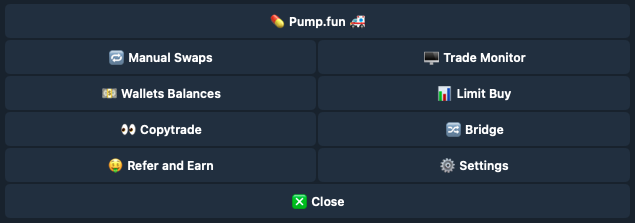
{% hint style="info" %}

### **Advanced Copy Trade Settings Explained**

**Mempool Enabled**

* Toggles whether the bot monitors the public mempool for transactions. When enabled, the bot can access and respond to transactions before they are confirmed.

**Private Sell Mempool Txs**

* Enables the bot to monitor private sell transactions in the mempool, allowing it to react to them.

#### **Private Buy Mempool Txs**

* Enables the bot to monitor private buy transactions in the mempool, allowing it to react to them.

#### **Private Sell Non Mempool Txs**

* Allows the bot to monitor private sell transactions outside the public mempool, often from private relays or other sources not in the main transaction pool.

#### **Private Buy Non Mempool Txs**

* Allows the bot to monitor private buy transactions outside the public mempool, useful for tracking exclusive transactions that aren't publicly visible.

#### **Amount Multiplier Range Min**

* Sets the minimum multiplier for the amount of tokens the bot will purchase relative to its base setting. This controls the minimum scaling factor for trade size.

#### **Amount Multiplier Range Max**

* Sets the maximum multiplier for the amount of tokens the bot will purchase relative to its base setting. This controls the maximum scaling factor for trade size.

#### **Amount Multiplier Range**

* Displays the current range of multipliers applied to trade sizes, defined by `Amount Multiplier Range Min` and `Amount Multiplier Range Max`.

#### **Max ETH Amount Spent per Tx**

* Sets the maximum amount of ETH the bot can use for each transaction, capping the risk per trade.

#### **Min Pool Liquidity ETH**

* Specifies the minimum ETH liquidity required in a liquidity pool for the bot to consider making a trade. Helps avoid low-liquidity pools.

#### **Slippage Mempool**

* Sets the maximum allowable slippage for trades detected in the mempool. This controls how much price movement the bot will tolerate to ensure trade success.

#### **Slippage Non Mempool**

* Sets the maximum allowable slippage for trades that are outside the mempool. Useful for privately sourced transactions.

#### **Regular Max Priority Fee**

* Defines the maximum priority fee (or "tip") the bot will add to its gas fees for standard transactions, influencing transaction speed.

#### **Frontrun Max Priority Fee From Tx Multiplier**

* Defines the maximum priority fee multiplier specifically for frontrunning transactions, setting the gas priority for frontrunning operations.
  {% endhint %}

{% hint style="info" %}

### Supported DEXs

For copy trading to work, the original trade must be routed through a supported DEX

**Ethereum**

* Uniswap v2/v3, Sushiswap v2, Pancakeswap v2, Shibaswap v2

**Base**

* Uniswap v2/v3, Sushiswap v2, Pancakeswap v2

**BSC**

* Uniswap v2/v3, Sushiswap v2, Pancakeswap v2/v3
  {% endhint %}


# Auto Sniper

The Auto Sniper feature allows you to automatically buy tokens the moment they launched, aiming to secure the lowest possible entry price.

You can configure the bot to monitor token launches and execute trades instantly, with options to set parameters like slippage, gas fees, and auto-sell conditions. This feature is ideal for capturing early profits on newly launched tokens.

### Main Menu > [🎯](https://emojipedia.org/direct-hit) Auto Sniper

<figure><img src="https://3111015691-files.gitbook.io/~/files/v0/b/gitbook-x-prod.appspot.com/o/spaces%2FlwujP2ZYsEWYqnEdNMKG%2Fuploads%2FkBlpEjAgRgXh1LiWQvNE%2FScreenshot%202024-05-15%20at%2014.04.47.png?alt=media&amp;token=8c294225-12cd-4e21-b50f-0c5628190f55" alt=""><figcaption><p>Auto Sniper</p></figcaption></figure>

Before going to Auto Sniper you can predefine criteria for sniping in the [**Sniper Settings**](/bitfoot-bot/evm-trading/settings/sniper).

## How to Set up Auto Snipe

{% stepper %}
{% step %}

### Set up Your Sniper Wallet

Go to Settings > Sniper Wallets

<img src="https://3111015691-files.gitbook.io/~/files/v0/b/gitbook-x-prod.appspot.com/o/spaces%2FlwujP2ZYsEWYqnEdNMKG%2Fuploads%2FnXsc8PWrx64XE6jbeaqu%2FScreenshot%202024-11-02%20at%2013.34.28.png?alt=media&amp;token=48080557-46cf-4b34-8490-b5112930306d" alt="" data-size="original">

You will need to set up which wallets can be used for Auto Sniper before you can use this feature.
{% endstep %}

{% step %}

### Click on the Auto Sniper from the main menu

<img src="https://3111015691-files.gitbook.io/~/files/v0/b/gitbook-x-prod.appspot.com/o/spaces%2FlwujP2ZYsEWYqnEdNMKG%2Fuploads%2F2H1T1G6KANacoLgzMGpf%2FScreenshot%202024-11-02%20at%2013.26.54.png?alt=media&amp;token=8a7a9eff-2197-4c13-aed3-2cc896a40c45" alt="" data-size="original">
{% endstep %}

{% step %}

### Enter the token contract you wish to snipe

Specify the contract address of the token they intend to purchase.
{% endstep %}

{% step %}

### Enter how much you want to spend in ETH

Sets the maximum amount of Ether to be used for the purchase of the token.
{% endstep %}

{% step %}

### Enter bribing tip

Offers an additional fee to block builders to prioritize your transaction within the network.
{% endstep %}

{% step %}

### Select the wallets you want to snipe with

Chooses which connected wallets will be used to execute the snipe orders.
{% endstep %}

{% step %}

### Adjust Settings

Now your Auto Snipe is ready. You can still adjust the settings by clicking on the **Config** button.

<img src="https://3111015691-files.gitbook.io/~/files/v0/b/gitbook-x-prod.appspot.com/o/spaces%2FlwujP2ZYsEWYqnEdNMKG%2Fuploads%2FWmqxUsrIpGWU3NnL7XH9%2FScreenshot%202024-11-02%20at%2013.47.28.png?alt=media&amp;token=d57a9721-e606-49b6-aaaf-d259832811e9" alt="" data-size="original">

Further explanation of the Config setup is given below.
{% endstep %}

{% step %}

### Auto Snipe Is Ready

You can revist your pending snipes from the main menu > Pending Snipes

<img src="https://3111015691-files.gitbook.io/~/files/v0/b/gitbook-x-prod.appspot.com/o/spaces%2FlwujP2ZYsEWYqnEdNMKG%2Fuploads%2FezxNoOerXFbFcgjuOqDW%2FScreenshot%202024-11-02%20at%2013.54.16.png?alt=media&amp;token=2601459e-3274-4fe8-8fa6-6c8233401daa" alt="" data-size="original">
{% endstep %}

{% step %}

### Delete Pending Snipe

You can delete pending snipes from the **Pending Snipes** menu.

<img src="https://3111015691-files.gitbook.io/~/files/v0/b/gitbook-x-prod.appspot.com/o/spaces%2FlwujP2ZYsEWYqnEdNMKG%2Fuploads%2FeeoY35WJP7fP0MqqGcl9%2FScreenshot%202024-11-02%20at%2013.59.25.png?alt=media&amp;token=831a5b2d-c350-4f34-b8a2-ea5fd7929354" alt="" data-size="original">
{% endstep %}
{% endstepper %}

{% hint style="info" %}

### Sniper Config Explained

#### **Max Spend Amount**

* The maximum amount of ETH the bot is allowed to spend per transaction. This limits the amount risked on any single trade.

#### **Auto Snipe Miner Tip**

* The amount of ETH added as a "tip" for miners to prioritize the bot's transaction when sniping a trade. Higher tips can increase transaction speed.

#### **First Bundle or Fail Backup Miner Tip**

* A smaller tip amount for miners, used as a backup in cases where the primary transaction bundle fails. Helps ensure the transaction still goes through.

#### **Manual Buyer Extra**

* Sets an additional GWEI amount added to the gas price for manual buys, allowing for faster transaction processing when manually buying.

#### **Slippage**

* The percentage of price movement the bot is willing to tolerate when executing a trade. A higher slippage allowance can help ensure transaction success in volatile markets.

#### **Approve Extra**

* Additional GWEI added to the gas price specifically for token approval transactions, ensuring approvals are processed quickly.

#### **Sell Extra**

* Additional GWEI added to the gas price specifically for sell transactions, enabling faster transaction speeds when selling.

#### **Sell Rug Extra**

* Extra GWEI added to the gas price for "rug pulls" or emergency sell transactions, allowing the bot to exit potentially risky trades faster.

#### **Max Allowed Buy Tax**

* Sets the maximum allowable buy tax percentage for the bot to enter a trade. If a token has a buy tax above this threshold, the bot will avoid buying it.

#### **Max Allowed Sell Tax**

* Sets the maximum allowable sell tax percentage for the bot to exit a trade. This prevents the bot from selling tokens with excessive sell taxes.

#### **Min Allowed Liquidity**

* Defines the minimum liquidity requirement for a token’s pool before the bot will consider trading it. Prevents trading in low-liquidity pools that are more susceptible to price manipulation.

#### **Max Allowed Liquidity**

* Defines the maximum liquidity level for a pool in which the bot will trade. Can be used to avoid highly liquid pools where slippage or gains might be minimal.

#### **Sniper Wallets Setup**

* Displays the number of sniper wallets currently configured for use with the bot. Sniper wallets are specialized wallets for fast trades on newly launched tokens.

#### **Default Wallet**

* Shows the main wallet address used by the bot for transactions, where funds and transactions are handled by default.

#### **Default Auto Wallets**

* Displays the number of wallets set up for automatic trading (auto wallets). Auto wallets handle automated trades based on preset bot criteria.

#### **Default Manual Wallets**

* Displays the number of wallets set up for manual trades. These wallets require manual execution rather than automated bot action.

#### **Default First Bundle or Fail**

* Option to enable or disable "first bundle or fail" mode, which attempts to execute the transaction in the first bundle, and if it fails, does not retry.

#### **Default First Bundle or Fail Backup (Deadblocks/MEV Launch)**

* A backup mode for "first bundle or fail" transactions in deadblocks or during MEV (Maximal Extractable Value) launches, to help ensure execution if the primary attempt fails.

***

#### Buttons & Additional Settings

* **Max Spend Amount** / **Auto Snipe Tip** / **First Bundle Backup Tip** / **Slippage** / **Manual Buyer GWEI** / **Approve GWEI** / **Sell GWEI** / **Sell Rug GWEI** / **Max Buy Tax** / **Max Sell Tax** / **Min Liquidity Value** / **Max Liquidity Value**
  * These buttons open individual setting fields to adjust each parameter as described above.
* **Bundle or Fail Enabled**
  * Enables or disables the "bundle or fail" mode for transaction processing.
* **First Bundle Backup**
  * Enables or disables the backup miner tip for transactions in "first bundle or fail" mode, providing an alternative in case the main transaction fails.
    {% endhint %}

### Buy Functions

<figure><img src="https://3111015691-files.gitbook.io/~/files/v0/b/gitbook-x-prod.appspot.com/o/spaces%2FlwujP2ZYsEWYqnEdNMKG%2Fuploads%2FNuONerlqf2SgClRDiJo3%2FScreenshot%202024-05-15%20at%2016.07.22.png?alt=media&amp;token=e26aa8d9-ec96-44b2-8410-4f3b875bfe92" alt=""><figcaption><p>Buy Functions</p></figcaption></figure>

{% hint style="info" %}

#### Buy

Execute purchase orders with set amounts of ETH as defined by you.

#### Config

Sets various buying parameters and thresholds.

#### Pre Approve

Automatically approves the token for future transactions post-purchase.

#### Refresh

Refresh token statistics.
{% endhint %}

### Sell Functions

<figure><img src="https://3111015691-files.gitbook.io/~/files/v0/b/gitbook-x-prod.appspot.com/o/spaces%2FlwujP2ZYsEWYqnEdNMKG%2Fuploads%2FSuJFY4Oav210pF2cASdk%2FScreenshot%202024-05-15%20at%2016.07.08.png?alt=media&amp;token=1472242b-df0c-4765-97e7-b78b4147ccef" alt=""><figcaption><p>Sell Functions</p></figcaption></figure>

{% hint style="info" %}

#### Sell Initials

Sells only the initially bought amount of the token.

#### Sell All Wallets

Executes sell orders across all connected wallets holding the token.

#### Transfer

Moves tokens between wallets prior to executing a sale.

#### Sell %

Sells a specified percentage of your token holdings.

#### Config

Sets various selling parameters and thresholds.

#### Refresh

Refresh token statistics.
{% endhint %}


# Manual Swaps

The Manual Swaps feature lets you trade tokens directly through Bitfoot by entering the token’s address and setting your preferred parameters (in the [**settings**](/bitfoot-bot/evm-trading/settings/defaults)). You control settings like slippage tolerance and gas fees, allowing for a precise, hands-on trading experience.

### Main Menu > [🔄](https://emojipedia.org/counterclockwise-arrows-button) Manual Swaps

<figure><img src="https://3111015691-files.gitbook.io/~/files/v0/b/gitbook-x-prod.appspot.com/o/spaces%2FlwujP2ZYsEWYqnEdNMKG%2Fuploads%2FkBlpEjAgRgXh1LiWQvNE%2FScreenshot%202024-05-15%20at%2014.04.47.png?alt=media&amp;token=8c294225-12cd-4e21-b50f-0c5628190f55" alt=""><figcaption><p>Manual Swaps</p></figcaption></figure>

## How to Perform a Manual Swap

{% stepper %}
{% step %}

### Click on the Manual Swaps Button in the Main Menu

<img src="https://3111015691-files.gitbook.io/~/files/v0/b/gitbook-x-prod.appspot.com/o/spaces%2FlwujP2ZYsEWYqnEdNMKG%2Fuploads%2FsMe0vZHQTiysMCvP2vvL%2FScreenshot%202024-11-02%20at%2014.02.24.png?alt=media&amp;token=ac3d84da-254a-44a0-80ff-bab9e5dd78cc" alt="" data-size="original">
{% endstep %}

{% step %}

### Enter the Token Address

Start by entering the token address you wish to exchange.
{% endstep %}

{% step %}

### Select Your Wallet

If you have more than one wallet connected to Bitfoot, select the wallet from which you wish to exchange.

<img src="https://3111015691-files.gitbook.io/~/files/v0/b/gitbook-x-prod.appspot.com/o/spaces%2FlwujP2ZYsEWYqnEdNMKG%2Fuploads%2Fl4S8z47n2FQXED86HZqb%2FScreenshot%202024-11-02%20at%2014.04.09.png?alt=media&amp;token=cb6889c3-4669-4428-994c-1dfad9276966" alt="" data-size="original">
{% endstep %}
{% endstepper %}

{% hint style="info" %}

### **MEV Protect**

Secure transactions against Miner Extractable Value attacks.

### **Chart**

Opens a chart of the token on [coinbrain.com](https://coinbrain.com)

### Refresh

Click Refresh to see the latest statistics.
{% endhint %}

## Buy Functions

<figure><img src="https://3111015691-files.gitbook.io/~/files/v0/b/gitbook-x-prod.appspot.com/o/spaces%2FlwujP2ZYsEWYqnEdNMKG%2Fuploads%2FHoy4DaL3PS0P8eZPe9yV%2FScreenshot%202024-11-02%20at%2014.08.28.png?alt=media&amp;token=439f99eb-60b9-49ac-baed-75ed944ad2eb" alt=""><figcaption></figcaption></figure>

{% hint style="info" %}

### Buy Predefined Amount in ETH

You can buy token with predefined amount in ETH.

### Buy X ETH

Enter the value of ETH you wish to purchase the token for.

### Buy X Tokens

Input the amount of tokens you with to purchase.

### New Limit Buy

Setup new limit. Enter the value of USD you wish to purchase the token for.

Setup Limit Buy. Learn more about this function in [**Limit Buy**](/bitfoot-bot/evm-trading/limit-buy).
{% endhint %}

## Sell Functions

<figure><img src="https://3111015691-files.gitbook.io/~/files/v0/b/gitbook-x-prod.appspot.com/o/spaces%2FlwujP2ZYsEWYqnEdNMKG%2Fuploads%2FiMOrIJ9L0fsTt81WL89W%2FScreenshot%202024-11-02%20at%2014.15.08.png?alt=media&amp;token=09ebcd72-e572-4342-84ff-3630eeb153a3" alt=""><figcaption></figcaption></figure>

{% hint style="info" %}

### Sell Initials

Sell all holdings of the same token from selected wallet.

### Sell Percentage

You can choose from predefined values or input your own value.

### **Nuke**

Option to sell all holdings of the same token across all wallets.

### Approve

Approve token for transactions.
{% endhint %}


# Limit Buy

The Limit Buy feature allows you to configure Bitfoot to automatically buy a specific token when its price reaches a pre-defined parameter such as market cap, % price change and exact price. This is useful for managing entry points without having to constantly monitor the market.

### Main Menu > [📊](https://emojipedia.org/bar-chart) Limit Buy

<figure><img src="https://3111015691-files.gitbook.io/~/files/v0/b/gitbook-x-prod.appspot.com/o/spaces%2FlwujP2ZYsEWYqnEdNMKG%2Fuploads%2FkBlpEjAgRgXh1LiWQvNE%2FScreenshot%202024-05-15%20at%2014.04.47.png?alt=media&amp;token=8c294225-12cd-4e21-b50f-0c5628190f55" alt=""><figcaption><p>Limit Buy</p></figcaption></figure>

## How to Set Up a New Limit Buy

{% stepper %}
{% step %}

### Click on the Limit Buy Button in the Main Menu

<img src="https://3111015691-files.gitbook.io/~/files/v0/b/gitbook-x-prod.appspot.com/o/spaces%2FlwujP2ZYsEWYqnEdNMKG%2Fuploads%2FR3OLNlow7weJeVHNMGXY%2FScreenshot%202024-11-02%20at%2014.26.33.png?alt=media&amp;token=0614bdc0-fb01-45d6-8052-3c0ad2584ead" alt="" data-size="original">
{% endstep %}

{% step %}

### Click the Add New Limit Buy Button

<img src="https://3111015691-files.gitbook.io/~/files/v0/b/gitbook-x-prod.appspot.com/o/spaces%2FlwujP2ZYsEWYqnEdNMKG%2Fuploads%2FjpxXspYh64T1kTRIHqrF%2FScreenshot%202024-11-02%20at%2014.28.20.png?alt=media&amp;token=1d39623e-093c-49d6-9afa-7f3ab571c949" alt="" data-size="original">

If you have set up any buy limits, you will be able to see them in this menu.
{% endstep %}

{% step %}

### Select the Wallet You Wish to Use for Limit Buy

<img src="https://3111015691-files.gitbook.io/~/files/v0/b/gitbook-x-prod.appspot.com/o/spaces%2FlwujP2ZYsEWYqnEdNMKG%2Fuploads%2FnxRM7fnkqvDpEn6BzgZZ%2FScreenshot%202024-11-02%20at%2014.29.52.png?alt=media&amp;token=54a3928f-28f5-4882-aefa-2cc52f4a932d" alt="" data-size="original">

If you have more than one wallet connected to Bitfoot, select the one you wish to use for your new limit buy.
{% endstep %}

{% step %}

### Select Which Token You Would Like to Set a Limit Buy For

<img src="https://3111015691-files.gitbook.io/~/files/v0/b/gitbook-x-prod.appspot.com/o/spaces%2FlwujP2ZYsEWYqnEdNMKG%2Fuploads%2FnzjMCmnDGzE1ednYtkxp%2FScreenshot%202024-11-02%20at%2014.31.31.png?alt=media&amp;token=72db633c-e08c-44ef-8676-cebb5a07d58c" alt="" data-size="original">

If you have tokens in your wallet, you can select them from this menu. If you wish to set up a limit buy for a new token, click on the Type Token Address button and enter the token address.
{% endstep %}

{% step %}

### Enter the Amount in USD You Wish to Purchase Tokens For

<img src="https://3111015691-files.gitbook.io/~/files/v0/b/gitbook-x-prod.appspot.com/o/spaces%2FlwujP2ZYsEWYqnEdNMKG%2Fuploads%2FRxby5unbvONxGztCyuVM%2FScreenshot%202024-11-02%20at%2014.43.52.png?alt=media&amp;token=32498b66-202a-41e0-ba9e-f160259baf56" alt="" data-size="original">

Now configure your Limit Buy options.
{% endstep %}
{% endstepper %}

## ⚙️ Configure your Limit Buy settings

{% hint style="info" %}

### **Buy Dip/Breakout**

Automatically purchase tokens when they dip or breakout based on percentage, price, or market cap.

#### **Percentage**

Define the percentage below the current market price at which to trigger the buy order.

#### **Price**

Set the exact price point for the limit buy order.

#### **MC (Market Cap)**

Optionally link the limit buy to a market cap condition, enhancing strategy by combining price and market valuation metrics.

### Auto-Buy

Activate/Deactivate Auto-Buy after you have set your limit order.

### Edit Amount

You can edit the number of tokens for your limit order after you have specified it in the initial settings.

### Refresh Timer

Your Limit Order will be active for 48 hours. You can use Refresh Timer button to prolong it's duration.

### Approve

Approve transaction for execution.

### **Chart**

Opens a chart of the token on [coinbrain.com](https://coinbrain.com)

### Delete

Delete your limit buy order.

### Reset

Reset your  settings.&#x20;
{% endhint %}


# Settings

The **Ethereum Trading Settings** section allows you to customize key parameters for trading on **Ethereum**, **Base** and **BSC**. Here’s a breakdown of each setting:

[**Sniper**](/bitfoot-bot/evm-trading/settings/sniper)

* Configure your Auto Sniper parameters, including slippage, gas fees, and buy/sell conditions, to optimize your entry and exit on new token launches.

[**Sniper Wallets**](/bitfoot-bot/evm-trading/settings/sniper-wallets)

* Manage wallets specifically designated for sniping trades, allowing you to segment funds and trading strategies.

[**Defaults**](/bitfoot-bot/evm-trading/settings/defaults)

* Set global default settings for Ethereum trading, such as maximum spending limits, slippage tolerance, and transaction speed.

[**Banned Tokens**](/bitfoot-bot/evm-trading/settings/banned-tokens)

* List tokens that you want the bot to ignore, preventing accidental trades in risky or unwanted tokens.

[**Recommendations**](/bitfoot-bot/evm-trading/settings/recommendations)

* View and adjust recommended settings to optimize your trades based on market conditions and best practices.

These settings give you full control over how Bitfoot interacts with Ethereum, Base and BSC tokens, allowing you to tailor each feature to match your trading strategy.


# Sniper

The Auto Sniper feature allows users to automatically buy new tokens based on specific criteria set beforehand. This feature is ideal for capturing potential gains from newly listed tokens.

### Main Menu > Settings > [🎯](https://emojipedia.org/direct-hit)Sniper

<figure><img src="https://3111015691-files.gitbook.io/~/files/v0/b/gitbook-x-prod.appspot.com/o/spaces%2FlwujP2ZYsEWYqnEdNMKG%2Fuploads%2FO78egFNmDNjCw5AYmZsX%2FScreenshot%202024-11-02%20at%2014.53.53.png?alt=media&amp;token=1e64bc78-3203-4ef6-9e34-928e4c502e66" alt=""><figcaption></figcaption></figure>

Here are the settings you can adjust to optimize the Auto Sniper functionality:

{% hint style="info" %}

### **First Bundle Backup Tip**

* Provides an optional tip to prioritize your transaction in the network during high congestion periods.
* Increase the likelihood of your transaction being included in the first bundle of transactions for a new token.

### **Slippage**

* Controls the price variation allowed for a transaction to go through.
* Set a percentage to account for price changes from the time the transaction is sent to the time it is executed, ensuring that trades only execute within these parameters.

### **Manual Buyer GWEI**

* Sets the gas price for manual buying transactions.
* Specify the gas price in GWEI that you are willing to pay when manually initiating buy transactions to control transaction speed and cost.

### **Approve GWEI**

* Sets the gas price for approving tokens.
* Define the gas price in GWEI for token approval transactions, balancing cost with the need for timely execution.

### **Sell GWEI**

* Determines the gas price for sell transactions.
* Adjust the gas price in GWEI for executing sell orders, optimizing for market conditions and network congestion.

### **Sell Rug GWEI**

* Specifies the gas price for emergency sell orders in case of a rug pull.
* Set a higher gas price to quickly execute sell transactions during suspected rug pulls, minimizing potential losses.

### **Max Buy Tax**

* Sets the maximum acceptable buy tax rate on token purchases.
* Cap the percentage of the transaction value that can go towards buy-side taxes, preventing transactions with excessively high tax rates.

### **Max Sell Tax**

* Establishes the maximum sell tax rate you are willing to tolerate.
* Limit the sell-side tax to ensure profitability, avoiding tokens with high tax penalties on sales.

### **Min Liquidity Value**

* Sets the minimum liquidity threshold required for a token to be considered for purchase.
* Define the lowest acceptable liquidity value to avoid buying tokens with insufficient market depth, reducing risk.

### **Max Liquidity Value**

* Caps the liquidity value at which tokens are bought.
* Set an upper limit to prevent buying into overly liquid markets where the impact of purchases is diluted.

### **Bundle Or Fail Enabled**

* Ensures transactions are executed only within the first bundle or not at all.
* Activate this to require that your buy order is part of the initial transaction bundle for a new listing, reducing the risk of buying at inflated prices due to front-running.

### **First Bundle Backup**

* Acts as a secondary mechanism to ensure inclusion in the first bundle if the primary attempt fails.
* Provides a fallback strategy to increase the success rate of being included in the crucial first bundle of transactions.
  {% endhint %}


# Sniper Wallets

Designate specific wallets for sniping to manage risks.

### Main Menu > Settings > [🎯](https://emojipedia.org/direct-hit) Sniper Wallets

<figure><img src="https://3111015691-files.gitbook.io/~/files/v0/b/gitbook-x-prod.appspot.com/o/spaces%2FlwujP2ZYsEWYqnEdNMKG%2Fuploads%2FoahJeO6WLywhbSQCuPD2%2FScreenshot%202024-11-07%20at%2012.00.12.png?alt=media&amp;token=8cb212e4-117d-47e4-ab45-75451c4c1700" alt=""><figcaption></figcaption></figure>

{% hint style="info" %}

### Select Wallets

* Select wallet(s) dedicated to sniping.

### Default Wallet

* Will be copied for new pending snipes as a template.

### Add Wallet

* Create a new wallet dedicated to sniping. You can either create a new wallet or import an existing wallet using your private key.

### Delete Wallet

* Safely remove wallets from the bot that you no longer need for trading.
  {% endhint %}


# Defaults

This menu allows you to set some basic variables for trading and affects [**Copy Trading**](/bitfoot-bot/evm-trading/copy-trading), [**Manual Swaps**](/bitfoot-bot/evm-trading/manual-swaps) and [**Limit Buy**](/bitfoot-bot/evm-trading/limit-buy) features.

### Main Menu > Settings > [🥓](https://emojipedia.org/bacon) Defaults

<figure><img src="https://3111015691-files.gitbook.io/~/files/v0/b/gitbook-x-prod.appspot.com/o/spaces%2FlwujP2ZYsEWYqnEdNMKG%2Fuploads%2F5F9bN0JMLDJB6VGTFVx6%2FScreenshot%202025-01-13%20at%2010.23.11.png?alt=media&amp;token=7e5fdc1f-ca53-4747-a487-e6be8b9b5bc6" alt=""><figcaption></figcaption></figure>

## **Noob Mode**

{% hint style="info" %}
This is a beginner-friendly preset that enables all essential settings and protections for safer trading. In this mode, transactions may be slightly slower, as the bot thoroughly checks the contract’s legitimacy before making a purchase. This added layer of security helps beginners trade with confidence, minimizing risks from suspicious or unsafe tokens.
{% endhint %}

## **Default Settings**

{% hint style="info" %}

### **Use Infinite Slippage For Private Swaps**

* Allows the bot to use infinite slippage for private (non-public) swaps, which can help execute transactions more reliably in cases where price volatility is high. Use this option cautiously, as it may lead to unintended price impacts.

### **Approve After Buy**

* Toggles whether the bot automatically approves tokens for trading after purchasing them. If set to "ON," this feature allows immediate selling after buying without manual approval.

### **Slippage Manual**

* Sets the default slippage tolerance for manual trades as a percentage. This is the amount of price fluctuation the bot will allow when executing a manual trade.

### **Absolute Max Fee Per Gas Gwei**

* Sets an absolute maximum gas price (in Gwei) that the bot will use for any transaction. This acts as a ceiling for transaction fees, ensuring the bot doesn't overspend on gas costs.

### **Confirm Buy**

* When enabled, the bot will prompt for confirmation before executing a buy transaction. Useful for double-checking trades before they are finalized.

### **Confirm Sell**

* When enabled, the bot will prompt for confirmation before executing a sell transaction, helping avoid accidental sells.

### **Confirm Delete**

* When enabled, the bot will prompt for confirmation before deleting any setting or configuration, adding a layer of protection against accidental deletions.
  {% endhint %}

## SL/TP Settings

{% hint style="info" %}

## **Take-Profit & Stop-Loss Setup**

**What It Is:**

* **Take-Profit (TP):** Automatically sells your asset when it hits your profit target.
* **Stop-Loss (SL):** Automatically sells your asset to prevent bigger losses if the price drops.

**Why Use It:**

* Locks in profits and limits losses.
* Runs 24/7, even when you're offline.
* Removes emotional trading decisions.

***

#### **How to Set Up SL/TP**

1. **Enable General SL/TP:**
   * Go to **Defaults** and turn on **General SL/TP Enabled**.
2. **Set Take-Profit (TP):**
   * Enter a percentage where you want to sell for profit.
3. **Set Stop-Loss (SL):**
   * Enter a percentage or price to sell if the price drops.
4. **Save Settings:**
   * Click **Save** to apply.

***

**Example:**

* **TP:** Set at **+10%** → Bot sells when price rises 10%.
* **SL:** Set at **-5%** → Bot sells if price drops 5%.
  {% endhint %}

## Rugpull Detector Settings

Enable rugpull detection and define criteria such as liquidity removal thresholds and emergency slippage rates to protect against sudden market drops.

<figure><img src="https://3111015691-files.gitbook.io/~/files/v0/b/gitbook-x-prod.appspot.com/o/spaces%2FlwujP2ZYsEWYqnEdNMKG%2Fuploads%2FkbB3GY8BhaKRTuGMKc6I%2FScreenshot%202024-05-15%20at%2013.39.14.png?alt=media&amp;token=e97403dd-6cb7-411e-b6d1-ef7465ae5674" alt=""><figcaption><p>Rugpull Settings</p></figcaption></figure>

{% hint style="info" %}

### **Rugpull Detector Enabled**

* Activates the rugpull detection feature to identify and respond to potential rugpulls.

### **Liquidity Fraction Removed Threshold**

* Sets the threshold for the fraction of liquidity removal that triggers a rugpull alert.

### **Min Initial Paired Liquidity ETH**

* Establishes the minimum initial liquidity paired with ETH required to avoid rugpull alerts.

### **Priority Fee Per Gas Multiplier**

* Applies a multiplier to the priority fee per gas when a rugpull is detected.

### **Min Amount Out ETH**

* Sets the minimum output in ETH for transactions to proceed, especially in potential rugpull scenarios.

### **Rugpull Detector Slippage**

* Specifies the slippage setting applied when a rugpull is detected to exit positions quickly.
  {% endhint %}


# Banned Tokens

Add tokens that you want to exclude from trading due to personal preference or security concerns.

### Main Menu > Settings > [🚫 ](https://emojipedia.org/prohibited)Banned Tokens

<figure><img src="https://3111015691-files.gitbook.io/~/files/v0/b/gitbook-x-prod.appspot.com/o/spaces%2FlwujP2ZYsEWYqnEdNMKG%2Fuploads%2F22X5IaEazWvhI47zfvml%2FScreenshot%202024-11-02%20at%2017.33.42.png?alt=media&amp;token=bdce0407-c5f5-4276-b041-6fb183801468" alt=""><figcaption></figcaption></figure>

## How to Add Tokens You Do Not Want Bitfoot to Trade

{% stepper %}
{% step %}

### Go to the Banned Tokens Settings

Main menu > Settings > Banned Tokens

<img src="https://3111015691-files.gitbook.io/~/files/v0/b/gitbook-x-prod.appspot.com/o/spaces%2FlwujP2ZYsEWYqnEdNMKG%2Fuploads%2Fly2EUUmbs5wFmMxKgA3W%2FScreenshot%202024-11-02%20at%2015.18.46.png?alt=media&amp;token=f2b71ede-c1bc-4ed7-9629-232498c51a25" alt="" data-size="original">

#### **Disabled/Enabled**

You can toggle this feature to activate or deactivate the automatic exclusion of tokens identified by the set criteria. When enabled, any token matching the configuration will be automatically excluded from all trading activities.
{% endstep %}

{% step %}

### **Add Banned Token**

Manually add specific tokens to the banned list based on their token address by entering their contract address.
{% endstep %}

{% step %}

### Config

This setting allows you to define criteria for identifying tokens to be banned based on their name or symbol characteristics.

<img src="https://3111015691-files.gitbook.io/~/files/v0/b/gitbook-x-prod.appspot.com/o/spaces%2FlwujP2ZYsEWYqnEdNMKG%2Fuploads%2FKokdGQPQdL9u3rX56d3d%2FScreenshot%202024-05-15%20at%2013.50.01.png?alt=media&amp;token=c1bcb520-da30-4697-bca6-5d33ef5db2fe" alt="Banned Tokens Config Settings" data-size="original">

This setting is explained below.
{% endstep %}
{% endstepper %}

{% hint style="info" %}

#### **Banned vs. Super Banned**

* Banned Token name is no filter sensitive.
  {% endhint %}

{% hint style="info" %}

#### **Words**

* Excludes tokens containing specific words anywhere in their name or symbol.

#### **Words Start**

* Bans tokens whose names specified prefixes.

#### **Words End**

* Targets tokens whose names end with specified suffixes.

#### **Symbol Start**

* Filters out tokens based on the starting characters of their symbols.

#### **Symbol End**

* Bans tokens based on the ending characters of their symbols.
  {% endhint %}


# Recommendations

## **Sniping Settings**

When sniping, getting a fast entry is crucial, so your slippage and gas settings need to be tuned for both speed and competitiveness.

### **Slippage**

* **Competitive Tokens** (high-demand launches or hyped tokens): Set slippage between **50% and 100%**. This allows some flexibility if the price changes rapidly during launch but avoids excessively high slippage, which can push your transaction to a less favorable block position.
* **Less Competitive Tokens**: For less hyped tokens, **10-20% slippage** can often be enough. This reduces risk and costs since there’s typically less price volatility at launch.
* **Avoid Excessive Slippage**: Setting slippage too high (e.g., 200-250%) can lead to being deprioritized within the block. Miners may reorder transactions to ensure lower-slippage trades go first, giving you a worse entry price.

### **Gas Tips**

* **Priority Tip (Minter Tip or Gas Delta)**: For very competitive launches, add **3-5 gwei** on top of the average gas price. This increases the likelihood of your transaction being processed quickly without overspending.
* **Block-0 Tipping**: If you are sniping Block-0  with a priority tip, consider using **0.1 ETH or more** as a “bribe” for extremely competitive launches. This tip can incentivize miners to include your transaction at the beginning of the launch block, potentially securing the earliest possible entry.
* **Avoid Overpaying**: Monitor gas trackers (e.g., Etherscan’s gas tracker) to avoid overpaying. Only use maximum tips when competition is very high.

**Example Sniping Settings**:

* **Slippage**: 50-100% for competitive tokens, 10-20% for less competitive tokens.
* **Gas Delta**: 3-5 gwei above average.
* **Block-0 Bribe (if supported)**: 0.1 ETH or higher for very hyped tokens.

## **Copy Trading Settings**

For copy trading, slippage and gas tips can be more conservative, as the goal is to mirror trades efficiently without overpaying for speed.

* **Slippage**:
  * **Moderate Slippage (5-10%)**: Generally, **5-10% slippage** works well for copy trading. This allows slight flexibility to accommodate small price changes without pushing you too far up the block, as high slippage is typically unnecessary for non-competitive trades.
  * **Limit Slippage for Stable Tokens**: If copying trades on low-volatility tokens, set slippage to around **2-5%**. This helps prevent unexpected costs and is sufficient for slower, lower-risk trades.
* **Gas Tips**:
  * **Standard Priority (No Extra Delta)**: In most cases, a standard gas setting with no additional delta is sufficient for copy trading, especially for trades that aren’t time-sensitive.
  * **Small Gas Delta (1-2 gwei)**: If you notice transactions are lagging slightly behind the copied wallet, adding a **1-2 gwei delta** can help without significantly increasing costs. This is particularly useful during moderate network congestion.
  * **Cap Gas in High-Volume Times**: During peak times, set a gas cap to avoid high fees. A cap of **20-30 gwei** should keep costs manageable while still allowing trades to go through in a reasonable time.

**Example Copy Trading Settings**:

* **Slippage**: 2-5% for typical trades, 1-2% for stable assets.
* **Gas Delta**: 0-2 gwei, depending on network congestion.
* **Gas Cap**: 20-30 gwei to prevent excessive spending.

## **Summary**

<table><thead><tr><th width="119">Strategy</th><th width="298">Slippage</th><th>Gas</th><th>Additional Tips</th></tr></thead><tbody><tr><td>Sniping</td><td>50-100% (high competition), 10-20% (low competition)</td><td>3-5 gwei</td><td>Block-0 Bribe: 0.1 ETH+ </td></tr><tr><td>Copy Trading</td><td>5-10% (typical), 2-5% (stable tokens), 10-25% (for competetive trades)</td><td>0-2 gwei</td><td>Cap gas at 20-30 gwei to manage costs</td></tr></tbody></table>


# Call Channels

Never miss a big play again.

{% embed url="<https://www.youtube.com/watch?t=12s&v=Q-a65PJRl0M>" %}

## **What Are Call Channels?**

**Call Channels** is a very powerful feature inside the [**Bitfoot Telegram Bot** ](https://t.me/BitFootBot)that lets you automatically copy trades from your favorite **alpha and signal groups** — so you never miss a big play again.

If you're tired of entering calls too late or missing out entirely, this tool gives you a real-time edge. Bitfoot scans messages for **contract addresses (CAs)** and instantly executes trades based on your **predefined filters**, making sure you’re among the first to enter.

***

## How It Works?

**Call Channels** feature lets you automatically copy trades from your favorite **alpha and signal groups**

### How To Add a Call Channel?

{% stepper %}
{% step %}
Open the [**Bitfoot Bot**](https://t.me/BitFootBot) on Telegram
{% endstep %}

{% step %}
Click on 📢 **Call Channels** from the main menu

<div align="left" data-full-width="true"><figure><img src="https://3111015691-files.gitbook.io/~/files/v0/b/gitbook-x-prod.appspot.com/o/spaces%2FlwujP2ZYsEWYqnEdNMKG%2Fuploads%2FeIhPY1e5762t4zAkfL1D%2Fimage.png?alt=media&amp;token=66a7e211-4b38-4624-8f0f-d9092dc6ec1a" alt=""><figcaption></figcaption></figure></div>
{% endstep %}

{% step %}
Click on ➕ **Add Call Channel**

<div align="left" data-full-width="true"><figure><img src="https://3111015691-files.gitbook.io/~/files/v0/b/gitbook-x-prod.appspot.com/o/spaces%2FlwujP2ZYsEWYqnEdNMKG%2Fuploads%2FOgHQdYQ4pG7hK64xkpFE%2Fimage.png?alt=media&amp;token=67c5cca1-81cd-4e70-9e99-4dd6a49c4c4f" alt=""><figcaption></figcaption></figure></div>

* Add a channel by entering its **@username**
* Or paste a **Telegram invite link** (recommended)
  {% endstep %}
  {% endstepper %}

Once added, the settings for this specific channel will appear, based on your general default config. You can edit each of the following:

***

### All Settings Explained

* **Change Name:** Rename the Call Channel for easier tracking
* **Amount to Buy (USD):** Defines how much to spend per trade.
  * *⚠️ If set to 0, swaps will not trigger*
* **Auto Buys ON/OFF:** Enables or disables automatic execution of trades
* **Slippage:** Max price movement tolerated during buy
* **Min Liquidity:** Token pools below this won’t qualify
* **Max Liquidity:** Caps what qualifies for trading
* **Min Market Cap:** Helps target small-cap gems
* **Max Market Cap:** Avoids large-cap tokens
* **Tip/Priority Fee** (Default: 0.0005 SOL): Optional miner tip for faster confirmations
* **Selected wallets:** Select which wallets should be used for trading on each chain
  * ⚠️ Swaps won’t execute unless at least one wallet is selected per chain.
* #### **Stop Loss / Take Profit (SL/TP)**

  * You can choose to **enable or disable SL/TP automation** for each Call Channel.
  * There are **two modes**:
    * **Default** – Uses your global Bitfoot bot SL/TP settings
    * **ON** – Activates a **custom SL/TP setup** for this specific Call Channel

  When you switch SL/TP to **ON**, a **new button appears** below the toggle. Clicking it opens a menu where you can:
* **Add, edit, or delete** custom **Take Profit (TP)** and **Stop Loss (SL)** levels
* Set up **Trailing SL or TP** for more dynamic exit strategies

This gives you full control over how trades are managed per Call Channel.

<div align="left"><figure><img src="https://3111015691-files.gitbook.io/~/files/v0/b/gitbook-x-prod.appspot.com/o/spaces%2FlwujP2ZYsEWYqnEdNMKG%2Fuploads%2Fun6D6jHvgIUHz8gZlUIV%2FSn%C3%ADmek%20obrazovky%202025-05-01%20193614.png?alt=media&amp;token=1f309934-8217-4bb8-afd9-fd328c16532c" alt="" width="383"><figcaption></figcaption></figure></div>

### ⚠️ **Important Reminders:**

* If **Amount to Buy** is zero, swaps won’t fire
* If **Auto Buys** are disabled, the bot won’t execute trades—even if conditions are met

***

### **Managing Call Channels**

If you want to **delete or manage** a Call Channel:

1. Go back to the **main menu** in the Bitfoot Bot
2. Tap **📢 Call Channels**
3. You’ll see a list of all your added channels
4. From there, you can **delete** any channel or **change its settings**

<div align="left"><figure><img src="https://3111015691-files.gitbook.io/~/files/v0/b/gitbook-x-prod.appspot.com/o/spaces%2FlwujP2ZYsEWYqnEdNMKG%2Fuploads%2FkdpVglhCCmXRQ8yRVjz3%2Fimage.png?alt=media&amp;token=2e69bc54-1034-410d-b611-f66ccee057e1" alt="" width="380"><figcaption></figcaption></figure></div>

Every time you add a new Call Channel, the settings will automatically copy your current **General Call Channel Settings**, which you can also edit anytime.

***

{% hint style="success" %}

## Supported Networks

* ✅ Solana
* ✅ ETH
* ✅ BASE
* ✅ BSC
* ✅ SONIC
  {% endhint %}


# Webhooks

### 🔍 What Are Webhooks?

Webhooks let you **trigger instant token buys through Bitfoot Bot** from external systems – without interacting with Telegram.

You can use them to:

* Connect your **alpha feed or trading bot**
* Automate buys from other alpha scanners, bots or Discord channels
* Trigger trades from your own scripts or alerts

> Perfect for users who want full automation and speed.

***

### ⚙️ How to Set Up and Use a Webhook

1. Open the[ **Bitfoot Bot** ](https://t.me/BitFootBot)on Telegram
2. Tap ⚡️ **Webhooks** in the main menu
3. Tap ➕ **Add Webhook** to create a new one
4. Enter a name (e.g. `myAlphaFeed`)

After creation, Bot will respond with:

* An **Access Token** (used to authorize requests):

<div align="left"><figure><img src="https://3111015691-files.gitbook.io/~/files/v0/b/gitbook-x-prod.appspot.com/o/spaces%2FlwujP2ZYsEWYqnEdNMKG%2Fuploads%2FZ5BCs9ZGaHVxxJLrqW5O%2Fobrazek.png?alt=media&amp;token=d124b845-9ba8-48fb-9196-055e7e6793ac" alt=""><figcaption></figcaption></figure></div>

* A unique **Webhook URL** (used to send requests):

<div align="left"><figure><img src="https://3111015691-files.gitbook.io/~/files/v0/b/gitbook-x-prod.appspot.com/o/spaces%2FlwujP2ZYsEWYqnEdNMKG%2Fuploads%2F4dDEZAKXyZYpAAPegIhQ%2Fobrazek.png?alt=media&amp;token=09c1c94d-08d5-4fa0-a57e-1ca6c99eb1ca" alt=""><figcaption></figcaption></figure></div>

* A default configuration (slippage, limits, wallets, etc.)

***

### 🛠 Webhook Configuration Explained

Each webhook has its own config panel directly in Telegram:

| Setting                | Description                                                               |
| ---------------------- | ------------------------------------------------------------------------- |
| **Max Amount**         | Limits how much USD can be used per trade                                 |
| **Max Webhook Calls**  | Number of total allowed calls (max: 1000)                                 |
| **Slippage**           | Default slippage % if not defined in request                              |
| **Min/Max Liquidity**  | Optional filters for token Liquidity                                      |
| **Min/Max Market Cap** | Optional filters for token MC                                             |
| **Priority Fee**       | Default priority fee (SOL or GWEI)                                        |
| **Max Priority Fee**   | Safety limit – higher values are rejected                                 |
| **Selected Wallets**   | Chain-specific wallets used to perform the swaps                          |
| **Enabled Chains**     | Chains where this webhook can trigger trades (SOL, ETH, BSC, Base, Sonic) |

> You don’t need to pass these values in every request – Bitfoot uses your webhook’s config as default.

**Make sure to:**

* ✅ Enable **Auto Buys**
* ✅ Select **Trigger Chains** (e.g. Solana)
* ✅ Connect wallets for the chains you want to use

***

### 🔗 Connecting Bitfoot Webhook to Other Tools

#### ✅ Any Alpha Bot or External Signal Tool

If you use any alpha feed, auto-caller, or trading signal tool that supports webhook output:

1. Create a webhook in Bitfoot Bot
2. Copy your **Webhook URL** and **Access Token**
3. In your external tool:
   * Go to the alert/filter/query you want to automate
   * Paste the Webhook URL in its webhook section
   * Provide your **Access Token** (usually as Bearer token or field)

> Done. Whenever the tool fires a signal, Bitfoot will handle the buy.

***

#### 🧪 Manual Testing (curl)

To test your webhook manually:

```
curl --request POST \
  --url https://api-app.bitfoot.com/webhook/YOUR_WEBHOOK_ID \
  --header 'Content-Type: application/json' \
  --header 'Authorization: Bearer YOUR_ACCESS_TOKEN' \
  --data '{
    "network": "solana",
    "token_address": "TOKEN_ADDRESS_HERE",
    "amount_usd": 1,
    "priority_fee": 0.0001
  }'
```

**Required Fields:**

* `network`: solana / eth / bsc / base / sonic
* `token_address`: address of the token to buy
* `amount_usd`: (optional) how much to buy
* `priority_fee`: (optional) fee in SOL or GWEI

Bitfoot will respond with:

```
{
  "status": "success",
  "error": "",
  "data": ["transaction_hash_here"]
}
```

***

### 🔄 What Happens When Call Limit Is Reached?

Each webhook has a maximum of **1000 calls**.

Once reached:

* The webhook is **disabled**
* Any new requests will return an error: `maximum amount of calls reached`
* You need to create a **new webhook** to continue

> Replacing the webhook in your script or bot is required.

***

### 🧠 Pro Tips / Additional Notes

* You can have **multiple webhooks** (for different chains, strategies or tools)
* You can always tap `📎 Get Request Example` in the bot to see your exact `curl` command
* The webhook will only execute on **networks where you have wallets connected**
* Use `amount_usd` and `priority_fee` in request only if you want to override defaults
* You can use webhook with custom bots, Discord signals, scanners, Zapier, etc.

***

### ❓Still have questions?&#x20;

Contact [Support](mailto:support@bitfoot.com) or ask [Bitfoot team on X](https://x.com/BitfootBot) 👣


# Additional Tools & Settings


# Trade Monitor

The Trade Monitor feature is designed to provide you with insights and real-time monitoring of your trading activities. This tool is particularly useful for tracking and analyzing the performance of trades to optimize strategy and execution.

### Main Menu > [🖥️](https://emojipedia.org/desktop-computer) Trade Monitor

<figure><img src="https://3111015691-files.gitbook.io/~/files/v0/b/gitbook-x-prod.appspot.com/o/spaces%2FlwujP2ZYsEWYqnEdNMKG%2Fuploads%2FkBlpEjAgRgXh1LiWQvNE%2FScreenshot%202024-05-15%20at%2014.04.47.png?alt=media&amp;token=8c294225-12cd-4e21-b50f-0c5628190f55" alt=""><figcaption><p>Trade Monitor</p></figcaption></figure>

### How to Add New Trade Monitor

{% stepper %}
{% step %}

### Click on the Trade Monitor

Click Add New Trade Monitor.

<img src="https://3111015691-files.gitbook.io/~/files/v0/b/gitbook-x-prod.appspot.com/o/spaces%2FlwujP2ZYsEWYqnEdNMKG%2Fuploads%2Ff8gX0nbn0os3HNvGOaOu%2FScreenshot%202024-05-15%20at%2016.35.38.png?alt=media&amp;token=844d3ce4-dc4c-4564-9001-328442a62aaf" alt="Add New Trade Monitor" data-size="original">

{% endstep %}

{% step %}

### Select Trade Monitor Option

Manually or from hash.

<img src="https://3111015691-files.gitbook.io/~/files/v0/b/gitbook-x-prod.appspot.com/o/spaces%2FlwujP2ZYsEWYqnEdNMKG%2Fuploads%2FRlgDUTtQsscTWp1Jr7rx%2FScreenshot%202024-05-15%20at%2016.36.13.png?alt=media&amp;token=84b03371-305e-45c1-ac5e-c9977db74a22" alt="Trade Monitor Options" data-size="original">

#### 1/ Add New Trade Monitor Manually

Select your wallet for monitoring.

Type Token Address for monitoring.

#### 2/ Add New Trade Monitor From Hash

Enter buy tx hash.
{% endstep %}
{% endstepper %}

### Trade Monitor Settings

<figure><img src="https://3111015691-files.gitbook.io/~/files/v0/b/gitbook-x-prod.appspot.com/o/spaces%2FlwujP2ZYsEWYqnEdNMKG%2Fuploads%2FAXso4tkcsF0UYQwHrxZH%2FScreenshot%202024-06-06%20at%2016.25.33.png?alt=media&amp;token=63ad6c2c-c795-43ec-99e5-6c0cea52ab79" alt=""><figcaption><p>Trade Monitor Settings</p></figcaption></figure>

{% hint style="info" %}

### Trade Monitor Functions

**Anti-Rug**

* Enable this to activate automatic checks against potential rug pulls in your trading pairs.

**Auto-Sell**

* Set your desired conditions for auto-selling to manage trades without manual intervention.

**Trailing**

* Enable trailing to dynamically protect your profits while allowing your trades to benefit from favorable market movements.

**SL (Stop-Loss)**

* Set your stop-loss level to manage risk and prevent excessive losses on your trades.

**TP (Take Profit)**:

* Define your take profit target to lock in gains at your specified price point.

**Approve**

* Ensure the token is approved to enable smooth execution of trades and related operations.

**Chart**

* Use the chart feature to analyze trends and make informed trading decisions based on visual data.

**Refresh**

* Click refresh to get the most recent information and ensure your decisions are based on up-to-date data.

**Refresh Timer**

* Refresh timer for your automatic trades.

**Edit Amount**

* Modify the trade amount to match your current trading strategy or market conditions.

**Delete**

* Use this option to delete any trade monitor that you no longer need or want to keep active.

**Reset**

* Click reset to revert any changes and restore the original settings for the trade monitor.
  {% endhint %}


# Wallet Balances

The Wallet Balances feature allows you to easily view the balances of all the tokens in your wallets.

### Main Menu > [💵](https://emojipedia.org/dollar-banknote) Wallet Balances

<figure><img src="https://3111015691-files.gitbook.io/~/files/v0/b/gitbook-x-prod.appspot.com/o/spaces%2FlwujP2ZYsEWYqnEdNMKG%2Fuploads%2FkBlpEjAgRgXh1LiWQvNE%2FScreenshot%202024-05-15%20at%2014.04.47.png?alt=media&amp;token=8c294225-12cd-4e21-b50f-0c5628190f55" alt=""><figcaption></figcaption></figure>

{% hint style="info" %}
This function aggregates the balances of all connected wallets into a single view, displaying each token's balance along with its current value in both the token's native currency and in USD.
{% endhint %}


# Bridge

With bridge feature you can facilitate cross-chain transfers directly from Bitfoot via[ Orbiter Bridge](https://www.orbiter.finance/).

### Main Menu > 🔀 Bridge

<figure><img src="https://3111015691-files.gitbook.io/~/files/v0/b/gitbook-x-prod.appspot.com/o/spaces%2FlwujP2ZYsEWYqnEdNMKG%2Fuploads%2FkBlpEjAgRgXh1LiWQvNE%2FScreenshot%202024-05-15%20at%2014.04.47.png?alt=media&amp;token=8c294225-12cd-4e21-b50f-0c5628190f55" alt=""><figcaption></figcaption></figure>

## How to bridge

{% stepper %}
{% step %}

### Select Network From

where you want to bridge.

<img src="https://3111015691-files.gitbook.io/~/files/v0/b/gitbook-x-prod.appspot.com/o/spaces%2FlwujP2ZYsEWYqnEdNMKG%2Fuploads%2FGffng8oI4tlj8lQt3B16%2FScreenshot%202024-05-15%20at%2016.44.07.png?alt=media&amp;token=22085ca6-472a-4d6a-a762-008a6539864e" alt="Select Network From" data-size="original">
{% endstep %}

{% step %}

### Select Network To

where you want to bridge.

<img src="https://3111015691-files.gitbook.io/~/files/v0/b/gitbook-x-prod.appspot.com/o/spaces%2FlwujP2ZYsEWYqnEdNMKG%2Fuploads%2FKxzPOz9XhKnudLPHvRmJ%2FScreenshot%202024-05-15%20at%2016.45.05.png?alt=media&amp;token=8a86f9bb-316b-4e61-809f-73ea3cbb87fb" alt="Select Network To" data-size="original">
{% endstep %}

{% step %}

### Select Token

you want to bridge.

<img src="https://3111015691-files.gitbook.io/~/files/v0/b/gitbook-x-prod.appspot.com/o/spaces%2FlwujP2ZYsEWYqnEdNMKG%2Fuploads%2Frmh7ptf4CDMCpPzQN8Ad%2FScreenshot%202024-05-15%20at%2016.46.20.png?alt=media&amp;token=a7f478db-7140-4590-abf0-f90de022e261" alt="" data-size="original">

{% endstep %}

{% step %}

### Select User Wallet

from which funds are to be bridged.

<img src="https://3111015691-files.gitbook.io/~/files/v0/b/gitbook-x-prod.appspot.com/o/spaces%2FlwujP2ZYsEWYqnEdNMKG%2Fuploads%2FkxjmB4SO6LoUS4KW8YdE%2FScreenshot%202024-05-15%20at%2016.46.50.png?alt=media&amp;token=aa240de2-e3e3-4bc9-87be-242da1629bb0" alt="" data-size="original">

{% endstep %}

{% step %}

### Type Amount

Specify the amount to bridge.

{% endstep %}

{% step %}

### Confirm

Execute the bridging operation after reviewing.
{% endstep %}
{% endstepper %}


# Chain Settings

Switch between the blockchain networks you want to trade on.&#x20;

### Main Menu > Settings > [⛓️](https://emojipedia.org/chains) Chains

<figure><img src="https://3111015691-files.gitbook.io/~/files/v0/b/gitbook-x-prod.appspot.com/o/spaces%2FlwujP2ZYsEWYqnEdNMKG%2Fuploads%2FnuH7cHf4zN8uoENwLiAH%2FSn%C3%ADmek%20obrazovky%202025-03-14%20104703.png?alt=media&amp;token=925318a8-b8e1-44d5-9565-6d6cf3ba2f27" alt=""><figcaption></figcaption></figure>

{% hint style="info" %}
We support Ethereum, Solana, Base, Binance Smart Chain and Sonic.
{% endhint %}


# Withdrawal Wallets

Here you can set up wallets where you want to withdraw your funds and profits.

### Main Menu > Settings > [💳](https://emojipedia.org/credit-card) Wallets

<figure><img src="https://3111015691-files.gitbook.io/~/files/v0/b/gitbook-x-prod.appspot.com/o/spaces%2FlwujP2ZYsEWYqnEdNMKG%2Fuploads%2FvNmDUiE8JKEkE8MhIlcX%2FScreenshot%202025-01-13%20at%2010.27.04.png?alt=media&amp;token=ebf483ed-188f-4477-9e06-8ffd11f54198" alt=""><figcaption></figcaption></figure>

{% hint style="info" %}

### How to set up:

1. Name your wallet.
2. Enter wallet address.
   {% endhint %}

Handy tool for withdrawing to your main wallet or to CEX.


# Wallet Management

Here you will find all your wallet settings.

### Main Menu > Settings > [💳](https://emojipedia.org/credit-card) Wallets

<figure><img src="https://3111015691-files.gitbook.io/~/files/v0/b/gitbook-x-prod.appspot.com/o/spaces%2FlwujP2ZYsEWYqnEdNMKG%2Fuploads%2FwcAmXhysb56zvi72dHoL%2FScreenshot%202024-05-15%20at%2010.12.46.png?alt=media&amp;token=8d60bc2a-0014-4027-9330-531b093da11c" alt=""><figcaption><p>Wallets Settings</p></figcaption></figure>

{% hint style="info" %}

## Actions

### Create

* Generate a new wallet directly within Bitfoot.

### Import

* Enter the name of your wallet and import the existing wallet using a private key.

### Rearrange

* Customize the order of wallet display for convenience.

### Retrieve Private Keys

* Access your wallet’s private keys when necessary.

### Rename

* Label your wallets for easier identification.

### Remove

* Safely remove wallets from the bot that you no longer need for trading.

### Transfer

* Move assets between wallets connected to the Bitfoot bot.
  {% endhint %}


# Language

You can choose Bitfoot's language settings according to your preference. We are working on adding more languages soon.

### Main Menu > Settings > [🇬🇧](https://emojipedia.org/flag-united-kingdom) Language

<figure><img src="https://3111015691-files.gitbook.io/~/files/v0/b/gitbook-x-prod.appspot.com/o/spaces%2FlwujP2ZYsEWYqnEdNMKG%2Fuploads%2Fe0gKWZ5Eacdv88ishJe6%2FScreenshot%202024-11-01%20at%2017.29.39.png?alt=media&amp;token=bede1a85-2116-41f3-999b-793a85c832e9" alt=""><figcaption></figcaption></figure>

{% hint style="info" %}

### Supported languages:

English

Spanish

German

French

Chinese

Turkish

Arabic
{% endhint %}


# Security

This is a security feature that allows you to set up a PIN code to access bot.

### Main Menu > Settings > 🔒 Security

<figure><img src="https://3111015691-files.gitbook.io/~/files/v0/b/gitbook-x-prod.appspot.com/o/spaces%2FlwujP2ZYsEWYqnEdNMKG%2Fuploads%2FBcZn3zV4DCXazLXUEDLk%2FScreenshot%202024-11-03%20at%2015.01.26.png?alt=media&amp;token=9a823b22-9ab1-4297-b26f-1fb04bc7838a" alt=""><figcaption></figcaption></figure>

## How to Set up a PIN Code

{% stepper %}
{% step %}

### From the Main Menu Go to Settings > Security

<img src="https://3111015691-files.gitbook.io/~/files/v0/b/gitbook-x-prod.appspot.com/o/spaces%2FlwujP2ZYsEWYqnEdNMKG%2Fuploads%2Fo7m20aMO7LvcNQyOfSRn%2FScreenshot%202024-11-03%20at%2015.03.25.png?alt=media&amp;token=6f9743a8-41a6-457c-b21c-4f9023aaa149" alt="" data-size="original">

* Click on the **Set PIN** button
  {% endstep %}

{% step %}

### Choose a New PIN Code

<img src="https://3111015691-files.gitbook.io/~/files/v0/b/gitbook-x-prod.appspot.com/o/spaces%2FlwujP2ZYsEWYqnEdNMKG%2Fuploads%2F96P4vxhBSjziK6yf8IUZ%2FScreenshot%202024-11-03%20at%2015.04.08.png?alt=media&amp;token=d3c7b57d-646e-41a9-b343-00f921a29e78" alt="" data-size="original">

Enter new PIN code. You will be asked to do it twice.
{% endstep %}

{% step %}

### Set Auto-Lock Time

<img src="https://3111015691-files.gitbook.io/~/files/v0/b/gitbook-x-prod.appspot.com/o/spaces%2FlwujP2ZYsEWYqnEdNMKG%2Fuploads%2FSf0EvGr6qaFF8fpWtTCF%2FScreenshot%202024-11-03%20at%2015.05.37.png?alt=media&amp;token=ec126875-5663-4385-93c9-097388f58b87" alt="" data-size="original">

Once you have set your PIN code, set an auto-lock time by clicking the **Set Auto-Lock Time** button.
{% endstep %}
{% endstepper %}

And you are set. You can also lock the bot instantly from this menu, and change or remove your PIN.

{% hint style="info" %}
If you get locked out and forget your PIN, contact support at **<support@bitfoot.com>** or reach out via [x.com/BitfootBot](https://x.com/BitfootBot).
{% endhint %}


# Bitfoot Speed-Tests

{% embed url="<https://www.youtube.com/watch?v=rtF8n0a7D_8>" %}

This page showcases official Bitfoot speed tests, where we compare our trade execution speed against the top bots in the market.

Powered by a world-class dev team and fully custom infrastructure, Bitfoot consistently delivers the **fastest execution across all supported chains**. In head-to-head testing, **Bitfoot ranks first** in real-world speed on **Solana** and **BSC**, with results for **Ethereum, Base, and Sonic** coming soon.

Every test includes video proof and a public Google Sheet with detailed data for full transparency. We don’t just claim speed—we prove it. **Bitfoot** is **the fastest**!

***

## 🟣 Solana Speed-tests

### **1# Speed Test – Copytrading Comparison**

In this first Solana speed test, we compared Bitfoot against other leading trading bots in a real-time execution challenge.

**Competing bots**: Bitfoot, YU Bot, Maestro, Banana Gun, Bloom, Nova, Trojan, and GMGN.

We used a **copytrading method**, where all bots followed a single wallet that executed one buy. All bots were set up with identical conditions, creating a fair and controlled test to accurately measure execution speed.

### 🏆 **Results**

**Bitfoot** achieved the **fastest** execution, outperforming all competitors and confirming its position as the top-performing bot on Solana.

📄 **Full Results**

* View the official results in this Google Sheet: [Click here!](https://docs.google.com/spreadsheets/d/1iLNa7FC9O-uJoODN-WLbct3Y0Wnmifuxyxe5gA2qwwc/edit?usp=sharing)

🎥 **Video Proof**

* Watch the full test recording in the video above.

{% embed url="<https://www.youtube.com/watch?v=K9qCU4f1mEE>" %}
1# Speed Test – Copytrading Comparison
{% endembed %}

***

### **#2 Speed Test – Advanced Copytrading Comparison**

In this second Solana speed test, we used the same **copytrading method** as in Test #1. All bots followed a **single wallet**, this time executing **5 buys and 5 sells**.

**Competing bots:** Trojan, GMGN, Sol Trading Bot, Maestro, Banana Gun, Nova, and Bitfoot.

We measured two key performance metrics:

* **Speed Rank** – The order in which each bot executed the trade (who was first).
* **Speed Delay** – The number of blocks after the original trade that each bot executed its copy.

To determine the **overall ranking**, we calculated the **average of both metrics** across all 10 trades.

**Special Rule for Accuracy**

If a bot failed to execute a trade, it received a **+5 point penalty** and was placed **last** for that trade in both Speed Rank and Speed Delay.

### 🏆 **Results**

**Bitfoot outperformed all other bots**, achieving:

* **100% trade execution success**
* **Best average Speed Rank**
* **Lowest average Speed Delay**

Bitfoot ranked **#1 overall**, proving itself as the **fastest and most reliable trading bot on Solana**.

📄 **Full Results**

* View the official results in this Google Sheet: [Click here!](https://docs.google.com/spreadsheets/d/1EmrT27dDCZxAigvHCVsRVkihzoPIXL7qQjL_d602RwE/edit?usp=sharing)

🎥 **Video Proof**

* Watch the recorded speed test in the video above.

{% embed url="<https://www.youtube.com/watch?v=Rw8G9ueSYj4>" %}
\#2 Speed Test – Advanced Copytrading Comparison
{% endembed %}

***

## 🟠 BSC Speed-test

### 1# Speed Test **–** Advanced Copytrading Comparison

In this first BSC speed test, we used the **advanced copytrading method** where all bots followed a **single wallet** executing **5 buys and 5 sells**. This test was designed to measure both **speed and consistency** across multiple transactions under identical conditions.

**Competing bots:** Bitfoot, Sigma, Maestro, and Bloom.

We tracked two key performance metrics:

* **Speed Rank** – The order in which each bot executed each trade.
* **Speed Delay** – The number of blocks it took for each bot to execute after the original transaction.

To determine the final ranking, we averaged the results across all **10 trades**.

### 🏆 **Results**

**Bitfoot ranked #1 in every single transaction**, delivering:

* **Fastest** average **Speed Rank**
* **Lowest** average **Speed Delay**
* **100% trade execution** success

This confirms Bitfoot as the **fastest and most consistent trading bot on BSC**.

📄 **Full Results**

* View the official results in this Google Sheet: [Click here!](https://docs.google.com/spreadsheets/d/1_objb8pfJm7CxU-cEE0iCqhXcze-0wx1_UZeTjNNf5I/edit?usp=sharing)

🎥 **Video Proof**

* Watch the full test recording in the video above.

{% embed url="<https://www.youtube.com/watch?v=X-8jlE17jG8>" %}
1# Speed Test - Advanced Copytrading Comparison
{% endembed %}


# Supported Chains and DEXs

{% hint style="success" %}

## **All Supported chains**

* **Solana**
* **Ethereum**
* **Binance Smart Chain**
* **Base**
* **Sonic**
  {% endhint %}

Bitfoot supports the same powerful trading features available on **Ethereum** across **three additional EVM chains**:

* **Binance Smart Chain (BSC)**
* **Sonic**
* **Base**

This means you can use tools like **copy trading, auto-buy filters, auto-sniper** and **instant execution** across all supported networks—without changing your workflow.

{% hint style="success" %}

#### **All Supported DEXs & Launchpads by Bitfoot**

<mark style="color:purple;">**Solana**</mark>

* **Pump.fun, PumpSwap**
  * Pump V1, Pump AMM
* **Raydium, Raydium LaunchLab**
  * CPMM, CLMM and more...
* **Jupiter Studio**
* **Meteora**
  * AMM, AMM V2, DLMM, DYN, DBC
* **Orca**
  * Whirlpool (WP)
* **Boop**
* **Bonk**
* **Moonshot**
* **Bags**
* **Daos.fun**
* **Moonit**
* **Believe**
* **FluxBeam**
* **Dexlab**
* **Super Exchange**<br>

***

\ <mark style="color:orange;">**EVM Chains**</mark>

* **Uniswap**
* **Sushiswap**
* **PancakeSwap**
* **Baseswap**
* **QuickSwap**
* **DegenSwap**
* **KyberSwap**
* **ShibaSwap**
* **DeFi Swap**
* **FraxSwap**
* **Curve**
* **Verse**
* **Balancer**
* **LIF3**
* **Solidly**
* **EtherVista**
* **Orion**
* **9Inch**
* **9mm**
* **Matcha**

**and more...**
{% endhint %}

{% content-ref url="/pages/ZZeHZItfu9OpCj8x7yzT" %}
[EVM Trading](/bitfoot-bot/evm-trading)
{% endcontent-ref %}


# Referral Program

<figure><img src="https://3111015691-files.gitbook.io/~/files/v0/b/gitbook-x-prod.appspot.com/o/spaces%2FlwujP2ZYsEWYqnEdNMKG%2Fuploads%2FQbRfayQnjFf7rOUzzBDe%2FReferral%20Structure.png?alt=media&amp;token=097b5be6-ca87-48f6-acbc-ebb2bb1fed52" alt=""><figcaption></figcaption></figure>

Bitfoot offers the **most rewarding referral system on the market**. Share your referral code, and once your invitees start trading and generate volume, **you earn rewards based on their activity**. It’s a simple way to **earn passively** by growing the Bitfoot community.

## **How It Works – Bitfoot Referral Program**

**Earn from 3 Layers** [**(Standard)**](#standard-referral-structure) **of Referrals**

* You earn not only from your direct referrals, but also from the traders they bring in—up to **3 layers deep**.

**Share Your Link, Grow Your Network**

* Simply share your **referral link**. Once your invites start trading and generating volume, you start earning.

**Unlock More Layers with Volume**

* The referral system starts with **3 layers**, but if your network generates **$10M+ in trading volume**, it expands to **5 layers** [**(VIP Referral)**](#special-offer-for-vip-partners), increasing your passive earnings potential.

**Direct Bonus Share**

* On top of layered earnings, you receive a **percentage of trading volume** directly from your referrals.

### Standard referral structure

<table><thead><tr><th width="162">Referral Level</th><th>Fee % Reward</th></tr></thead><tbody><tr><td>1.</td><td>25%</td></tr><tr><td>2.</td><td>5%</td></tr><tr><td>3.</td><td>3.5%</td></tr><tr><td><strong>Total:</strong></td><td><strong>33.5%</strong></td></tr></tbody></table>

## **Special Offer for VIP Partners**

If your referral network generates **$10 million in trading volume across your 3 levels**, you unlock **Level 4 and Level 5**, plus an **additional 10% from Level 1**.

That brings your total referral share to a massive **48.5% fee cut**—the most rewarding offer on the market.

This special offer is also available to **Bitfoot KOLs, ambassadors, and partners** as part of our exclusive partnership program.

### VIP referral structure

<table><thead><tr><th width="158">Referral Level</th><th>Fee % Reward</th></tr></thead><tbody><tr><td>1.</td><td><del>25%</del> -> 35% </td></tr><tr><td>2.</td><td>5%</td></tr><tr><td>3.</td><td>3.5%</td></tr><tr><td>4.</td><td>2.5%</td></tr><tr><td>5.</td><td>2.5%</td></tr><tr><td><strong>Total:</strong></td><td><strong>48.5%</strong></td></tr></tbody></table>

Also, be aware that after [TGE](/usdfoot-token/tokenomics), if you want to participate in fees from all bot revenue, you will need to hold $FOOT tokens. This gives you access to earnings generated by all users of the Bitfoot bot.

***

## How to Create Your Referral Link

1. **Open the** [**Bitfoot Bot**](https://t.me/BitFootBot) on Telegram.
2. In the chat, type **/start** or tap the **Main Menu** button.
3. Click on **"Refer & Earn"** from the menu options.
4. Your **unique referral link** will be generated—copy it and start sharing!

*Note: Referral rewards can be claimed anytime once you reach 0.1 ETH / 0.1 SOL.*

<figure><img src="https://3111015691-files.gitbook.io/~/files/v0/b/gitbook-x-prod.appspot.com/o/spaces%2FlwujP2ZYsEWYqnEdNMKG%2Fuploads%2FX2wdLjICppXuhmpEGu3m%2FScreenshot%202024-11-01%20at%2018.01.42.png?alt=media&amp;token=ece46051-8c7b-4abc-92f2-270c984aa85c" alt=""><figcaption></figcaption></figure>

{% hint style="info" %}

### Referral Dashboard explained

* The **Referral Dashboard** gives you a full overview of your referral performance, including:
  * **Unclaimed Rewards** – See how much you've earned but haven’t claimed yet.
  * **Referral Count by Tier** – Track how many users you’ve referred across different levels.
  * **Direct Referral Volume** – View trading volume from your direct referrals in both ETH and USD.
  * **VIP Progress Tracker** – Monitor your progress toward becoming a **VIP Partner** and unlocking **additional bonuses**.
* 📥 **Claim Rewards** – Withdraw your referral earnings to your wallet. You can claim anytime once you reach **0.1 ETH or 0.1 SOL**.
* 👥 **Invite Friends** – Instantly generate a message with your referral link ready to share.
* 🔄 **Refresh** – Update your dashboard with the latest stats.
  {% endhint %}


# Bitfoot Platform Fee

<figure><img src="https://3111015691-files.gitbook.io/~/files/v0/b/gitbook-x-prod.appspot.com/o/spaces%2FlwujP2ZYsEWYqnEdNMKG%2Fuploads%2FOELEu8jBNcAJMlh83c0R%2FGroup%202607360%20(1).png?alt=media&amp;token=c5931066-f6b0-4f60-872e-0db761baee87" alt=""><figcaption></figcaption></figure>

Using Bitfoot incurs a **1% fee on trades**, which supports platform growth, development, and user rewards.

## **How is the 1% Fee Distributed?**

The **1%** trading fee collected by Bitfoot is distributed across key areas designed to benefit our users and the platform.

### **1. Referral Wallet** (25% - 48.5%)

* If your trade is linked to a referral, **up to 48.5% of the 1% fee** goes directly to the **Referral Wallet** as a reward for the person who referred you. This creates a direct benefit for users who help grow the Bitfoot community. If there’s no referral, this portion is redistributed across the other areas below.

### **2. Remaining Fee Distribution**

The rest of the fee is divided among three key wallets to support token stability, development, and community rewards:

* **10% – $FOOT Buyback & Reserve**
  * This portion is allocated for $FOOT token buybacks, which helps maintain the token’s stability and supports platform growth.
* **40% – Rewards Wallet**

  * Dedicated to community rewards and incentives, this wallet funds programs to engage and reward Bitfoot users, giving back to the community that makes Bitfoot thrive.

  **50% – Developers Wallet**

  * Supports ongoing development and maintenance, including Bitfoot’s infrastructure that ensures top speed and reliability. This investment allows Bitfoot to maintain its competitive edge as one of the fastest trading platforms available.


# About Extension

Meet the Bitfoot Speed Extension. Your ultimate weapon for memecoin trading!

<figure><img src="https://3111015691-files.gitbook.io/~/files/v0/b/gitbook-x-prod.appspot.com/o/spaces%2FlwujP2ZYsEWYqnEdNMKG%2Fuploads%2FnEBwR1gHg8KOCcXnELmQ%2Fextension.png?alt=media&amp;token=89706d04-c28c-47d5-964a-a22c18ea24ce" alt=""><figcaption></figcaption></figure>

The [Bitfoot Speed Extension](https://chromewebstore.google.com/detail/imocfpmaclmhpkdhccieagipgbjjmjln?utm_source=item-share-cb) overlays a clean and powerful trading interface directly onto [crypto sites](/bitfoot-speed-extension/supported-platforms), allowing you to ape into memecoins instantly. No more tab-switching or copy-pasting contract addresses.

Tested and fine-tuned for maximum speed, it executes trades faster than your reflexes. Bitfoot gets you in before the pump. One click, full control, no delays.

{% embed url="<https://www.youtube.com/watch?v=6nfipV2t-zc>" %}

Connected to your Bitfoot Telegram Bot, **it fires off trades instantly** so you can ape into the next dog-themed, frog-powered, or meme-fueled gem before it moons.&#x20;

No more fumbling or missing the pump. Keep scouting for the next 100x, and let Bitfoot handle the speed of buys and sells. Memecoins move fast—Bitfoot moves faster. Get in, get out, and stack those bags.&#x20;

<figure><img src="https://3111015691-files.gitbook.io/~/files/v0/b/gitbook-x-prod.appspot.com/o/spaces%2FlwujP2ZYsEWYqnEdNMKG%2Fuploads%2F9yLsyp4380wf9jdqyOwA%2FScreenshot%202025-02-21%20at%2011.24.42.png?alt=media&amp;token=509845e3-77f1-4225-8ee6-f273807fba43" alt=""><figcaption></figcaption></figure>

<figure><img src="https://3111015691-files.gitbook.io/~/files/v0/b/gitbook-x-prod.appspot.com/o/spaces%2FlwujP2ZYsEWYqnEdNMKG%2Fuploads%2Fy0k5WNJhl4Z6thjs6r5t%2FScreenshot%202025-02-21%20at%2011.23.32.png?alt=media&amp;token=82176ce9-1ab6-4b07-81ec-f0e84e197c6f" alt=""><figcaption></figcaption></figure>

{% content-ref url="/pages/0XZ4O9YLMMe4Buh6exiy" %}
[Installation & Guide](/bitfoot-speed-extension/installation-and-guide)
{% endcontent-ref %}

{% content-ref url="/pages/V6eB7Q4NOd7hKvLbBNmF" %}
[Supported Platforms](/bitfoot-speed-extension/supported-platforms)
{% endcontent-ref %}


# Installation & Guide

This page provides everything you need to **get started** with the Bitfoot Speed Extension, from **installing** the **extension** to a full breakdown of its core features like the [**Presets** **Operator**](#the-operator-presets-tab) and [**Quick Buy Buttons**](#quick-buy-buttons)**.**

*Follow the steps below to set up and start trading faster than ever. ⚡️*

### What You Need Before Installing?&#x20;

To **use** the Bitfoot Speed Extension, make sure you have the following:

* **A desktop or laptop** (extension now does not work on mobile devices)
* The **Google Chrome browser** (extension now runs only on Chrome)
* A [**Bitfoot Bot**](https://t.me/BitFootBot) set up and working in your Telegram

If you meet all the requirements, you’re ready to continue with the installation guide below.

## Bitfoot Speed Extension Installation Guide

{% stepper %}
{% step %}

### Install the Extension

* The Bitfoot Speed Extension currently works only in the **Google Chrome browser**.
* Then go to the **Google Chrome Store** and **install** the extension.&#x20;
  * → The only official download link: <https://chromewebstore.google.com/detail/imocfpmaclmhpkdhccieagipgbjjmjln?utm_source=item-share-cb>

***⚠️ Double check you are installing the correct one! ⚠️***

{% endstep %}

{% step %}

### Pin the Extension

* After installation, pin the extension in Chrome by clicking the **"📌"** in the extensions menu.

<figure><img src="https://3111015691-files.gitbook.io/~/files/v0/b/gitbook-x-prod.appspot.com/o/spaces%2FlwujP2ZYsEWYqnEdNMKG%2Fuploads%2FUIlDkujqzVH0k1Z8ZZrc%2FScreenshot%202025-02-18%20at%2014.01.06.png?alt=media&amp;token=602df50d-e247-454e-94ef-551c7d251d30" alt=""><figcaption></figcaption></figure>

{% endstep %}

{% step %}

### Get Verification Code — Pairing with [Bitfoot Bot](https://t.me/BitFootBot)

* Open the extension and click **"Get Started"** to generate your unique bot code.

<figure><img src="https://3111015691-files.gitbook.io/~/files/v0/b/gitbook-x-prod.appspot.com/o/spaces%2FlwujP2ZYsEWYqnEdNMKG%2Fuploads%2Fb0xmBsbSuzh0t3Hs90vT%2FScreenshot%202025-02-18%20at%2014.02.33.png?alt=media&amp;token=4fa389ca-1156-44e9-a787-f311c7264297" alt="" width="278"><figcaption></figcaption></figure>

* Link to Bitfoot Telegram bot **will pop up**.&#x20;

<figure><img src="https://3111015691-files.gitbook.io/~/files/v0/b/gitbook-x-prod.appspot.com/o/spaces%2FlwujP2ZYsEWYqnEdNMKG%2Fuploads%2Fy2vbQVzv1Xk5gc6sb9xd%2FScreenshot%202025-02-18%20at%2014.03.27.png?alt=media&amp;token=41314b8d-2b29-462a-b450-cc5aabf586eb" alt="" width="563"><figcaption></figcaption></figure>

* **Open Telegram** with your account signed in to get the code from the Bitfoot Bot.

<figure><img src="https://3111015691-files.gitbook.io/~/files/v0/b/gitbook-x-prod.appspot.com/o/spaces%2FlwujP2ZYsEWYqnEdNMKG%2Fuploads%2FvI3FSEva739XLpk6G80Z%2FScreenshot%202025-02-18%20at%2013.42.59.png?alt=media&amp;token=91b7dc33-2bab-4357-bb9d-f96467297c75" alt=""><figcaption></figcaption></figure>
{% endstep %}

{% step %}

### Copy It Into the Extension

* Get the code from Telegram, paste it into the extension and click Verify to activate your bot.

<figure><img src="https://3111015691-files.gitbook.io/~/files/v0/b/gitbook-x-prod.appspot.com/o/spaces%2FlwujP2ZYsEWYqnEdNMKG%2Fuploads%2F4t0uos3lPVg1jfP6eQdf%2FScreenshot%202025-02-18%20at%2013.43.33.png?alt=media&amp;token=f07ecf47-7bbe-44b0-a5c5-bdac6e5d17c4" alt="" width="274"><figcaption></figcaption></figure>
{% endstep %}

{% step %}

### Set Up Your Quick Buy Amount

* Now just adjust your "**Quick  Buy Amount**" to your preference. This amount will be automatically bought when buying with [**Quick Buy Buttons**](#quick-buy-buttons) through the extension.

<figure><img src="https://3111015691-files.gitbook.io/~/files/v0/b/gitbook-x-prod.appspot.com/o/spaces%2FlwujP2ZYsEWYqnEdNMKG%2Fuploads%2F6INpUxfuQThQ8GY1qkFz%2FScreenshot%202025-02-18%20at%2013.43.46.png?alt=media&amp;token=55b5fd48-3cd9-4df9-b7db-2ad0c69f1013" alt="" width="274"><figcaption></figcaption></figure>
{% endstep %}
{% endstepper %}

And you are all set! Enjoy One-click buys, no tab switching. Connected to Bitfoot Telegram for instant trades.&#x20;

***

## Websites Preview

{% tabs %}
{% tab title="Dexscreener Token Detail" %}

<figure><img src="https://3111015691-files.gitbook.io/~/files/v0/b/gitbook-x-prod.appspot.com/o/spaces%2FlwujP2ZYsEWYqnEdNMKG%2Fuploads%2FVpupclclQxmCUrU3GML3%2FScreenshot%202025-02-20%20at%2011.31.40.png?alt=media&amp;token=482c2697-7c88-4e1c-9640-fdcf180ef9a2" alt=""><figcaption></figcaption></figure>
{% endtab %}

{% tab title="Photon Token Detail" %}

<figure><img src="https://3111015691-files.gitbook.io/~/files/v0/b/gitbook-x-prod.appspot.com/o/spaces%2FlwujP2ZYsEWYqnEdNMKG%2Fuploads%2FCzbn7X6yIi7HeOvHDLMd%2FScreenshot%202025-02-20%20at%2011.28.54.png?alt=media&amp;token=a44fdd5c-642f-4ad4-9e28-c64d53661b4b" alt=""><figcaption></figcaption></figure>
{% endtab %}

{% tab title="Photon Token List" %}

<figure><img src="https://3111015691-files.gitbook.io/~/files/v0/b/gitbook-x-prod.appspot.com/o/spaces%2FlwujP2ZYsEWYqnEdNMKG%2Fuploads%2FWgchNvws7cz6m1MoVg2q%2FScreenshot%202025-02-20%20at%2013.45.55.png?alt=media&amp;token=9d1d641e-15d0-42bb-b2d3-c6ae6cdbabd5" alt=""><figcaption></figcaption></figure>
{% endtab %}

{% tab title="GMGN Token Detail" %}

<figure><img src="https://3111015691-files.gitbook.io/~/files/v0/b/gitbook-x-prod.appspot.com/o/spaces%2FlwujP2ZYsEWYqnEdNMKG%2Fuploads%2FgWGQRAXnFgsLReNFOLZv%2FScreenshot%202025-02-20%20at%2011.31.40.png?alt=media&amp;token=ef5aed54-c4c1-434c-a5ca-023c84f5455a" alt=""><figcaption></figcaption></figure>
{% endtab %}

{% tab title="GMGN Token List" %}

<figure><img src="https://3111015691-files.gitbook.io/~/files/v0/b/gitbook-x-prod.appspot.com/o/spaces%2FlwujP2ZYsEWYqnEdNMKG%2Fuploads%2FtMlZylzOH8kOzmpJ4bj1%2FScreenshot%202025-02-20%20at%2011.34.15.png?alt=media&amp;token=b971bf00-630d-4b2a-9301-f6b8033c135e" alt=""><figcaption></figcaption></figure>
{% endtab %}

{% tab title="BullX Token Detail" %}

<figure><img src="https://3111015691-files.gitbook.io/~/files/v0/b/gitbook-x-prod.appspot.com/o/spaces%2FlwujP2ZYsEWYqnEdNMKG%2Fuploads%2Fbvzq0Ollxnh07Pj8HZDp%2FScreenshot%202025-02-20%20at%2011.35.21.png?alt=media&amp;token=fcb1f0a8-f8b8-48e9-88af-2ceb622d1adb" alt=""><figcaption></figcaption></figure>
{% endtab %}

{% tab title="BullX Token List" %}

<figure><img src="https://3111015691-files.gitbook.io/~/files/v0/b/gitbook-x-prod.appspot.com/o/spaces%2FlwujP2ZYsEWYqnEdNMKG%2Fuploads%2F0EWBiIDQm9fam3LB7Jgu%2FScreenshot%202025-02-20%20at%2011.37.21.png?alt=media&amp;token=de42980d-519c-49aa-8ee0-38d52241fe5d" alt=""><figcaption></figcaption></figure>
{% endtab %}
{% endtabs %}

***

## Quick Buy Buttons

**Quick Buy Buttons** allow you to instantly **purchase tokens with a single click** using a pre-set amount in **USD**. They are designed for speed and efficiency, letting you execute trades without manual input or extra confirmation steps.

<figure><img src="https://3111015691-files.gitbook.io/~/files/v0/b/gitbook-x-prod.appspot.com/o/spaces%2FlwujP2ZYsEWYqnEdNMKG%2Fuploads%2FMoQH9zKQ2Kbz82bRGgpc%2FQuick%20Buy-buttons.png?alt=media&amp;token=4d7cd335-ba87-453b-ae37-5801d670c7e1" alt=""><figcaption><p>Quick Buy Buttons displayed across supported platforms</p></figcaption></figure>

{% stepper %}
{% step %}

### Set up Quick Buy Amount

1. [**Activate Extension**](#bitfoot-extension-installation-guide)– Link the extension with [Bitfoot Trading Bot in Telegram](https://t.me/BitFootBot) before setting up Quick Buy.
2. **Open Bitfoot Extension** – Click the Bitfoot icon in your browser’s extension menu.
3. **Set Quick Buy Amount** – Enter the USD amount you want to spend per Quick Buy.

<figure><img src="https://3111015691-files.gitbook.io/~/files/v0/b/gitbook-x-prod.appspot.com/o/spaces%2FlwujP2ZYsEWYqnEdNMKG%2Fuploads%2F6INpUxfuQThQ8GY1qkFz%2FScreenshot%202025-02-18%20at%2013.43.46.png?alt=media&amp;token=55b5fd48-3cd9-4df9-b7db-2ad0c69f1013" alt="" width="183"><figcaption></figcaption></figure>

**Why USD?** – Quick Buy uses **USD** instead of chain currency, ensuring seamless trading across chains. The extension auto-converts it at purchase.
{% endstep %}
{% endstepper %}

***

## The Operator – Presets Tab

{% stepper %}
{% step %}

### The Operator – A trading tab for executing trades and setting up presets.

The **Operator** is a **feature** of Bitfoot Speed Extension that allows users to execute quick buy and sell presets with advanced customization. It opens by clicking the bottom right button, usually found on token details or below X contract Addresses.

Unlike Quick Buy Buttons, the Operator provides more **flexibility** and **deeper** **settings**, giving users full control over their trades before execution.

<figure><img src="https://3111015691-files.gitbook.io/~/files/v0/b/gitbook-x-prod.appspot.com/o/spaces%2FlwujP2ZYsEWYqnEdNMKG%2Fuploads%2FciYhcDvDQtt11faxVrKn%2FThe%20Operator.png?alt=media&amp;token=b5184981-97b1-4063-ae8d-b3975a617d30" alt=""><figcaption><p>Operator Homepage</p></figcaption></figure>

#### <mark style="color:purple;">**Button Descriptions**</mark>&#x20;

* **Open Existing Presets** – Access saved trading presets (the set default preset always opens when the Operator is opened).
* **Open Settings** – Create and edit existing presets.
* **Minimize Operator** – Collapse the Operator.
* **Quick Buy Buttons in Chain Currency** – One-click buy options in SOL or other chain currency. `(can be customized)`
* **Custom Amount for Buy in Chain Currency** – Enter a specific buy amount in the current chain currency and click the Buy button to execute.
* **Custom Amount for Sell in %** – Set a custom sell percentage of your holdings and click the Sell button to execute.
* **Quick Sell Buttons in %** – One-click sell options for a percentage of your holdings. `(can be customized)`
  {% endstep %}

{% step %}

### Settings &  presets

The Settings & Presets page allows users to customize trading preferences, create and manage presets, and set a default preset for quick execution. This ensures a faster and more controlled trading experience directly within the Bitfoot Speed Extension.

<figure><img src="https://3111015691-files.gitbook.io/~/files/v0/b/gitbook-x-prod.appspot.com/o/spaces%2FlwujP2ZYsEWYqnEdNMKG%2Fuploads%2FWP9X93CJKIg9QfNFWEIu%2FSettings.png?alt=media&amp;token=7e5e51bb-96e1-4676-a893-8f7b21e9578a" alt=""><figcaption><p>Settings Page</p></figcaption></figure>

#### <mark style="color:purple;">**Button Descriptions**</mark>&#x20;

* Go Back – Returns to the main Operator interface.
* Set Default Preset – Selects a preset as the default when opening the Operator.
* Save Set Default Preset – Confirms and saves the selected default preset.
* Minimize Operator – Collapses the Operator without closing it.
* Edit Preset – Opens the preset editor for modifications.
* Create New Preset – Allows users to add a new preset with custom settings.
  {% endstep %}

{% step %}

### Creating New Preset

The Create New Preset page allows users to customize buy and sell settings, adjust slippage and priority fees, and enable MEV protection for optimized trading.

<figure><img src="https://3111015691-files.gitbook.io/~/files/v0/b/gitbook-x-prod.appspot.com/o/spaces%2FlwujP2ZYsEWYqnEdNMKG%2Fuploads%2FZYMlj2I21mtbXjd2MapP%2Fcreate-preset.png?alt=media&amp;token=7c408b23-257b-44cb-902f-aabd1520c744" alt=""><figcaption><p>Create Preset Page</p></figcaption></figure>

#### <mark style="color:purple;">**Button Descriptions**</mark>&#x20;

* **Go Back** to Settings – Returns to the preset settings page.
* Save **Preset** – Creates and saves the preset.
* Select **Chain** for Preset – Switch between supported blockchains. `(EVM/Solana)`
* **Buy Slippage** in % – Adjust the slippage tolerance for buy orders.
* **Sell Slippage** in % – Adjust the slippage tolerance for sell orders.
* Add New **QB** Button – Add a new Quick Buy button with a custom amount.
* Edit **QB** Button – Modify existing Quick Buy buttons.
* Set **Buy Priority** Fee – Adjust gas priority for buy transactions.
* Add New **QS** Button – Add a new Quick Sell button with a custom percentage.
* Edit **QS** Button – Modify existing Quick Sell buttons. `(Delete or edit)`
* Set **Sell Priority** Fee – Adjust gas priority for sell transactions.
* Toggle **MEV** Protection On/Off – Enable or disable MEV protection for safer trading.
  * Prevents front-running and sandwich attacks by keeping transactions private. `(Only on Solana)`
* **Delete** – Remove the current preset.
* **Reset** – Restore the preset back to the default settings.
* **Save** – Confirm and save all preset changes.
  {% endstep %}

{% step %}

### Editing Existing Preset

Editing an existing preset works the same way as creating a preset, allowing users to modify buy/sell settings, slippage and priority fees.

<figure><img src="https://3111015691-files.gitbook.io/~/files/v0/b/gitbook-x-prod.appspot.com/o/spaces%2FlwujP2ZYsEWYqnEdNMKG%2Fuploads%2F5EaiK3jC0xmEVCghSOiF%2Fedit-preset.png?alt=media&amp;token=846e670e-bb72-41b7-bc87-3209fe435c81" alt=""><figcaption><p>Edit Preset Page</p></figcaption></figure>

#### <mark style="color:purple;">**Button Descriptions**</mark>&#x20;

* **Go Back** to Settings – Returns to the preset settings page.
* Select **Chain** of Preset – Switch between supported blockchains (EVM/Solana).
* **Delete** – Removes the current preset.
* **Save** Preset – Saves all modifications to the preset.
  {% endstep %}
  {% endstepper %}

***

## Reconnecting Telegram Account

This guide will help you if you want to connect different telegram account to the extension or you want reconnect the extension.&#x20;

{% stepper %}
{% step %}

### Open the Extension

Click on “**Log Out**” in the extension, then **open it again** and follow the login prompt to reconnect your Telegram account using the same steps as before.

<figure><img src="https://3111015691-files.gitbook.io/~/files/v0/b/gitbook-x-prod.appspot.com/o/spaces%2FlwujP2ZYsEWYqnEdNMKG%2Fuploads%2FxIW9jxrQ298TUGRYu0oQ%2FScreenshot%202025-02-20%20at%209.19.24.png?alt=media&amp;token=bc8899c6-a23d-4e54-8192-8f43fe0eb00a" alt=""><figcaption></figcaption></figure>
{% endstep %}
{% endstepper %}

***

## Additonal Information


# Extension Workaround

{% hint style="warning" %}
Certain websites have limited the functionality of Bitfoot Speed Extension. While we’ve identified a solution, Google Chrome requires a few days to review and approve changes.

To skip this delay, we’ve provided the updated Bitfoot Speed Extension as a manual install below.
{% endhint %}

## Setup – Bitfoot Speed Extension

{% stepper %}
{% step %}

### Download the Extension

Download the extension using this link: [https://download.bitfoot.com/speed-extension](https://static-files.bitfoot.com/tradingdex-production/chrome-extensions/latest.zip)

*<mark style="color:red;">**⚠ Only use the link above to download the official Bitfoot Speed Extension. Only links from our website are safe and approved.**</mark>*

Last updated: 21th August 2025

Version: 1.0.6
{% endstep %}

{% step %}

### Save and Unzip the File

After downloading, unzip the extension folder to your device.

Make sure to remove any previous versions of the Bitfoot Speed Extension from Chrome or your local files.
{% endstep %}

{% step %}

### Enable Developer Mode in Chrome

Go to: chrome://extensions/

In the top right corner, toggle on Developer mode.

<figure><img src="https://3111015691-files.gitbook.io/~/files/v0/b/gitbook-x-prod.appspot.com/o/spaces%2FlwujP2ZYsEWYqnEdNMKG%2Fuploads%2FotgfkEkknmMRYVsqsdjC%2Fobrazek.png?alt=media&amp;token=57496165-6e25-42a8-abf5-60eb65b55342" alt="" width="375"><figcaption></figcaption></figure>
{% endstep %}

{% step %}

### Click “Load unpacked”

Click the “Load unpacked” button in the top left corner that appears once Developer mode is enabled.

<figure><img src="https://3111015691-files.gitbook.io/~/files/v0/b/gitbook-x-prod.appspot.com/o/spaces%2FlwujP2ZYsEWYqnEdNMKG%2Fuploads%2FiaZIrmrL3Zgn1ClcCYoF%2Fobrazek.png?alt=media&amp;token=4c63c516-fde3-4b8c-91d5-82484820792c" alt="" width="363"><figcaption></figcaption></figure>
{% endstep %}

{% step %}

### Select the Bitfoot Extension Folder

Find the unzipped Bitfoot Speed Extension folder and click “Select”.
{% endstep %}

{% step %}

### Pin the Extension

Click the pin icon in the Chrome extensions menu to keep the Bitfoot Speed Extension visible in your toolbar.

<figure><img src="https://3111015691-files.gitbook.io/~/files/v0/b/gitbook-x-prod.appspot.com/o/spaces%2FlwujP2ZYsEWYqnEdNMKG%2Fuploads%2FluYqyEvEckiGNs9zjd1S%2Fobrazek.png?alt=media&amp;token=5e029001-4dbd-47de-89f4-3e0e3d6e9ef7" alt="" width="308"><figcaption></figcaption></figure>
{% endstep %}
{% endstepper %}

Once installed, open the extension by clicking the Bitfoot icon in the top right of your browser and turn it on. You’re now ready to start trading faster than ever.

{% content-ref url="/pages/0XZ4O9YLMMe4Buh6exiy" %}
[Installation & Guide](/bitfoot-speed-extension/installation-and-guide)
{% endcontent-ref %}


# Supported Platforms

Bitfoot Speed Extension **integrates** with **multiple platforms**, allowing traders to execute fast trades directly from their favorite tools. Below is a **list** of currently **supported platforms and chains**.

## **🔗 Multi-Chain Support**

Bitfoot Speed Extension currently supports fast trading across the following blockchains:

{% hint style="success" %}

### **List of supported chains**

* **Solana** (SOL)
* **Ethereum** (ETH)
* **Binance Smart Chain** (BSC)
* **Base**
  {% endhint %}

These chains are fully integrated, allowing one-click trading, USD-based Quick Buys, and smooth experience across all supported platforms.

***

## **🌐 Multi-platform Support**

{% hint style="success" %}

### **List of supported platforms**

These platforms are **fully supported**, and the extension works seamlessly on them:

* [**X (Twitter)**](https://x.com/BitfootBot) **– (Solana only)** – Buy tokens directly from posts containing Solana contract addresses.
* [**Solscan** ](https://solscan.io/)– Trade directly from Solscan, making on-chain analysis even more efficient.
* [**Axiom** ](https://axiom.trade/)– Aiming for seamless on-platform trading with Bitfoot Speed Extension.
* [**GMGN** ](https://gmgn.ai/?chain=sol)– Trade directly on GMGN with Bitfoot Speed Extension.
* [**BullX & BullX NEO**](https://bullx.io/login?redirectUrl=) – Full integration for a smooth trading experience.
* [**PHOTON** ](https://photon-blast.tinyastro.io/)– Instant execution of trades within the PHOTON interface.
* [**Debot** ](https://debot.ai/?chain=solana)– Integration undergoing final testing for full functionality.
* [**DEX Screener** ](https://dexscreener.com/)– Execute trades directly from token pages on DexScreener.
* [**Pump.fun**](https://pump.fun/board) – One-click trading for **newly launched tokens**.
* [**Telegram**](https://web.telegram.org) **(Web) – Solana only** – Enable fast trades from messages containing Solana contract addresses.
  {% endhint %}

Below, you’ll find a **detailed breakdown tutorials** of how Bitfoot Speed Extension works on each platform. This includes **how to execute trades, what features are supported, and how the integration enhances your trading experience**.

***

## 🐦 X (Twitter) <a href="#twitter" id="twitter"></a>

{% embed url="<https://www.youtube.com/watch?v=lB-X-_OECtc>" %}

## 🌐 Solscan <a href="#twitter" id="twitter"></a>

{% embed url="<https://youtu.be/X1y-ZjLovjs>" %}

## 🐊 GMGN.AI <a href="#gmgn" id="gmgn"></a>

{% embed url="<https://youtu.be/BnhPV-3mWGk>" %}

## 🟣 Photon

{% embed url="<https://youtu.be/-W-hZdhhChI>" %}

## 🦅 DEX Screener <a href="#dex-screener" id="dex-screener"></a>

{% embed url="<https://youtu.be/Kg1sink7XhQ>" %}

## 💊 Pump.fun <a href="#pump.fun" id="pump.fun"></a>

{% embed url="<https://youtu.be/uR3HNLnXcbM>" %}


# Utility

<figure><img src="https://3111015691-files.gitbook.io/~/files/v0/b/gitbook-x-prod.appspot.com/o/spaces%2FlwujP2ZYsEWYqnEdNMKG%2Fuploads%2F7OTA7m5ZOU5ay7DS0kGj%2FGroup%202607338%20(2).png?alt=media&amp;token=dd2a56bf-76df-419b-8d3e-5186c76d3c55" alt=""><figcaption></figcaption></figure>

### Revenue Share

Token holders can claim rewards on our dApp, generated from bot revenue (40% after referrals) collected in our community pot. These rewards are distributed back to each holder, creating a source of passive income for our community. [More about Revenue Share.](/archive/utility/revenue-share)

### Community Course Access

Every $FOOT holder will have free access to our Advanced MEMECOIN Trading Education. We will keep updating all educational content. We will teach you how a beginner meme trader can become an elite sniper.

### Bitfoot Community Raffle

Token holders can participate in our monthly community raffle by staking their tokens and collecting raffle tickets. Each month, we allocate the total revenue generated from one day’s fees and select a lucky winner. The estimated arable pots are expect to range between $10,000 and $150,000, based on the daily volumes of our competitors. [More about Raffles.](/archive/utility/raffles)

### Sniper Bot Access

Every $FOOT holder will have free access to our Sniper Bot. All Bitfoot token holders will always receive the newest features and content first.

### Buy Back

10% will be used to buy back tokens from the market & burn, ensuring healthy growth. This strategy not only reinforces our commitment to being a community-driven project but also supports the price action and gives back to our community.


# Revenue Share

## **How It Works**

When you hold **2,500 or more $FOOT tokens**, you’re eligible to receive rewards based on the platform’s revenue. Rewards can be claimed in **$FOOT** or **$ETH**.

**Minimum Claim**

* You can only claim your rewards once your accrued amount exceeds **0.1 ETH** to keep gas costs manageable.

**Solana Rewards**

* If you’d like to claim in Solana, you’ll need to provide a valid Solana wallet address. Solana rewards can only be claimed once they exceed **0.2 SOL**.

#### **Reward Forfeiture**

**Sell/Transfer Limit**

* If you sell or transfer more than **25,000 $FOOT** in one epoch, you will forfeit the rewards for that period.

**Minimum Holding Requirement**

* If your $FOOT holdings fall below **2,500 $FOOT** during an epoch, your entire accrued revenue share will be redistributed among other eligible holders.

#### **Claiming Rewards**

**Sign In**

* You must sign in with your connected wallet to access and claim your rewards.

**Claim Frequency**

* You can claim multiple times, as long as you have the necessary balance to cover network fees. There are no restrictions on claim intervals.

#### **Reward Calculation**

Rewards are calculated using an APR, which is applied over different time frames to provide an estimate of potential earnings. Rewards from Solana and EVM chains are combined to display total value in both **$FOOT** and **USD**.

***


# Raffles

Bitfoot hosts a monthly raffle exclusively for **$FOOT token holders**, designed to reward our community for their loyalty and engagement with exciting cash prizes.

<figure><img src="https://3111015691-files.gitbook.io/~/files/v0/b/gitbook-x-prod.appspot.com/o/spaces%2FlwujP2ZYsEWYqnEdNMKG%2Fuploads%2FAwFGIHeYtP70lOyDgfVH%2FGroup%202607360%20(4).png?alt=media&amp;token=c98522b0-63c2-4af2-96f2-395eb7cb4d8d" alt=""><figcaption></figcaption></figure>

## How It Works

{% stepper %}
{% step %}

### Hold $FOOT Tokens&#x20;

To participate, simply hold a minimum of **2,500 $FOOT tokens**. By holding $FOOT, you’re not only supporting the Bitfoot ecosystem but also qualifying to accumulate raffle tickets.
{% endstep %}

{% step %}

### Collect Raffle Tickets

The longer you hold, the more raffle tickets you earn, increasing your chances of winning. Each token you hold contributes to your ticket count, so holding more tokens and for longer periods gives you better odds.
{% endstep %}

{% step %}

### Monthly Draw

Each month, Bitfoot allocates an **interesting amount** from platform fees to create a raffle prize pool. **Three lucky winners** are selected from the pool of raffle ticket holders to share the prize.
{% endstep %}

{% step %}

### Prize pool

The prize pool is expected to range between **$5,000 and $100,000**, depending on platform trading volume and community engagement.&#x20;

This amount is benchmarked against competitor platforms, and as Bitfoot continues to grow, so does the potential prize pool.
{% endstep %}
{% endstepper %}

## Key Points

* * Only **$FOOT holders** with at least **2,500 tokens** are eligible for the raffle.
  * The raffle takes place **once a month**.
  * **Three winners** are drawn from the community each month.

<figure><img src="https://3111015691-files.gitbook.io/~/files/v0/b/gitbook-x-prod.appspot.com/o/spaces%2FlwujP2ZYsEWYqnEdNMKG%2Fuploads%2FvfJs7TQ4K9739Od3bqYI%2FGroup%202607326.png?alt=media&amp;token=1d957dd9-2e22-440e-a2b4-5561d8f1b63e" alt=""><figcaption></figcaption></figure>

The Bitfoot raffle is our way of giving back and providing substantial rewards for our dedicated $FOOT holders. Hold your tokens, collect tickets, and stand a chance to win big each month!


# Archived

## Presale Prices

<table><thead><tr><th width="153">Presale Phase</th><th width="165">Price for 1 Token</th><th>Vesting</th></tr></thead><tbody><tr><td>Phase 1</td><td>$0.07</td><td>25% TGE unlock, 1 month cliff, 9 months vesting</td></tr><tr><td>Phase 2</td><td>$0.08</td><td>25% TGE unlock, 1 month cliff, 9 months vesting</td></tr><tr><td>Phase 3</td><td>$0.09</td><td>25% TGE unlock, 1 month cliff, 9 months vesting</td></tr><tr><td>Phase 4</td><td>$0.10</td><td>25% TGE unlock, 1 month cliff, 9 months vesting</td></tr><tr><td>Phase 5</td><td>$0.12</td><td>25% TGE unlock, 1 month cliff, 9 months vesting</td></tr><tr><td>Phase 6</td><td>$0.13</td><td>25% TGE unlock, 1 month cliff, 9 months vesting</td></tr><tr><td>Phase 7</td><td>$0.14</td><td>25% TGE unlock, 1 month cliff, 9 months vesting</td></tr></tbody></table>


# Presale Referrals

Refer a friend, earn USDT!

<figure><img src="https://3111015691-files.gitbook.io/~/files/v0/b/gitbook-x-prod.appspot.com/o/spaces%2FlwujP2ZYsEWYqnEdNMKG%2Fuploads%2FdwMaIYhuWc1xk3LNkzSP%2FGroup%202607324.png?alt=media&amp;token=edd4e032-d35a-4c9c-90a6-7fa9599bdeca" alt=""><figcaption></figcaption></figure>

## How to Create Your Own Referral Link and Claim Rewards

{% stepper %}
{% step %}

### **Go to the Presale Page**

Visit the $FOOT presale page [**https://bitfoot.com/**](https://bitfoot.com/presale/) and click the **Get Referral Link** button.

<img src="https://3111015691-files.gitbook.io/~/files/v0/b/gitbook-x-prod.appspot.com/o/spaces%2FlwujP2ZYsEWYqnEdNMKG%2Fuploads%2Fm28ydoev595CcdMyxPQa%2FPresale%20modal.png?alt=media&amp;token=52ba9b1d-7374-40d5-9abe-4c44be3937db" alt="" data-size="original">
{% endstep %}

{% step %}

### **Connect Your Wallet**

Click the **Connect Wallet** button. This will allow you to connect your Phantom, MetaMask or other compatible wallet. Confirm the connection in your wallet.

<img src="https://3111015691-files.gitbook.io/~/files/v0/b/gitbook-x-prod.appspot.com/o/spaces%2FlwujP2ZYsEWYqnEdNMKG%2Fuploads%2F0YugrJ7d8bCFSVFWew2I%2FScreenshot%202024-10-24%20at%2016.04.40.png?alt=media&amp;token=ecd0ddfb-c95f-4e6c-b98d-028f67f4c0e4" alt="" data-size="original">
{% endstep %}

{% step %}

### **Save Your Name and Generate Referral Link**

First you can choose your username (this is optional). Once you have clicked on the **Save** button, confirm it in your wallet.

Then click on the **Generate code** button.

<img src="https://3111015691-files.gitbook.io/~/files/v0/b/gitbook-x-prod.appspot.com/o/spaces%2FlwujP2ZYsEWYqnEdNMKG%2Fuploads%2Fyi9jZsq7QT1cAyh3hA5d%2FState%3DConnected%20(presale%20live).png?alt=media&amp;token=907b84a4-84ee-4e83-ac22-084fc60652ff" alt="" data-size="original">

{% endstep %}

{% step %}

### **Copy Your Referral Link and Share it**

Click on the **Copy link** button and share your referral link with your friends and network. You will earn **10% in USDT** from the purchases you refer.

Anyone who comes to the site via the link will automatically have your referral code filled in the form.

<img src="https://3111015691-files.gitbook.io/~/files/v0/b/gitbook-x-prod.appspot.com/o/spaces%2FlwujP2ZYsEWYqnEdNMKG%2Fuploads%2FABd8UlfN1LAmv09LVILu%2FGroup%202607336.png?alt=media&amp;token=1e4397a6-3e3f-4cdf-b8c5-13da81ce90d6" alt="" data-size="original">

{% endstep %}

{% step %}

### **Claiming Referral Earnings**

After each presale phase, you can **claim your referral rewards**. Simply click on the **Claim Earnings** button and confirm in your wallet.

In the same window you can see your **current phase balance**, your **claimable balance** and how many **Direct and Total Users** you have referred.

<img src="https://3111015691-files.gitbook.io/~/files/v0/b/gitbook-x-prod.appspot.com/o/spaces%2FlwujP2ZYsEWYqnEdNMKG%2Fuploads%2FH5Jjb9iUBzXbNFXO4Arq%2FState%3DConnected%20(presale%20live).png?alt=media&amp;token=6a1ec361-3ba0-46f4-8e90-affb1e5b0a9a" alt="" data-size="original">
{% endstep %}
{% endstepper %}


# Bonuses

Earn extra $FOOT Token in presale based on your volume and referrals!

<figure><img src="https://3111015691-files.gitbook.io/~/files/v0/b/gitbook-x-prod.appspot.com/o/spaces%2FlwujP2ZYsEWYqnEdNMKG%2Fuploads%2FSqmYiTAjSvTXwiZjQkln%2FGroup%202607366.png?alt=media&amp;token=19853673-fcc5-4f77-a081-7e9ab6cd456f" alt=""><figcaption></figcaption></figure>

### 1. Volume Bonus <a href="#volume-bonus-usdfatty" id="volume-bonus-usdfatty"></a>

* 5% bonus in $FOOT on purchases over $5000

### 2. Referral Bonus <a href="#referral-bonus-usdfatty" id="referral-bonus-usdfatty"></a>

Make a purchase through a referral link and you will receive:

* 3% bonus in $FOOT on purchases between $50 - $5000
* 5% bonus in $FOOT on purchases over $5000


# Influencer / KOL Opportunity

<figure><img src="https://3111015691-files.gitbook.io/~/files/v0/b/gitbook-x-prod.appspot.com/o/spaces%2FlwujP2ZYsEWYqnEdNMKG%2Fuploads%2FJfrmhK067ZH7O6FmrlQO%2FGroup%202607358.png?alt=media&amp;token=ac0c88b0-e9cd-4109-8e7b-fd60dfd2cf75" alt=""><figcaption></figcaption></figure>

Join our referral program and earn **10% in USDT** while helping your audience access this unique opportunity.

**How It Works**

1. **Create Your Referral Link**\
   Generate your unique referral link directly in our platform — no need to contact us.
2. **Share with Your Audience**\
   Use this exclusive link to invite your followers to participate in our token presale.
3. **Earn 10% USDT Rewards**\
   Earn a 10% reward in USDT each time someone from your audience invests through your link.

Ready to start? [**Create your referral link today and start earning!**](/usdfoot-token/token-presale/bonuses-and-referrals#how-to-create-your-own-referral-link-and-claim-rewards)

## Presale Prices

<table><thead><tr><th width="153">Presale Phase</th><th width="165">Price for 1 Token</th><th>Vesting</th></tr></thead><tbody><tr><td>Phase 1</td><td>$0.07</td><td>25% TGE unlock, 1 month cliff, 9 months vesting</td></tr><tr><td>Phase 2</td><td>$0.08</td><td>25% TGE unlock, 1 month cliff, 9 months vesting</td></tr><tr><td>Phase 3</td><td>$0.09</td><td>25% TGE unlock, 1 month cliff, 9 months vesting</td></tr><tr><td>Phase 4</td><td>$0.10</td><td>25% TGE unlock, 1 month cliff, 9 months vesting</td></tr><tr><td>Phase 5</td><td>$0.12</td><td>25% TGE unlock, 1 month cliff, 9 months vesting</td></tr><tr><td>Phase 6</td><td>$0.13</td><td>25% TGE unlock, 1 month cliff, 9 months vesting</td></tr><tr><td>Phase 7</td><td>$0.14</td><td>25% TGE unlock, 1 month cliff, 9 months vesting</td></tr></tbody></table>


# How To Buy

Purchasing $FOOT tokens is easy, even if you're new to crypto! Just follow these simple steps to get started.

{% hint style="info" %}
**Recommended browser:** Google Chrome

**Recommended wallet:** Phatom, Metamask

**Recommended type of payment:** ETH on ETH network

**Token type:** ERC20-ETH

Make sure you have **extra ETH to pay for the gas transaction** on the Ethereum network (even if you are paying in USDT / USDC). We recommend to have **$25 worth of ETH** for the gas fee. It usually costs around **$6-$10** depending on the network usage.
{% endhint %}

<figure><img src="https://3111015691-files.gitbook.io/~/files/v0/b/gitbook-x-prod.appspot.com/o/spaces%2FlwujP2ZYsEWYqnEdNMKG%2Fuploads%2FSLDEaRQr2qmIcg6pEmKE%2FGroup%202607343%20(2).png?alt=media&amp;token=f7bffb11-4fff-4c39-b295-8a575a2272ed" alt=""><figcaption></figcaption></figure>

<details>

<summary>First Time Crypto Users</summary>

**Set Up Your Wallet**

* **Install Phatom**

  If you are using a PC or MAC, install the Phatom browser extension to store your $FOOT tokens securely. Phantom is one of the most trusted crypto wallets and is compatible with our platform. [Download Phatom here](https://phantom.app/en-GB/download).
* **Watch this short tutorial to get you started with Phatom:** [**https://www.youtube.com/watch?v=7V\_Phj2Ndb4**](https://www.youtube.com/watch?v=7V_Phj2Ndb4)

**Get Some Crypto**

* **Buy Crypto on an Exchange**

  To participate in the presale, you'll need some crypto. You can buy **ETH**, **USDT or USDC** from major exchanges like **Coinbase** ([coinbase.com](https://www.coinbase.com/)), **Binance** ([binance.com](https://www.binance.com/)), or **Kraken** ([kraken.com](https://www.kraken.com/)). You will **ALWAYS** **need some ETH** on Ethereum to pay for gas fee of the transaction. Even if you are paying with USDC and USDT tokens.
* **Transfer to Your Wallet**

  After purchasing your crypto, transfer it to your Phatom. This will be used to buy $FOOT tokens during the presale.

</details>

## **Purchase $FOOT**

{% stepper %}
{% step %}

### **Go to the Presale Page**

Visit the $FOOT presale page [**https://bitfoot.com/**](https://bitfoot.com/presale/)[**presale**](https://bitfoot.com/presale) and click the **Connect Wallet** button. This will allow you to connect your Phantom, MetaMask or other compatible wallet. Confirm the connection in your wallet.

<img src="https://3111015691-files.gitbook.io/~/files/v0/b/gitbook-x-prod.appspot.com/o/spaces%2FlwujP2ZYsEWYqnEdNMKG%2Fuploads%2F8gEKGRYUjzrunNmI87BL%2FPresale%20modal.png?alt=media&amp;token=067190d0-86ac-4e95-9c35-82e0af446cfc" alt="" data-size="original">
{% endstep %}

{% step %}

### **Choose Your Payment Method**

You can purchase $FOOT using **ETH**, **USDT** or **USDC**. Simply select your preferred payment option.

<img src="https://3111015691-files.gitbook.io/~/files/v0/b/gitbook-x-prod.appspot.com/o/spaces%2FlwujP2ZYsEWYqnEdNMKG%2Fuploads%2FNlMS44scGBKZueFJVXvp%2FPresale%20modal%20(1).png?alt=media&amp;token=3a4f7eb9-8b40-46db-ab1c-75a5c3e230b6" alt="" data-size="original">

{% endstep %}

{% step %}

### **Enter the Amount**

Enter the amount of $FOOT tokens you'd like to buy. The interface will show you the current token price and how much crypto you need. The minimum purchase is set at $50 or ETH equivalent.

You ALWAYS need some extra ETH on Ethereum to pay the gas fee of the transaction. Even if you pay with USDC and USDT tokens. We recommend to have $25 worth of ETH for the gas fee. It usually costs around $6-10 depending on the network usage.

*Spend over $5000 and receive a 5% volume bonus.*

<img src="https://3111015691-files.gitbook.io/~/files/v0/b/gitbook-x-prod.appspot.com/o/spaces%2FlwujP2ZYsEWYqnEdNMKG%2Fuploads%2FpB0Krl89UaRg24iPBQTF%2FGroup%202607332%20(1).png?alt=media&amp;token=5600ac88-4c09-4bbc-a4eb-caf23fbafb98" alt="" data-size="original">

{% endstep %}

{% step %}

### **Use Referral Code (optional)**

If you have a referral code, you can enter it here or it will be automatically inserted if you came to the site via a referral link. When you make a purchase using a referral code, **you will receive a bonus** based on the amount of your purchase:

* 0 - $5,000 - bonus 3% in $FOOT
* Over $5,000 - bonus 5% in $FOOT

<img src="https://3111015691-files.gitbook.io/~/files/v0/b/gitbook-x-prod.appspot.com/o/spaces%2FlwujP2ZYsEWYqnEdNMKG%2Fuploads%2F6usxpGmOSXw5ONKzomH2%2FGroup%202607333.png?alt=media&amp;token=d2140a74-aed3-40b2-bef8-3c1bccb8932f" alt="" data-size="original">

After using the code, you will see your referral bonus.

<img src="https://3111015691-files.gitbook.io/~/files/v0/b/gitbook-x-prod.appspot.com/o/spaces%2FlwujP2ZYsEWYqnEdNMKG%2Fuploads%2F7fBix8c691QX3Kr1vgag%2FPresale%20modal%20(9).png?alt=media&amp;token=b88a26a8-6f10-44b9-a288-d91aff506c52" alt="" data-size="original">

{% endstep %}

{% step %}

### **Confirm Your Purchase**

Click **Instant** **Buy** and **confirm the transaction in your wallet**. Once the transaction is confirmed, your purchase is complete. **You will not see** any $FOOT tokens in your wallet yet. Claiming tokens begins shortly after the presale ends.

<img src="https://3111015691-files.gitbook.io/~/files/v0/b/gitbook-x-prod.appspot.com/o/spaces%2FlwujP2ZYsEWYqnEdNMKG%2Fuploads%2Fj1Lmz57Xuc6HpO1XHfTV%2FPayment%20Successful.png?alt=media&amp;token=81d16815-a1ea-4c1b-ad47-34deaebcb904" alt="" data-size="original">
{% endstep %}
{% endstepper %}

### **Get Your Referral Link and Share It With Your Friends**

* **Standard Referral Link**

  After purchasing, you can generate a referral link directly from the presale page. Share this link with others to invite them to buy $FOOT tokens and earn **10% in USDT**.
* **Exclusive Partner Referral Link**

  If you're an influencer or KOL, contact us to get an **exclusive referral link**. This link is not available to the general public and comes with special **USDT rewards**.&#x20;

**Need Help?**

If you have any questions or run into any issues, contact us at **<support@bitfoot.com>** for assistance!


# Welcome to Bitfoot (🟢, 👣)

Welcome to Bitfoot, your ultimate fastest trading bot on Telegram. Also coming soon as an app on iOS and Android.

We provide state of the art features for traders. You don't need to set up your own nodes or write your own code. We will handle everything for you.

<figure><img src="https://3111015691-files.gitbook.io/~/files/v0/b/gitbook-x-prod.appspot.com/o/spaces%2FlwujP2ZYsEWYqnEdNMKG%2Fuploads%2F1I3MpRUetYVIvVPbAhBR%2FCover%20(1).png?alt=media&amp;token=f3044d9a-70ea-4940-9f93-8d7361bdeba7" alt=""><figcaption><p>bitfoot.com</p></figcaption></figure>

### ⚡ Fastest Transactions

Experience the swiftest transactions among all trading tools, giving you the ultimate edge.

### 🦾 Advanced Copy Trading

Mimic the transactions of your favourite traders and tailor your own strategy.

### 🔒 Private Ethereum Nodes

We utilize multiple private Ethereum nodes to enhance the security of your transactions.

### 🤫 Private Transactions

Safeguard your dealings; transactions remain private until they are confirmed on the blockchain.

### 🛡️ Rugpull Detector

Exit your position before a rugpull event occurs.

### ⛓️ Multichain Functionality

Seize the benefits of low fees and access to a vast token ecosystem.


# Quick Start Guide

Use only official links when accessing Bitfoot bot - <https://t.me/BitFootBot>

### 💳 **Setup Your Wallet**

* Create a new wallet or securely connect your existing wallet(s) to Bitfoot.
* Go to Settings -> Wallets.
* Create or Import wallet your first wallet.
* Enter wallet’s name.
* If you have created a new wallet, you are done; if you are importing an existing wallet, enter the private key. *Note:* [*We don’t store private keys.*](/other/security)&#x20;

### ⛓️ **Select the Chain You Wish to Trade On**

* Go to Settings -> Chains
* Select ETH / BASE / BSC

### 💵 **Deposit Funds**

* Ensure your connected wallets have sufficient funds for trading.&#x20;
* If you created a new wallet without funds, you can fund it either from your other wallet or from CEX.&#x20;
* Go to Settings -> Wallets. You will see a list of your connected wallets. Copy the address of the wallet and use it to fund it either from your existing wallet or from CEX.&#x20;

### 📊 **Start Trading**

* Choose your trading mode (Auto Sniper, Copy Trade, Limit Buy, Manual Swaps) and start trading.


# Video Tutorials


# About Degen Vision

Degen Vision Bot is a powerful **Telegram tool** by **Bitfoot** that allows users to **analyze tokens, generate PNL pictures, and track leaderboards** directly in the chat. It’s designed for quick and easy use, recognizing contract addresses (CA) from various inputs and providing instant insights.

Unlike traditional analysis tools, Degen Vision Bot is built for speed and simplicity. Whether you’re checking a new token, sharing your trading results, or following the best-performing calls in a group, this bot delivers everything in just a few commands.

### Why Use Degen Vision Bot?

• Instant Token Analysis – Quickly analyze any contract address (CA) by simply pasting it into the chat.

• Recognizes Multiple Inputs – Works with plain CAs, messages containing a CA, or even Dexscreener links.

• Generate & Share PNL Reports – Create a PNL picture with a single command, perfect for tracking your trading performance.

• Track Best Calls – View the top-performing trades over different timeframes within a group.

• Seamless Telegram Integration – No need for external tools—analyze, track, and share directly in Telegram.


# How To Use

Degen Vision Bot is simple to use, with just a few key commands:

{% stepper %}
{% step %}

## Token Analysis

Paste any contract address (CA) into the chat and hit send. The bot will automatically detect and analyze the token.

• Works even if there’s text before the CA.

• Supports Dexscreener links and extracts the CA automatically.

<figure><img src="https://3111015691-files.gitbook.io/~/files/v0/b/gitbook-x-prod.appspot.com/o/spaces%2FlwujP2ZYsEWYqnEdNMKG%2Fuploads%2FJAm5ZOqb10Wd7Xal6wAS%2Fobrazek.png?alt=media&amp;token=245b9c0d-96e0-4508-9330-ec44b7e0b6f3" alt=""><figcaption></figcaption></figure>
{% endstep %}

{% step %}

## Creating a PNL Picture

Generate a profit and loss (PNL) image with:

```
/pnl (CA)
```

• Make sure to put one space between /pnl and the CA in the same message.

{% endstep %}

{% step %}

## Checking the Leaderboard

Find out which trades performed the best using:

```
/lb 1d → Best calls of the last 24 hours.
/lb 3d → Best calls of the last 3 days.
/lb 7d → Best calls of the last 7 days.
```

{% endstep %}
{% endstepper %}


# Getting Started

This section is designed to help new users get comfortable with crypto trading basics. We'll cover essential principles and set up a solid foundation so you can start trading effectively, manage risks, and avoid common mistakes.


# How to Start Trading

## **General Principles for Beginners**

### **Prepare for Losses**

Losses are part of the learning process, especially in high-risk markets. Consider any initial losses as part of your “learning fee” and focus on improving rather than chasing instant gains.

### Only invest money you can afford to lose

Only invest money you can afford to lose. Treat every dollar spent on speculative assets like a high-risk bet and avoid using funds meant for essential needs.

### **Stay Calm and Start Small**

If you're feeling nervous or anxious about your investments, it's a sign that you're over-invested. Scale down, breathe, and remember that it’s okay to start with small amounts while you learn.

## **Steps to Begin Trading**

### **1. Choose Your Trading Strategy with Bitfoot**

Bitfoot offers various trading features to suit different strategies, from **copy trading** (following successful traders) to **sniping** for new token launches. Take some time to explore Bitfoot’s features:

* [**Copy Trading**](/bitfoot-bot/solana-trading/copy-trading)
  * Follow and automatically replicate the trades of experienced traders. This is ideal if you want to leverage the expertise of others without constant monitoring.
* [**Sniping Tools**](/bitfoot-bot/evm-trading/auto-sniper)
  * Use Bitfoot’s sniping tools to quickly buy new tokens at launch, aiming for early entry in high-potential projects.
* [**Manual Trading**](/bitfoot-bot/solana-trading/manual-swaps)
  * For those who prefer a hands-on approach, Bitfoot allows you to execute trades manually with built-in tools to enhance control.

### **2. Start Small**

As a beginner, consider starting with small trades. This can help you get comfortable with Bitfoot’s features and reduce the impact of price fluctuations.

### **3. Monitor and Manage Your Portfolio within Bitfoot**

Bitfoot’s tools like notifcations and [**trade monitor**](/bitfoot-bot/additional-tools-and-settings/trade-monitor) provides real-time tracking and management tools for all your trades and holdings. Track your open positions, see recent trades, and monitor your overall performance. Bitfoot also offers customizable settings for [**stop-loss, take-profit**](/bitfoot-bot/solana-trading/limit-buy), so you can adjust your trading strategy as you gain experience.


# Understanding Market Basics

This section covers essential terms and concepts that help you navigate the crypto market with more confidence.

## **Key Market Concepts**

### **Market Cap and Liquidity**

Market cap indicates the total value of a token (price x supply), while liquidity shows the ease of buying and selling. A higher liquidity-to-market-cap ratio suggests a more stable token with less price manipulation risk.

### **Order Types**

Understand the difference between a **market order** (buys/sells immediately at the current price) and a **limit order** (buys/sells only when a specified price is met). Limit orders give you more control but may take longer to execute. You can set limit orders using the Bitfoot Limit Buy ([ETH](/bitfoot-bot/evm-trading/limit-buy), [SOL](/bitfoot-bot/solana-trading/limit-buy)) feature.

### **Support and Resistance**

These are price levels where a token often “bounces” up (support) or encounters difficulty rising further (resistance). Identifying these levels can help you set entry and exit points.

### **Volume and Trends**

High trading volume suggests strong interest in a token and can signal price stability. Trends (e.g., bull vs. bear markets) impact prices significantly; understanding them helps you trade in the direction of the market.


# Risk Management 101

Managing risk is crucial to sustainable trading, especially in high-volatility markets. Effective risk management minimizes losses and helps you stay in the game longer.

## **Core Risk Management Techniques**

### **Stop-Loss Orders**

Set stop-loss orders to automatically sell your token if its price drops below a certain level, limiting potential losses.

### **Position Sizing**

Only risk a small percentage of your total trading capital per trade. A common rule is to risk no more than 1-2% on a single trade.

### **Diversification**

Spread your investments across different tokens and sectors to reduce risk. Avoid “putting all your eggs in one basket.”

### **Taking Profits**

Scale out by taking partial profits as prices rise. This way, you protect some gains and lower your risk while allowing the rest of your position to run.

### **Avoid FOMO (Fear of Missing Out)**

Resist the urge to jump into trades because of hype. Stick to your strategy and avoid emotional decisions.

### **Keep Emotions in Check**

Emotional trading often leads to poor decisions. Use a clear plan and follow your strategy consistently.


# Additional Tips for Beginners

### **A Little Goes a Long Way**

In high-risk markets, even a small investment can yield large returns if you choose wisely. Instead of putting large amounts into every token, invest modestly and spread your bets.

### **Missed Opportunities Are Better Than Losses**

Take profits early and avoid waiting for a “moon” scenario. Aim to secure gains, even if small, rather than risking a total loss.

* One common strategy to take intial investment after token doubles in price. This way you take profit but you still have more tokens if the token will increase in price later.

### **Use Reliable Tools**

Check token safety on platforms like TokenSniffer or Honeypot.is to confirm whether a token is verified, has locked liquidity, and is free of suspicious functions. These tools help assess potential risks, but don’t rely on them entirely.

### **Monitor Transaction Counts**

For newer tokens, look at the number of buys and sells. Healthy tokens tend to have a high number of transactions shortly after launch. Low transaction activity, especially if there are few sells, can be a red flag.

### **Regularly Refresh Your Portfolio**

Many tokens, especially smaller ones, have short lifecycles. Every few days, assess your holdings and consider “resetting” by selling off less promising tokens. This keeps your portfolio lean and allows you to hunt for new opportunities.

### **Use a Separate Wallet for High-Risk Tokens**

For security and better organization, use a fresh wallet specifically for speculative or high-risk tokens. This keeps your primary wallet safe from potential exploits.


# How to Make Constant 2x Trades


# Advanced Trading


# How to Profit from Pump.Fun Tokens

Bitfoot’s[ **Pump.fun feature**](/bitfoot-bot/solana-trading/pump.fun-snipping) is designed to help you earn profits from the launch and sale of new memecoins on Solana, while also reducing risk. Here’s how it works:

### **What is Pump.fun?**&#x20;

Pump.fun is a platform where anyone can create and launch a new memecoin on Solana. As people buy these coins, the price automatically rises along what’s called a “bonding curve.” This continues until the coin’s value reaches a market cap of $69,000.

### **How Bitfoot Manages Risk and Profit for You**&#x20;

Once the token hits $69,000 in market cap, $12,000 worth of liquidity is added to Raydium DEX (a decentralized exchange), which makes the token available for trading. But here’s the catch: many of these memecoins are very risky, and their prices often crash, or “rugpull,” shortly after reaching Raydium.

That’s where Bitfoot’s Pump.fun feature steps in. Bitfoot automatically sells the token as soon as it becomes tradable on Raydium. This quick sale helps you lock in profits and avoid the risk of holding the token after it might crash. Bitfoot is faster than someone selling manually, because it sells the token before Raydium’s front-end even updates with the new price.

## **How to find pump.fun token address**

{% stepper %}
{% step %}

### Go to pump.fun Advanced View to Search for Tokens

Naviage to Advanced view of pump.fun by visitng [**https://pump.fun/advanced**](<https://pump.fun/advanced >)**.**

<img src="https://3111015691-files.gitbook.io/~/files/v0/b/gitbook-x-prod.appspot.com/o/spaces%2FlwujP2ZYsEWYqnEdNMKG%2Fuploads%2FwVS7w6wtYAgfSpdyMk6k%2FScreenshot%202024-11-07%20at%2013.43.20.png?alt=media&amp;token=697a854c-af75-42fb-9fdb-e859c6be889e" alt="" data-size="original">

At the top you will find tokens that are about to graduate - meaning they are close to being converted to Raydium. You can choose one of these tokens. Don't forget to check their statistics first.
{% endstep %}

{% step %}

### What to Look For

* When you open the token, you'll see it's details. From it's graph, to website, socials, holder distribution and other things.
* You want to look for tokens with a nice uptrend. That signals that people are consistently buying and there's a higher chance of graduation and hitting Raydium.

<img src="https://3111015691-files.gitbook.io/~/files/v0/b/gitbook-x-prod.appspot.com/o/spaces%2FlwujP2ZYsEWYqnEdNMKG%2Fuploads%2FXq6bOrSr0BVn3DM4Fd6K%2FScreenshot%202024-11-07%20at%2013.44.55.png?alt=media&amp;token=01bee4fa-42cc-4f22-afa5-4d825be3a214" alt="" data-size="original">

* Another important thing to look at is the distribution of holders. You want tokens with a lot of people investing smaller amounts rather than a few users holding most of the supply. This signals good user interest and again increases the change of graduating and hitting Raydium.
* <img src="https://3111015691-files.gitbook.io/~/files/v0/b/gitbook-x-prod.appspot.com/o/spaces%2FlwujP2ZYsEWYqnEdNMKG%2Fuploads%2F8Z4IAap6ay8wCQ1SKt3O%2FScreenshot%202024-11-07%20at%2013.46.25.png?alt=media&amp;token=a70baadb-2c3e-45e8-be87-a948efad73f1" alt="" data-size="original">
* Ideally you want token to have website and also at least one social (Telegram or X) so it's more credible.

<img src="https://3111015691-files.gitbook.io/~/files/v0/b/gitbook-x-prod.appspot.com/o/spaces%2FlwujP2ZYsEWYqnEdNMKG%2Fuploads%2F76S7l11KYWsobzlu5nHL%2FScreenshot%202024-11-07%20at%2014.08.40.png?alt=media&amp;token=a40c4ec1-de59-48ba-8a0d-6f53c8282d31" alt="" data-size="original">
{% endstep %}

{% step %}

### Use Filter to Find Riskier Tokens

Alternatively, you can use the filter to find tokens that are not yet higher.

<img src="https://3111015691-files.gitbook.io/~/files/v0/b/gitbook-x-prod.appspot.com/o/spaces%2FlwujP2ZYsEWYqnEdNMKG%2Fuploads%2Fo8Eu8IIGtxGEVTl9QHOc%2FScreenshot%202024-11-07%20at%2014.05.50.png?alt=media&amp;token=7357c847-804c-46c7-9525-ba420be8b39d" alt="" data-size="original">

* Set the **Market Cap** to 10k - 20k - 30k depending on your risk tolerance. Lower market cap is higher risk but also potentially more profit. Higher market cap is lower risk but also a bit less of profit opportunity.
* Set the **Number of Holders** to 50-100-200, depending on your risk tolerance. More holders means less risk.
* Play around with the filters to see what works best for your strategy.
  {% endstep %}

{% step %}

### Check User Activity in Thread

Each token on pump.fun has a thread with messages. Look for tokens with long and active threads. By reading the messages you can get the mood of the token. But take everything with a grain of salt.

<img src="https://3111015691-files.gitbook.io/~/files/v0/b/gitbook-x-prod.appspot.com/o/spaces%2FlwujP2ZYsEWYqnEdNMKG%2Fuploads%2FZm97A4tnQ2Ha0LCuXjQ1%2FScreenshot%202024-11-08%20at%2011.58.17.png?alt=media&amp;token=fff77ad3-d4e0-4a34-a877-d0ddd5e4355a" alt="" data-size="original">
{% endstep %}

{% step %}

### Find the Contract Address

When you are happy with your choice copy the token contract address.

<img src="https://3111015691-files.gitbook.io/~/files/v0/b/gitbook-x-prod.appspot.com/o/spaces%2FlwujP2ZYsEWYqnEdNMKG%2Fuploads%2F3xQpN41g6vPApCp3jvJk%2FScreenshot%202024-11-02%20at%2016.55.53.png?alt=media&amp;token=2a3a3f8b-cdbc-46d1-a589-6b4cbb009405" alt="" data-size="original">
{% endstep %}

{% step %}

### Now you are ready to setup the trade on Bitfoot

Follow the [Pump.Fun Snipping](/bitfoot-bot/solana-trading/pump.fun-snipping#how-to-setup-automated-buy-sell-cycle) feature setup guide in our docs.
{% endstep %}
{% endstepper %}

## Bitfoot pump.fun Sniping Settings Tip:

### **Set Auto-Sell on Raydium to 90%**

* This way, you'll lock in most profits while keeping a 10% "moonbag" in case the token goes higher.

<figure><img src="https://3111015691-files.gitbook.io/~/files/v0/b/gitbook-x-prod.appspot.com/o/spaces%2FlwujP2ZYsEWYqnEdNMKG%2Fuploads%2FhaZ9LooaTdAKlSTRuuwk%2FScreenshot%202024-11-08%20at%2012.00.47.png?alt=media&amp;token=3ada5d09-e4aa-4c0d-a13b-bf0cd07cbb1a" alt=""><figcaption></figcaption></figure>

### **Take Profit (TP) Settings**

* In **Trade Monitor**, set auto-sell for your sniped pump.fun token.
* Click on TP and select your profit target. We recommend that you use percentage and set it to 300%, 400% or 500%. This is when your remaining 10% "moonbag" will be sold at 3x, 4x, 5x profit.

<figure><img src="https://3111015691-files.gitbook.io/~/files/v0/b/gitbook-x-prod.appspot.com/o/spaces%2FlwujP2ZYsEWYqnEdNMKG%2Fuploads%2FlO1GNTQCNBVAdNvR1BwJ%2FScreenshot%202024-11-08%20at%2012.08.42.png?alt=media&amp;token=330045a6-b67b-409b-ac78-ad3f1f638896" alt=""><figcaption></figcaption></figure>

### **Use Stop Loss (SL) Carefully**

* SL can protect you if the token’s price drops suddenly—your bot will auto-sell to retain some funds.&#x20;
* However, pump.fun tokens often have pullbacks before pumping higher. SL may stop you out too early, so use it based on your strategy.
* If you want to set it, we recommend that you use percentage and set it to -50%, -60% or -70%. This depends on how much of the investment you want to protect.

<figure><img src="https://3111015691-files.gitbook.io/~/files/v0/b/gitbook-x-prod.appspot.com/o/spaces%2FlwujP2ZYsEWYqnEdNMKG%2Fuploads%2FTjVNXu0WBroXuDPWAD3G%2FScreenshot%202024-11-08%20at%2012.11.04.png?alt=media&amp;token=91b2c7e8-11a3-4f55-bfb9-6be67890f886" alt=""><figcaption></figcaption></figure>

### **Only Trade What You Can Afford to Lose**

* High-risk trading requires careful management. Always trade with money you’re prepared to lose.


# How to Find Smart Money and Start Copy Trading

In this guide we will give you everything you need to find profitable wallets, red flags to look out for and a guide to setup copy trading using Bitfoot. In this guide we will look specifically at Solana wallets, but the same can be applied to Ethereum, Base and BSC wallets.

{% embed url="<https://www.youtube.com/watch?v=Sd1qgr63epc>" %}

## Identify Profitable Wallets

We have outlined two strategies for finding profitable wallets. We will add more in the future.

#### Strategy 1: Using DEX Screener to Identify Profitable Wallets

{% stepper %}
{% step %}
**Navigate to DEX Screener**

* Go to [**dexscreener.com**](https://dexscreener.com) and select **Solana** as the network.
* Here, you can explore trending tokens and high-volume trades.

<img src="https://3111015691-files.gitbook.io/~/files/v0/b/gitbook-x-prod.appspot.com/o/spaces%2FlwujP2ZYsEWYqnEdNMKG%2Fuploads%2FHpWyGbeMzo7yW0GlHoYE%2FScreenshot%202024-11-07%20at%2012.59.44.png?alt=media&amp;token=52b8c13a-7577-4474-92f8-c8d2949e781a" alt="" data-size="original">
{% endstep %}

{% step %}
**Find Top Trading Tokens**

* Focus on **trending meme coins** or **high-volume tokens** with a solid market cap and recent trading activity.
* Tokens with substantial trading volumes and stable market caps are usually safer options.

Tip: Use Dexscreener **Filters** (top right menu)

* **Set: Pair age - Max 168 hours -** This will mean we are looking for newer more trending tokens

<img src="https://3111015691-files.gitbook.io/~/files/v0/b/gitbook-x-prod.appspot.com/o/spaces%2FlwujP2ZYsEWYqnEdNMKG%2Fuploads%2F6uPCq9NEOJNOJUhr4hKj%2FScreenshot%202024-11-07%20at%2013.05.27.png?alt=media&amp;token=f54d1135-ffe0-408d-b91f-3dd7fc89a560" alt="" data-size="original">

* **Sort out by MCAP** (Market cap) and look at **Age** and **Transactions** - look for higher volume (means there's activity and token is moving)
* This way we have filtered out relevant memecoins that are traded by good traders.
  {% endstep %}

{% step %}
&#x20;**Identify Profitable Wallets Through "Top Traders"**

* Now select a token that you like and navigate to the **Top Traders** tab.

<img src="https://3111015691-files.gitbook.io/~/files/v0/b/gitbook-x-prod.appspot.com/o/spaces%2FlwujP2ZYsEWYqnEdNMKG%2Fuploads%2FjVhJ4joGY07OvHnYMAdj%2FScreenshot%202024-11-07%20at%2013.16.24.png?alt=media&amp;token=361a9dd4-8112-4d73-b020-a1a69c59c04b" alt="" data-size="original">

* Examine wallets that are actively trading this token.&#x20;
* Look for wallets with high profits and low transaction count (high transaction count means that wallet is probably run by a bot and it's not suitable for copy trading).&#x20;
* When you find a wallet you like, get it's information by clicking the button under the EXP column.

<img src="https://3111015691-files.gitbook.io/~/files/v0/b/gitbook-x-prod.appspot.com/o/spaces%2FlwujP2ZYsEWYqnEdNMKG%2Fuploads%2FMQjcj7u0TBxX2z43LtBT%2FScreenshot%202024-11-07%20at%2013.20.03.png?alt=media&amp;token=152465b1-e054-4de6-99d2-7ace716e94f9" alt="" data-size="original">

* You will be taken to Solscan where you can copy the wallet address.
* Copy the wallet address. We will verify it in the next step.

<img src="https://3111015691-files.gitbook.io/~/files/v0/b/gitbook-x-prod.appspot.com/o/spaces%2FlwujP2ZYsEWYqnEdNMKG%2Fuploads%2F4xx8Nd0syMfiw7CSHRYb%2FScreenshot%202024-11-07%20at%2013.22.36.png?alt=media&amp;token=25798755-c624-4184-a1d6-b0413b6d9676" alt="" data-size="original">
{% endstep %}
{% endstepper %}

**Strategy 2: Using Birdeye**

{% stepper %}
{% step %}

### Navigate to Birdeye

* Go to [**birdeye.so**](https://birdeye.so) and navigate to **Explore > Trader Board**

<img src="https://3111015691-files.gitbook.io/~/files/v0/b/gitbook-x-prod.appspot.com/o/spaces%2FlwujP2ZYsEWYqnEdNMKG%2Fuploads%2FG1eDytXwo3fTfIpzfIp6%2FScreenshot%202024-11-07%20at%2013.24.03.png?alt=media&amp;token=300f20a9-c1ba-4903-9879-ea520c5611e9" alt="" data-size="original">

* Select the **Solana** network in the top left menu (if you are searching for Copy Trading or Solana, you can alternatively search for Ethereum, Base or BSC).

<img src="https://3111015691-files.gitbook.io/~/files/v0/b/gitbook-x-prod.appspot.com/o/spaces%2FlwujP2ZYsEWYqnEdNMKG%2Fuploads%2FNfjMzcXziNOjvJVAm5h7%2FScreenshot%202024-11-07%20at%2013.24.59.png?alt=media&amp;token=8c7d1250-49ae-4da9-9e10-3c60c3ff07bc" alt="" data-size="original">
{% endstep %}

{% step %}

### Choose from Top Gainers

* You will see a table with top gainers with an option to filter time period.
* Search for wallets with high profits and lower transaction count (high transaction count means that wallet is probably operated by a bot and it's not suitable for copy trading).

<img src="https://3111015691-files.gitbook.io/~/files/v0/b/gitbook-x-prod.appspot.com/o/spaces%2FlwujP2ZYsEWYqnEdNMKG%2Fuploads%2FcNKwdjSktKvoeDAc2arg%2FScreenshot%202024-11-07%20at%2013.26.27.png?alt=media&amp;token=2d8e87d3-8312-4733-9675-b65cbe54f10e" alt="" data-size="original">

Copy the wallet address. We will verify it in the next step.
{% endstep %}
{% endstepper %}

**Strategy 3: Using X (Twitter)**

Here’s another simple method using X and the “Solana Trading Challenge” to find active traders with potential.

{% stepper %}
{% step %}

### **Search X**

Go to Twitter and search for terms like **“Solana Trading Challenge”** or **“5 SOL to 1000 SOL Challenge.”** This is a popular hashtag used by traders tracking their progress.

<img src="https://3111015691-files.gitbook.io/~/files/v0/b/gitbook-x-prod.appspot.com/o/spaces%2FlwujP2ZYsEWYqnEdNMKG%2Fuploads%2Fsbq43VTGV9PNSrvgJzph%2FScreenshot%202024-11-12%20at%2013.29.28.png?alt=media&amp;token=8b9f0a61-6ca5-44ee-aa1b-58c09afab3db" alt="" data-size="original">
{% endstep %}

{% step %}

### **Check Recent Posts**

Focus on recent challenges, ideally started within the last few days. The closer they are to the start, the better your chances of catching profitable moves early. On the other hand, if the challenge is already running, you can check the profitability of the wallet before jumping in.
{% endstep %}

{% step %}

### **Look for Wallet Links**

Many traders share their wallet addresses in their profiles, posts, or linked Telegram groups. For example, you might find wallet details in the bio or posts.

<img src="https://3111015691-files.gitbook.io/~/files/v0/b/gitbook-x-prod.appspot.com/o/spaces%2FlwujP2ZYsEWYqnEdNMKG%2Fuploads%2FJIDfp9GeNCX4jEoQoDZT%2FScreenshot%202024-11-12%20at%2013.31.36.png?alt=media&amp;token=8829e314-dd82-41bd-9a9d-c69dab30149e" alt="" data-size="original">
{% endstep %}

{% step %}

### **Select Wallets with Clear Goals**

Choose wallets engaged in specific challenges (e.g., “10 SOL to 10,000 SOL”), as they’re likely making high-risk trades aimed at fast gains. Keep monitoring these accounts to see if they align with your strategy.
{% endstep %}
{% endstepper %}

***

## Verify Wallets Using Cielo

Once you’ve identified a promising wallets, it’s important to verify its performance.

{% stepper %}
{% step %}
**Analyze Wallet P\&L History**

* Copy the wallet address and go to [**app.cielo.finance**](https://app.cielo.finance).

<img src="https://3111015691-files.gitbook.io/~/files/v0/b/gitbook-x-prod.appspot.com/o/spaces%2FlwujP2ZYsEWYqnEdNMKG%2Fuploads%2FgDFoBq2YJqQOAQ4GUwwo%2FScreenshot%202024-11-07%20at%2013.28.35.png?alt=media&amp;token=e9009507-d310-4e45-9232-fb0742df04a0" alt="" data-size="original">

* Paste the wallet address and click on **Token PnL** card to view its **Profit and Loss (P\&L)** history over different timeframes (1 day, 7 days, and 30 days).

<img src="https://3111015691-files.gitbook.io/~/files/v0/b/gitbook-x-prod.appspot.com/o/spaces%2FlwujP2ZYsEWYqnEdNMKG%2Fuploads%2FKzdCtYlCnj4w0lfRce7H%2FScreenshot%202024-11-07%20at%2013.30.51.png?alt=media&amp;token=37b0d572-64a2-475c-bc1c-5ecc923b0e7e" alt="" data-size="original">

* Look for **long-term profitability** over the last 30 days, as this indicates a reliable trading performance rather than short-term luck.
  {% endstep %}

{% step %}
**What to Look For**

Look for Wallets with 100%+ ROI over all trading time and ideally just a few transcations per token.
{% endstep %}
{% endstepper %}

***

## Red Flags and What to Avoid

When looking for wallets to copy, be cautious of the following red flags:

1. **High Trade Volume in Short Periods**
   * Wallets with extremely high transaction frequencies may be bots and they are not suitable for copy trading.
2. **Frequent Transfers from Other Wallets**
   * Frequent transfers could indicate manipulated gains rather than genuine trading success.
3. **Inconsistent P\&L**
   * Be cautious of wallets with occasional large wins but inconsistent overall profits.

**You can check all of this through** [**app.cielo.finance**](https://app.cielo.finance) **app.**

***

## Setting Up Copy Trading on Bitfoot

Once you’ve identified a wallet to copy, follow these steps to start copy trading on Bitfoot.

We are going to use Simple Copytrade Mode. Navigate to Bitfoot, make sure you are on set on the same network as you wish to copy trade from. Settings > Chains > Solana&#x20;

{% stepper %}
{% step %}

### Add Wallet

* Click on the **Add Wallet** button
* Name the wallet
* Enter wallet address you found on dexscreener or birdeye.

<img src="https://3111015691-files.gitbook.io/~/files/v0/b/gitbook-x-prod.appspot.com/o/spaces%2FlwujP2ZYsEWYqnEdNMKG%2Fuploads%2FkLtdoxPgk1ZW46sek9Py%2FScreenshot%202024-11-02%20at%2015.55.24.png?alt=media&amp;token=0135da3a-614d-4e6f-ab3a-15f989d253bf" alt="" data-size="original">

* You will see the wallet in the Copy Trade menu with an option to delete it from Copy Trade. If you wish to remove it, simply click on it and confirm.
  {% endstep %}

{% step %}

### Adjust the Amount

* Click on the **Amount SOL:** button
* Enter the amount in SOL you wish to copy trade with
* Make sure that the amount is just smaller part (maybe 10%) of your total budget. Many traders will buy a lot of tokens before selling one. This will ensure that the bot have enough funds for copy trading.

<img src="https://3111015691-files.gitbook.io/~/files/v0/b/gitbook-x-prod.appspot.com/o/spaces%2FlwujP2ZYsEWYqnEdNMKG%2Fuploads%2FLtqeq10R9Qz0iqVcfQUP%2FScreenshot%202024-11-02%20at%2015.56.17.png?alt=media&amp;token=f6b95914-0c82-42cb-a3b0-166e4f4e6e67" alt="" data-size="original">

{% endstep %}

{% step %}

### Choose the Wallet You Want to Use for Copy Trading

* Click on the **Select User Wallet for CopyTrade** button.

<img src="https://3111015691-files.gitbook.io/~/files/v0/b/gitbook-x-prod.appspot.com/o/spaces%2FlwujP2ZYsEWYqnEdNMKG%2Fuploads%2FTqy0aWdIBzj9VOsVFRJQ%2FScreenshot%202024-11-02%20at%2015.57.00.png?alt=media&amp;token=83e2ff4e-71b7-4502-bf0a-f18054e20ef0" alt="" data-size="original">

A menu will appear with all your connected wallets. Click on the one you want to use for copy trading.
{% endstep %}

{% step %}

### Start / Pause Your Copy Trade

* You are now ready for copy trading. You can start and stop this automation with the ON / OFF button.

<img src="https://3111015691-files.gitbook.io/~/files/v0/b/gitbook-x-prod.appspot.com/o/spaces%2FlwujP2ZYsEWYqnEdNMKG%2Fuploads%2FbkRBbTj5TG9gKaFRTqRw%2FScreenshot%202024-11-02%20at%2015.57.38.png?alt=media&amp;token=eac2f62e-8ed6-4de0-836d-17d6862979c9" alt="" data-size="original">
{% endstep %}

{% step %}

### Monitor Your Trades

* Bitfoot will send you notifications when trades occur in the wallet you are tracking along the copy trade transaction you made.
* Adjust your settings as needed to align with your trading goals.
* For more details, refer to our full guide on Bitfoot’s copy trading setup.
  {% endstep %}
  {% endstepper %}

### Bankroll Management Tip

Start with a small percentage of your total bankroll (e.g. 10-20%) per trade to spread the risk. If you have 2 SOL to start with, set the bot to copy trades for only 0.2 SOL. So you can make multiple trades.

***

#### Final Tips and Summary

By following this guide, you now know how to find profitable Solana wallets, recognize red flags, and set up copy trading on Bitfoot. Remember to stay cautious, monitor performance regularly, and adjust your strategy as needed.

Happy trading!


# How to Snipe Hot New Tokens

Sniping new tokens at launch can be highly rewarding, but it requires speed and precision. Bitfoot's sniping tools are optimized to capture these early entry opportunities.

### What is Token Sniping?&#x20;

* Token sniping is the practice of buying a new token at launch in order to capitalize on the initial price spike. This strategy is risky, as many new tokens experience high volatility, but it can be profitable with the right tools and settings.&#x20;
* You'll need to find a contract address for the token before it launches.

## How to Find Contract Addresses for Sniping

## **Setting up sniper on Bitfoot**

Follow our [**Auto Sniper setup guide**](/bitfoot-bot/solana-trading/auto-sniper)**.**


# Avoiding Scams and Rugpulls

With the prevalence of scams and rugpulls in the crypto market, it’s essential to perform due diligence. Here are ways to use Bitfoot and other methods to minimize risk.

* **Common Red Flags in New Tokens**
  * **Unlocked Liquidity**: Tokens with unlocked liquidity allow the developers to withdraw all funds, which is a common rugpull tactic. Look for tokens with liquidity locks through reputable platforms like Team Finance or Unicrypt.
  * **Unverified Contracts**: Unverified contracts make it difficult to examine a token’s code and see if it has malicious functions. Avoid tokens with unverified contracts.
  * **High Buy/Sell Taxes**: Excessively high taxes (e.g., 20%+ for each transaction) may indicate the developer’s intent to drain funds from traders.
  * **Suspicious Holder Distribution**: If a small number of wallets hold the majority of the tokens, it’s easier for them to dump, tanking the price.
* **Using Bitfoot’s Alerts and Tools for Safety Checks**
  * **Token Verification**: Use Bitfoot’s alerts to check whether a token is verified and has locked liquidity.
  * **Liquidity Monitoring**: Bitfoot provides real-time liquidity data, helping you avoid tokens with questionable liquidity setups.
  * **Custom Alerts**: Set up alerts for tokens with high buy/sell taxes, unlocked liquidity, or suspicious transaction patterns.
* **Useful External Tools for Extra Precautions**
  * **TokenSniffer** and **Honeypot.is**: These tools can check if a token has a honeypot feature (where you can buy but not sell) or other red flags.
  * **Etherscan** or **Solscan**: Manually check contracts for token distribution, locked liquidity, and transaction history.


# Token Analysis Guide

Analyzing tokens is crucial for making informed decisions. Here are key factors and tools you can use on Bitfoot and beyond to evaluate token potential.

* **Key Factors to Analyze**
  * **Market Cap and Liquidity Ratio**: Look for tokens with a reasonable liquidity-to-market cap ratio (e.g., 1:10). Higher liquidity makes tokens more stable, while low liquidity can cause volatile price movements.
  * **Holder Distribution**: Ideally, no single wallet (except burn and liquidity wallets) should hold more than 2-4% of the token supply. A balanced holder distribution indicates a lower risk of manipulation.
  * **Volume and Transaction Count**: Consistent volume suggests active trading and interest in the token. Check for sustained buys and sells to confirm genuine activity.
  * **Verified Contract and Renounced Ownership**: A verified contract is transparent and open to inspection. Renounced ownership means the developers cannot change the contract, reducing the risk of malicious changes.
* **Using Bitfoot’s Token Analysis Tools**
  * **Real-Time Data on New Tokens**: Bitfoot provides data on newly launched tokens, including transaction count, liquidity, and contract verification, allowing you to make quick assessments.
  * **Set Alerts for Unusual Activity**: Customize alerts for unusual buy/sell volume, large holders, or sudden liquidity changes. These indicators can help you spot manipulation or potential rugpulls.
  * **Follow Smart Money**: Bitfoot’s tracking feature lets you monitor the tokens that high-profile or experienced wallets are trading. Following smart money can help you discover high-potential tokens early.
* **External Resources for Token Analysis**
  * **DexScreener**: Allows you to track live token pairs with customizable filters (e.g., minimum liquidity, buy/sell counts).
  * **CoinGecko/CMC**: For established tokens, CoinGecko and CoinMarketCap provide detailed stats, historical data, and links to whitepapers and websites.
  * **Technical Analysis**: Use moving averages, RSI, and MACD on platforms like TradingView to track price trends and momentum for popular tokens.


# Token Utility

<figure><img src="https://3111015691-files.gitbook.io/~/files/v0/b/gitbook-x-prod.appspot.com/o/spaces%2FlwujP2ZYsEWYqnEdNMKG%2Fuploads%2F7OTA7m5ZOU5ay7DS0kGj%2FGroup%202607338%20(2).png?alt=media&amp;token=dd2a56bf-76df-419b-8d3e-5186c76d3c55" alt=""><figcaption></figcaption></figure>

### Revenue Share

Token holders can claim rewards on our dApp, generated from bot revenue (40% after referrals) collected in our community pot. These rewards are distributed back to each holder, creating a source of passive income for our community.

### Community Course Access

Every $FOOT holder will have free access to our Advanced MEMECOIN Trading Education. We will keep updating all educational content. We will teach you how a beginner meme trader can become an elite sniper.

### Bitfoot Community Raffle

Token holders can participate in our monthly community raffle by staking their tokens and collecting raffle tickets. Each month, we allocate the total revenue generated from one day’s fees and select a lucky winner. The estimated arable pots are expect to range between $10,000 and $150,000, based on the daily volumes of our competitors.

### Sniper Bot Access

Every $FOOT holder will have free access to our Sniper Bot. All Bitfoot token holders will always receive the newest features and content first.

### Buy Back

10% will be used to buy back tokens from the market & burn, ensuring healthy growth. This strategy not only reinforces our commitment to being a community-driven project but also supports the price action and gives back to our community.


# Tokenomics

<figure><img src="https://3111015691-files.gitbook.io/~/files/v0/b/gitbook-x-prod.appspot.com/o/spaces%2FlwujP2ZYsEWYqnEdNMKG%2Fuploads%2F9WrF7cXgE7pkZW1Rhpdj%2FScreenshot%202024-10-24%20at%2014.26.50.png?alt=media&amp;token=29d9b92a-3e07-445a-b75c-ae099b4e4d93" alt=""><figcaption></figcaption></figure>

## $FOOT Information

| $FOOT Token Info      |                           |
| --------------------- | ------------------------- |
| Total Supply          | 100,000,000               |
| Ticker                | $FOOT                     |
| Chain                 | Ethereum                  |
| Where To Buy          | <https://bitfoot.com/>    |
| Initial Presale Price | $0.07                     |
| Final Presale Price   | $0.14                     |
| Presale Phases        | 7                         |
| TGE                   | Shortly after the presale |

## $FOOT Tokenomics

<table><thead><tr><th width="158">%</th><th width="159">Round</th><th>Vesting Period</th></tr></thead><tbody><tr><td>33%</td><td>Presale</td><td>25% TGE unlock, 1 month cliff, 9 months vesting</td></tr><tr><td>5%</td><td>LP</td><td>Locked for 24 months</td></tr><tr><td>2.5%</td><td>Airdrop</td><td>TBD</td></tr><tr><td>10%</td><td>Team</td><td>Locked for 24 months, eligible for rewards</td></tr><tr><td>2.5%</td><td>Advisors</td><td>3 month cliff, 16 months vesting</td></tr><tr><td>47%</td><td>Treasury</td><td>Locked</td></tr></tbody></table>

## Presale Prices

<table><thead><tr><th width="153">Presale Phase</th><th width="165">Price for 1 Token</th><th>Vesting</th></tr></thead><tbody><tr><td>Phase 1</td><td>$0.07</td><td>25% TGE unlock, 1 month cliff, 9 months vesting</td></tr><tr><td>Phase 2</td><td>$0.08</td><td>25% TGE unlock, 1 month cliff, 9 months vesting</td></tr><tr><td>Phase 3</td><td>$0.09</td><td>25% TGE unlock, 1 month cliff, 9 months vesting</td></tr><tr><td>Phase 4</td><td>$0.10</td><td>25% TGE unlock, 1 month cliff, 9 months vesting</td></tr><tr><td>Phase 5</td><td>$0.12</td><td>25% TGE unlock, 1 month cliff, 9 months vesting</td></tr><tr><td>Phase 6</td><td>$0.13</td><td>25% TGE unlock, 1 month cliff, 9 months vesting</td></tr><tr><td>Phase 7</td><td>$0.14</td><td>25% TGE unlock, 1 month cliff, 9 months vesting</td></tr></tbody></table>

Total Supply: 33%

## Tax

Initial 5% buy and sell tax used for buyback of the token.

Tax will be removed before listing on a CEX.


# Token Presale

{% hint style="success" %}
Buy $FOOT: [**https://bitfoot.com**](https://bitfoot.com)

Minimum purchase: **0.02 $ETH** (equivalent to $50)

Maximum purchase: **20 $ETH**

Support: **<support@bitfoot.com>**
{% endhint %}

### $FOOT Token Claim <a href="#usdfatty-token-claim" id="usdfatty-token-claim"></a>

Tokens bought during the presale are claimable during the TGE. TGE is planned shortly after the presale.

### Troubleshooting <a href="#troubleshooting" id="troubleshooting"></a>

Do you have any issues with the presale functions, cannot see your tokens, or want to report a bug? Contact us via: **<support@bitfoot.com>** and our admins will reply ASAP to your requests.


# How To Buy

Purchasing $FOOT tokens is easy, even if you're new to crypto! Just follow these simple steps to get started.

{% hint style="info" %}
**Recommended browser:** Google Chrome

**Recommended wallet:** Phatom, Metamask

**Recommended type of payment:** ETH on ETH network

**Token type:** ERC20-ETH
{% endhint %}

<figure><img src="https://3111015691-files.gitbook.io/~/files/v0/b/gitbook-x-prod.appspot.com/o/spaces%2FlwujP2ZYsEWYqnEdNMKG%2Fuploads%2FSLDEaRQr2qmIcg6pEmKE%2FGroup%202607343%20(2).png?alt=media&amp;token=f7bffb11-4fff-4c39-b295-8a575a2272ed" alt=""><figcaption></figcaption></figure>

<details>

<summary>First Time Crypto Users</summary>

**Set Up Your Wallet**

* **Install Phatom**

  If you are using a PC or MAC, install the Phatom browser extension to store your $FOOT tokens securely. Phantom is one of the most trusted crypto wallets and is compatible with our platform. [Download Phatom here](https://phantom.app/en-GB/download).
* **Watch this short tutorial to get you started with Phatom:** [**https://www.youtube.com/watch?v=7V\_Phj2Ndb4**](https://www.youtube.com/watch?v=7V_Phj2Ndb4)

**Get Some Crypto**

* **Buy Crypto on an Exchange**

  To participate in the presale, you'll need some crypto. You can buy **ETH**, **USDT or USDC** from major exchanges like **Coinbase** ([coinbase.com](https://www.coinbase.com/)), **Binance** ([binance.com](https://www.binance.com/)), or **Kraken** ([kraken.com](https://www.kraken.com/)).
* **Transfer to Your Wallet**

  After purchasing your crypto, transfer it to your Phatom. This will be used to buy $FOOT tokens during the presale.

</details>

## **Purchase $FOOT**

{% stepper %}
{% step %}

### **Go to the Presale Page**

Visit the $FOOT presale page [**https://bitfoot.com/**](https://bitfoot.com/presale/) and click the **Connect Wallet** button. This will allow you to connect your Phantom, MetaMask or other compatible wallet. Confirm the connection in your wallet.

<img src="https://3111015691-files.gitbook.io/~/files/v0/b/gitbook-x-prod.appspot.com/o/spaces%2FlwujP2ZYsEWYqnEdNMKG%2Fuploads%2F8gEKGRYUjzrunNmI87BL%2FPresale%20modal.png?alt=media&amp;token=067190d0-86ac-4e95-9c35-82e0af446cfc" alt="" data-size="original">
{% endstep %}

{% step %}

### **Choose Your Payment Method**

You can purchase $FOOT using **ETH**, **USDT** or **USDC**. Simply select your preferred payment option.

<img src="https://3111015691-files.gitbook.io/~/files/v0/b/gitbook-x-prod.appspot.com/o/spaces%2FlwujP2ZYsEWYqnEdNMKG%2Fuploads%2FNlMS44scGBKZueFJVXvp%2FPresale%20modal%20(1).png?alt=media&amp;token=3a4f7eb9-8b40-46db-ab1c-75a5c3e230b6" alt="" data-size="original">

{% endstep %}

{% step %}

### **Enter the Amount**

Enter the amount of $FOOT tokens you'd like to buy. The interface will show you the current token price and how much crypto you need. The minimum purchase is set at $50 or ETH equivalent.

*Spend over $5000 and receive a 5% volume bonus.*

<img src="https://3111015691-files.gitbook.io/~/files/v0/b/gitbook-x-prod.appspot.com/o/spaces%2FlwujP2ZYsEWYqnEdNMKG%2Fuploads%2FpB0Krl89UaRg24iPBQTF%2FGroup%202607332%20(1).png?alt=media&amp;token=5600ac88-4c09-4bbc-a4eb-caf23fbafb98" alt="" data-size="original">

{% endstep %}

{% step %}

### **Use Referral Code (optional)**

If you have a referral code, you can enter it here or it will be automatically inserted if you came to the site via a referral link. When you make a purchase using a referral code, **you will receive a bonus** based on the amount of your purchase:

* 0 - $5,000 - bonus 3% in $FOOT
* Over $5,000 - bonus 5% in $FOOT

<img src="https://3111015691-files.gitbook.io/~/files/v0/b/gitbook-x-prod.appspot.com/o/spaces%2FlwujP2ZYsEWYqnEdNMKG%2Fuploads%2F6usxpGmOSXw5ONKzomH2%2FGroup%202607333.png?alt=media&amp;token=d2140a74-aed3-40b2-bef8-3c1bccb8932f" alt="" data-size="original">

After using the code, you will see your referral bonus.

<img src="https://3111015691-files.gitbook.io/~/files/v0/b/gitbook-x-prod.appspot.com/o/spaces%2FlwujP2ZYsEWYqnEdNMKG%2Fuploads%2F7fBix8c691QX3Kr1vgag%2FPresale%20modal%20(9).png?alt=media&amp;token=b88a26a8-6f10-44b9-a288-d91aff506c52" alt="" data-size="original">

{% endstep %}

{% step %}

### **Confirm Your Purchase**

Click **Instant** **Buy** and **confirm the transaction in your wallet**. Once the transaction is confirmed, your purchase is complete. **You will not see** any $FOOT tokens in your wallet yet. Claiming tokens begins shortly after the presale ends.

<img src="https://3111015691-files.gitbook.io/~/files/v0/b/gitbook-x-prod.appspot.com/o/spaces%2FlwujP2ZYsEWYqnEdNMKG%2Fuploads%2Fj1Lmz57Xuc6HpO1XHfTV%2FPayment%20Successful.png?alt=media&amp;token=81d16815-a1ea-4c1b-ad47-34deaebcb904" alt="" data-size="original">
{% endstep %}
{% endstepper %}

### **Get Your Referral Link and Share It With Your Friends**

* **Standard Referral Link**

  After purchasing, you can generate a referral link directly from the presale page. Share this link with others to invite them to buy $FOOT tokens and earn **10% in USDT**.
* **Exclusive Partner Referral Link**

  If you're an influencer or KOL, contact us to get an **exclusive referral link**. This link is not available to the general public and comes with special **USDT rewards**.&#x20;
* [**Learn how to create your own referral link here.**](/usdfoot-token/token-presale/bonuses-and-referrals#how-to-create-your-own-referral-link-and-claim-rewards)

**Need Help?**

If you have any questions or run into any issues, contact us at **<support@bitfoot.com>** for assistance!


# Bonuses & Referrals

Earn extra based on your volume and referrals!

**Maximize your rewards by combining both bonuses during the presale!**

### 1. Volume Bonus <a href="#volume-bonus-usdfatty" id="volume-bonus-usdfatty"></a>

* 5% bonus in $FOOT on purchases over $5000

### 2. Referral Bonus <a href="#referral-bonus-usdfatty" id="referral-bonus-usdfatty"></a>

Make a purchase through a referral link and you will receive:

* 3% bonus in $FOOT on purchases between $50 - $5000
* 5% bonus in $FOOT on purchases over $5000

***

<figure><img src="https://3111015691-files.gitbook.io/~/files/v0/b/gitbook-x-prod.appspot.com/o/spaces%2FlwujP2ZYsEWYqnEdNMKG%2Fuploads%2FdwMaIYhuWc1xk3LNkzSP%2FGroup%202607324.png?alt=media&amp;token=edd4e032-d35a-4c9c-90a6-7fa9599bdeca" alt=""><figcaption></figcaption></figure>

## How to Create Your Own Referral Link and Claim Rewards

{% stepper %}
{% step %}

### **Go to the Presale Page**

Visit the $FOOT presale page [**https://bitfoot.com/**](https://bitfoot.com/presale/) and click the **Get Referral Link** button.

<img src="https://3111015691-files.gitbook.io/~/files/v0/b/gitbook-x-prod.appspot.com/o/spaces%2FlwujP2ZYsEWYqnEdNMKG%2Fuploads%2Fm28ydoev595CcdMyxPQa%2FPresale%20modal.png?alt=media&amp;token=52ba9b1d-7374-40d5-9abe-4c44be3937db" alt="" data-size="original">
{% endstep %}

{% step %}

### **Connect Your Wallet**

Click the **Connect Wallet** button. This will allow you to connect your Phantom, MetaMask or other compatible wallet. Confirm the connection in your wallet.

<img src="https://3111015691-files.gitbook.io/~/files/v0/b/gitbook-x-prod.appspot.com/o/spaces%2FlwujP2ZYsEWYqnEdNMKG%2Fuploads%2F0YugrJ7d8bCFSVFWew2I%2FScreenshot%202024-10-24%20at%2016.04.40.png?alt=media&amp;token=ecd0ddfb-c95f-4e6c-b98d-028f67f4c0e4" alt="" data-size="original">
{% endstep %}

{% step %}

### **Save Your Name and Generate Referral Link**

First you can choose your username (this is optional). Once you have clicked on the **Save** button, confirm it in your wallet.

Then click on the **Generate code** button.

<img src="https://3111015691-files.gitbook.io/~/files/v0/b/gitbook-x-prod.appspot.com/o/spaces%2FlwujP2ZYsEWYqnEdNMKG%2Fuploads%2Fyi9jZsq7QT1cAyh3hA5d%2FState%3DConnected%20(presale%20live).png?alt=media&amp;token=907b84a4-84ee-4e83-ac22-084fc60652ff" alt="" data-size="original">

{% endstep %}

{% step %}

### **Copy Your Referral Link and Share it**

Click on the **Copy link** button and share your referral link with your friends and network. You will earn **10% in USDT** from the purchases you refer.

Anyone who comes to the site via the link will automatically have your referral code filled in the form.

<img src="https://3111015691-files.gitbook.io/~/files/v0/b/gitbook-x-prod.appspot.com/o/spaces%2FlwujP2ZYsEWYqnEdNMKG%2Fuploads%2FABd8UlfN1LAmv09LVILu%2FGroup%202607336.png?alt=media&amp;token=1e4397a6-3e3f-4cdf-b8c5-13da81ce90d6" alt="" data-size="original">

{% endstep %}

{% step %}

### **Claiming Referral Earnings**

After each presale phase, you can **claim your referral rewards**. Simply click on the **Claim Earnings** button and confirm in your wallet.

In the same window you can see your **current phase balance**, your **claimable balance** and how many **Direct and Total Users** you have referred.

<img src="https://3111015691-files.gitbook.io/~/files/v0/b/gitbook-x-prod.appspot.com/o/spaces%2FlwujP2ZYsEWYqnEdNMKG%2Fuploads%2FH5Jjb9iUBzXbNFXO4Arq%2FState%3DConnected%20(presale%20live).png?alt=media&amp;token=6a1ec361-3ba0-46f4-8e90-affb1e5b0a9a" alt="" data-size="original">
{% endstep %}
{% endstepper %}


# Influencer / KOL Opportunity

<figure><img src="https://3111015691-files.gitbook.io/~/files/v0/b/gitbook-x-prod.appspot.com/o/spaces%2FlwujP2ZYsEWYqnEdNMKG%2Fuploads%2FJfrmhK067ZH7O6FmrlQO%2FGroup%202607358.png?alt=media&amp;token=ac0c88b0-e9cd-4109-8e7b-fd60dfd2cf75" alt=""><figcaption></figcaption></figure>

Join our referral program and earn **10% in USDT** while helping your audience access this unique opportunity.

**How It Works**

1. **Create Your Referral Link**\
   Generate your unique referral link directly in our platform — no need to contact us.
2. **Share with Your Audience**\
   Use this exclusive link to invite your followers to participate in our token presale.
3. **Earn 10% USDT Rewards**\
   Earn a 10% reward in USDT each time someone from your audience invests through your link.

Ready to start? [**Create your referral link today and start earning!**](/usdfoot-token/token-presale/bonuses-and-referrals#how-to-create-your-own-referral-link-and-claim-rewards)


# What is Cryptocurrency?

**Cryptocurrency** is a type of digital money that only exists online. Unlike regular money (like dollars or euros) that governments issue, cryptocurrencies are decentralized and run on a technology called **blockchain**.

Think of the blockchain as a public, digital database that records every transaction made with a cryptocurrency. This database is shared across many computers worldwide, so no single person or organization controls it. This decentralization makes it secure and nearly impossible to fake or double-spend coins.

The most popular cryptocurrencies are **Bitcoin** (BTC),  **Ethereum** (ETH) and **Solana** (SOL) but there are thousands of others, each with its own purpose and community.

Cryptocurrencies can be:

* **Traded** for profit
* **Used** to buy some goods and services
* **Sent** to others as digital payments
* **Used for specific utilities.** Some cryptocurrencies offer perks like revenue-sharing, access to exclusive products or services, or other benefits within a certain ecosystem.

**Why are people interested in crypto?**

1. **Privacy and Control**: With crypto, you control your own funds, without needing a bank.
2. **Investment**: People buy crypto as a way to invest, hoping its value will increase over time.
3. **New Technology**: Blockchain tech offers new ways to handle money and digital assets, sparking innovation in finance and beyond.


# Understanding Wallets

A **crypto wallet** is a tool that lets you store, send, and receive cryptocurrency. Unlike a physical wallet, a crypto wallet doesn’t actually hold coins. Instead, it stores something called **private keys**—a kind of digital password that gives you access to your crypto.

There are two main types of wallets:

1. **Hot Wallets** (Online): These wallets are connected to the internet and are convenient for quick access to your crypto. Examples include mobile apps or browser extensions like **MetaMask**.
2. **Cold Wallets** (Offline): These wallets are kept offline, making them much safer from hackers. Examples are hardware wallets like **Ledger** or **Trezor**.

**How Wallets Work**\
When you create a wallet, you get:

* A **public key** (like an email address) that others use to send crypto to you.
* A **private key** (like a password) that only you should know—this key allows you to send or access your funds.

Your wallet doesn’t hold actual coins; it simply lets you interact with the blockchain where your crypto is recorded.


# How to Create a Wallet

Setting up a crypto wallet is the first step to owning and managing cryptocurrency. Here’s how you can set up the most common types of wallets: **browser extensions**, **mobile wallets**, and **hardware wallets**.

## **1. Wallet Extensions (Browser-Based)**

Wallet extensions are popular for their convenience, especially if you’re using your computer to trade or interact with decentralized applications (dApps). Here’s how to set up the two most common wallet extensions:

### **MetaMask (for Ethereum and compatible chains like BASE and BSC):**

1. Go to the [MetaMask website](https://metamask.io) and download the extension for your browser (Chrome, Firefox, Brave, etc.).
2. Once installed, click the MetaMask icon in your browser and select **"Get Started"**.
3. Click **"Create a Wallet"** and follow the prompts to set a secure password.
4. You’ll be given a **Secret Recovery Phrase** (12 words). Write it down and store it somewhere safe—this is the only way to recover your wallet if you lose access.
5. Confirm your Secret Recovery Phrase by selecting the words in the correct order, then complete the setup.

> **Important**: Never share your Secret Recovery Phrase with anyone. Anyone who has it can access your funds.

### **Phantom (for Solana and Ethereum):**

1. Go to the [Phantom website](https://phantom.app) and download the extension for your browser (Chrome, Firefox, etc.).
2. Open the Phantom extension and click **"Create New Wallet"**.
3. Set a secure password to protect your wallet.
4. Phantom will provide a **Secret Recovery Phrase** (12 words). Write this down and keep it in a secure place.
5. Confirm your Secret Recovery Phrase as prompted, and you’re all set to start using your wallet.

> **Note**: Like MetaMask, Phantom’s Secret Recovery Phrase is crucial—if you lose it, you lose access to your wallet.

***

## **2. Mobile Wallets**

Mobile wallets let you manage crypto on your phone, making it easy to check balances or make transactions on the go. Some popular mobile wallets include **Trust Wallet** and **Coinbase Wallet**. Here’s how to set one up:

1. Download a mobile wallet app, both **MetaMask** and **Phatom** are available in the App Store (iOS) or Google Play (Android).
2. Open the app and select **"Create a New Wallet"**.
3. Set a secure password or PIN.
4. Write down your **Recovery Phrase** (usually 12 words). This phrase is essential to recover your wallet if you lose your device or reinstall the app.
5. Confirm the Recovery Phrase by re-entering it as prompted.

Once set up, you can receive, send, and store cryptocurrency directly from your phone.

#### **Using Your Wallet Across Devices**

If you create a browser-based wallet (like MetaMask or Phantom), you can import its private key into a mobile wallet app, allowing you to access the same wallet on both your laptop and mobile device. The reverse is also true: if you start with a mobile wallet, you can import its private key into a browser-based wallet extension.

This flexibility allows you to manage your crypto seamlessly across multiple devices. Just remember, always keep your private key or recovery phrase secure—anyone who has it can access your wallet and funds.

***

## **3. Hardware Wallets**

Hardware wallets are the most secure option because they store your private keys offline. Popular hardware wallets include **Ledger** and **Trezor**. Here’s a general setup guide:

1. Purchase a hardware wallet from a reputable source (preferably directly from the manufacturer).
2. Connect the wallet to your computer and follow the instructions to set it up (you may need to download an app like **Ledger Live**).
3. During setup, you’ll be given a **Recovery Phrase** (usually 24 words). Write this down and keep it somewhere extremely safe. This phrase is critical for recovering your wallet if your device is lost or damaged.
4. Set a PIN on the device to add an extra layer of security.
5. Once set up, you can transfer funds to your hardware wallet and store them securely offline.

> **Note**: Hardware wallets are best for storing larger amounts of crypto long-term, as they are less convenient for frequent trading.

***

With these options, you can choose the type of wallet that best suits your needs, whether it’s the ease of a browser extension, the portability of a mobile wallet, or the security of a hardware wallet.


# Wallet Safety Basics

Keeping your crypto safe starts with understanding how to protect your wallet. Here are some essential tips to secure your funds:

{% stepper %}
{% step %}

### **Never Share Your Private Key or Recovery Phrase**

* Your **private key** or **recovery phrase** (also called a seed phrase) is the only way to access your wallet. If someone else gets it, they can take all your funds.
* Write down your recovery phrase and store it in a secure, offline location. Avoid saving it digitally (e.g., in notes, emails, or cloud storage) to reduce the risk of hacking.
  {% endstep %}

{% step %}

### **Use a Strong Password and Enable 2FA**

* If your wallet supports a password, use a strong, unique one and enable **two-factor authentication (2FA)** if available. This adds an extra layer of security when logging into your wallet app or exchange accounts.
  {% endstep %}

{% step %}

### **Beware of Phishing Scams**

* Be cautious of emails, messages, or websites pretending to be your wallet provider or exchange. These are often scams designed to steal your information.
* Always verify you’re on the correct website (look for the official URL) and avoid clicking on links from unknown sources.
  {% endstep %}

{% step %}

### **Consider Using a Hardware Wallet for Large Amounts**

* For storing larger amounts of crypto, consider a **hardware wallet**. Since it’s kept offline, it’s much safer from hacks and online threats.
  {% endstep %}

{% step %}

### **Regularly Update Your Wallet Software**

* Keep your wallet app or browser extension up-to-date. Updates often include security improvements that help protect against the latest threats.
  {% endstep %}

{% step %}

### **Be Careful When Authorizing dApps**

* When using your wallet with decentralized applications (dApps), review the permissions you’re granting. Some dApps may request access to your funds, so only connect to trusted platforms.
  {% endstep %}
  {% endstepper %}

By following these basic safety practices, you can significantly reduce the risk of losing your crypto. Security is essential in crypto, and taking these precautions helps ensure your funds stay safe.


# Blockchain Networks Explained

**Networks** refer to different blockchain platforms where transactions and smart contracts are processed. Each blockchain has its own unique currency, and features, serving as the foundation for various applications and ecosystems.

Think of a blockchain network as a large, digital database where every transaction and activity is recorded. This database is decentralized, meaning it’s maintained by thousands of computers (called nodes) around the world, making it secure and resistant to tampering.

Here are some key concepts to understand about blockchain networks:

### **Transactions**

* Each network handles transactions differently in terms of speed, cost, and security. Transactions involve sending cryptocurrency from one wallet to another, and they often come with fees (sometimes called "gas").

### **Smart Contracts**

* Many networks support smart contracts—self-executing programs that run on the blockchain. These contracts allow for more complex transactions, like automated trades or decentralized applications (dApps).

### **Tokens**

* Networks can have their own native cryptocurrency (like ETH on Ethereum) as well as other tokens built on top of them (such as ERC-20 tokens on Ethereum or SPL tokens on Solana).

Different networks are optimized for different purposes. For example, **Ethereum** is known for its strong developer community and dApps, while **Solana** is praised for its speed and low transaction fees.

***


# What is Ethereum?

**Ethereum** is a first blockchain network that introduced **smart contracts**—digital agreements that run automatically without middlemen—and it’s still the **biggest and most proven platform** for creating decentralized apps (dApps).

Here’s what Ethereum is all about:

1. **Digital Currency (ETH)**\
   Ethereum has its own currency called **Ether** (ETH), which can be sent or received like digital cash. But ETH is also used to pay for using apps on Ethereum, so every action on the network, like sending money or using an app, has a small ETH fee.
2. **Apps Without Middlemen (dApps)**\
   Ethereum allows developers to build **decentralized applications** or **dApps**—apps that run without a central company or server. These dApps cover everything from trading and lending to gaming and collectibles. Because they’re on Ethereum, anyone can use them anywhere, and they’re very hard to shut down.
3. **Smart Contracts**\
   As the first network with **smart contracts**, Ethereum allows people to set up self-executing agreements. A smart contract is like an “if this, then that” rule written in code. For example, a smart contract could release payment only when specific terms are met. This feature is one of the main reasons developers choose Ethereum.

**Why Use Ethereum?**\
Ethereum’s long-standing reputation makes it the go-to platform for developers and users alike. It’s trusted, widely used, and has a large community constantly improving it. People use Ethereum because it:

* **Is widely accepted** as the biggest and most trusted network for smart contracts and dApps.
* **Enables easy transfer of digital assets**: Users can send and receive not only ETH (its main currency) but also a wide variety of tokens, including ERC-20 tokens for trading and utility or ERC-721 tokens for unique assets like NFTs.
* **Offers access to dApps** for finance, art, gaming, and more.
* **Supports the creation of new tokens and NFTs**, allowing developers and users to create unique assets or digital collectibles.

In short, Ethereum is the original platform for decentralized finance and apps, and it remains the largest and most proven network for building and using digital tools on the blockchain.


# What is Solana?

**Solana** is a blockchain network designed for fast, low-cost transactions, making it ideal for applications that need high speed and low fees. While Ethereum is known as the original smart contract network, Solana has become popular because it can handle thousands of transactions per second, often at a fraction of the cost.

Here’s what makes Solana unique:

1. **High-Speed Transactions**\
   Solana was built for speed, using a technology called **Proof of History** that allows it to process transactions much faster than many other blockchains. This speed is especially useful for projects like trading platforms, games, and any app where quick transactions are essential.
2. **Low Fees**\
   Solana’s efficient design means transactions are incredibly cheap, often costing just a fraction of a cent. This makes it popular for applications where users need to make many transactions without high costs.
3. **Support for Smart Contracts and dApps**\
   Like Ethereum, Solana also supports **smart contracts** and **decentralized apps** (dApps). It’s used for various projects, including finance apps, NFTs (non-fungible tokens), and gaming. Developers often choose Solana when they want a fast, affordable network to build and launch their dApps.
4. **SOL – Solana’s Native Currency**\
   Solana’s currency, **SOL**, is used to pay for transactions on the network. SOL can be sent and received between wallets and is also used to interact with apps on Solana.

**Why Use Solana?**\
People choose Solana for its speed, affordability, and scalability. It’s especially popular for projects where users need fast and low-cost transactions, such as:

* **Trading**: Solana is used for decentralized exchanges (DEXs) where low fees and high speed are crucial.
* **NFTs and Gaming**: Solana’s low fees make it great for NFTs and blockchain-based games, where users make frequent transactions.
* **Decentralized Finance (DeFi)**: Solana supports a range of DeFi projects, allowing users to borrow, lend, and earn interest with minimal fees.

In short, Solana is a powerful choice for users and developers looking for a high-speed, low-cost blockchain that can handle a large number of transactions quickly and efficiently.


# Understanding CEXs and DEXs

Cryptocurrency exchanges come in two main types: **Centralized Exchanges (CEXs)** and **Decentralized Exchanges (DEXs)**. Both allow you to trade crypto, but they differ in how they operate and how much control they give you over your funds.

* **CEXs** (e.g., Coinbase, Binance) are managed by companies that oversee the platform and hold custody of your assets. They’re beginner-friendly, offer fiat on-ramps, and handle security for users. However, users rely on the exchange’s security and custodianship.
* **DEXs** (e.g., Uniswap, Raydium) run on blockchain networks without a central authority. You trade directly from your wallet, maintaining full control over your assets and privacy. DEXs often list new tokens early, though they can be less intuitive for beginners.

## Key Differences

| Feature                 | CEX                                       | DEX                                           |
| ----------------------- | ----------------------------------------- | --------------------------------------------- |
| **Custody of Funds**    | Held by exchange                          | Held by user                                  |
| **Account Requirement** | Yes (usually with KYC)                    | No (trade directly from your wallet)          |
| **Control Over Assets** | Limited, as exchange manages private keys | Full control, as users manage their own keys  |
| **Token Availability**  | Typically established tokens              | Wide range, including new/experimental tokens |
| **Fiat On-Ramps**       | Yes, can deposit and withdraw fiat        | No, requires crypto for trades                |

In summary, **CEXs offer convenience and security**, while **DEXs provide more control and privacy**. Most people use a combination of both: **CEXs for fiat on- and off-ramps** and **DEXs for token trading**.


# What are CEXs?

**Centralized Exchanges (CEXs)** are trading platforms where you can buy, sell, and manage cryptocurrencies. These exchanges are run by companies that oversee the platform and handle trades for users, much like traditional stock exchanges. To use a CEX, you usually need to sign up, create an account, and go through some level of verification.

Some of the biggest and most widely used CEXs around the world include:

* [**Coinbase**](https://www.coinbase.com/)
* [**Binance**](https://www.binance.com/)
* [**OKX**](https://www.okx.com/)
* [**Kraken**](https://www.kraken.com/)
* [**KuCoin**](https://www.kucoin.com/)
* [**Bybit**](https://www.bybit.com/)

### **What Can You Do on a CEX?**

CEXs are designed for a variety of crypto-related activities, including:

**Buying and Selling**

* Easily purchase or trade cryptocurrencies with fiat (like USD or EUR) or other cryptocurrencies.

**Trading**

* Access advanced trading options, such as spot trading (buying and selling instantly) and derivatives (futures and options).

**Earning**

* Some CEXs offer ways to earn interest on your holdings through staking or lending.

**Converting**

* Swap between different cryptocurrencies without needing a separate wallet.

### **Holding Crypto on a CEX vs. in Your Own Wallet**

When you buy crypto on a CEX, you have the option to keep it there or move it to a private wallet. Here’s how they differ:

* **Holding on a CEX**:
  * Your crypto is stored in the exchange’s wallet, which means you don’t control the private keys.
  * While CEXs use high-level security measures, your assets are technically in the custody of the exchange, not directly under your control.
  * This can be convenient for trading but means you’re trusting the platform with the safety of your funds.
* **Holding in Your Own Wallet**:
  * Moving crypto to a personal wallet (like MetaMask, Phantom or a hardware wallet) means you have full control of your private keys and your funds.
  * This provides more security and privacy, as only you have access to the wallet.
  * However, it also requires more responsibility, as losing access to your wallet or private keys means losing access to your crypto.

In summary, CEXs offer an easy way to get started with crypto, trade, and manage funds all in one place. However, many users move their assets to private wallets to gain more control and security.


# What are DEXs?

**Decentralized Exchanges (DEXs)** are trading platforms that let you buy, sell, or swap cryptocurrencies directly with others, without needing a central company. Unlike Centralized Exchanges (CEXs), DEXs run on blockchain networks, which means transactions happen directly between users through **smart contracts**—self-executing agreements coded into the blockchain.

Some of the most popular DEXs include:

* [**Uniswap**](https://app.uniswap.org/) (Ethereum-based)
* [**Raydium**](https://raydium.io/) (Solana-based)

### **What Can You Do on a DEX?**

DEXs allow users to:

**Trade Directly**

* You can swap tokens with other users directly from your wallet without creating an account or going through a verification process.

**Access a Wide Range of Tokens**

* DEXs often list tokens not available on CEXs, making them popular for users seeking new or smaller tokens.

**Participate in DeFi**

* DEXs are a core part of **Decentralized Finance (DeFi)**, letting users earn yield through staking, providing liquidity, or participating in token pools.

## DEX Aggregators

**DEX aggregators** are platforms that connect to multiple DEXs at once, automatically finding the best price across them. When you place a trade on a DEX aggregator, it can split your order or route it through the most favorable exchanges to give you the best possible deal.

Popular DEX aggregators include:

* [**1inch**](https://app.1inch.io/) (for Ethereum and multiple other chains)
* [**Jupiter**](https://jup.ag/) (for Solana)

**Advantages of Using DEX Aggregators**:

**Better Prices**

* Aggregators search multiple DEXs to find the lowest prices and best exchange rates, saving you money on trades.

**Reduced Slippage**

* By spreading large trades across several DEXs, aggregators help reduce slippage (the difference between the expected price and the actual price due to low liquidity).

**Efficiency**

* Aggregators allow you to access liquidity from multiple sources through a single platform, making trading faster and easier.


# How Trading Works

In crypto, **trading** simply means exchanging one cryptocurrency for another. You can do this on either a **Centralized Exchange (CEX)** or a **Decentralized Exchange (DEX)**. While the end result—owning a different token—is the same, the process varies between these two types of platforms.

## **Trading on a CEX**

On a CEX, trading is managed by the exchange itself, and you rely on the platform’s tools to facilitate trades.

* **Order Book System**: CEXs use an **order book**—a system that lists all buy and sell offers at different prices. When you place an order, the platform matches it with the best available offer on the other side (buy or sell) in real time.
* **Market Orders and Limit Orders**:
  * **Market Order**: Buy or sell immediately at the current best price. CEXs ensure fast execution of market orders.
  * **Limit Order**: Set a specific price for your trade. The order will only execute if the market reaches that price, giving you more control over the trade.
* **Custodial Trading**: On CEXs, your funds are held in the exchange’s wallet, so you don’t directly control your crypto during the trade. Once you complete a trade, you can withdraw the crypto to your personal wallet if desired.

This centralized structure makes trading on CEXs fast, with features like advanced charting, order types, and often a more beginner-friendly interface.

## **Trading on a DEX**

On a DEX, trading happens directly on the blockchain through **smart contracts**, without any intermediaries.

* **Automated Market Maker (AMM)**: Most DEXs (like Uniswap and Raydium) use an **AMM** system instead of an order book. AMMs rely on **liquidity pools**—pools of tokens provided by users—to facilitate trades. Prices are determined by an algorithm based on the ratio of tokens in the pool.
* **Swaps Instead of Orders**: When trading on a DEX, you’re usually performing a **swap** rather than placing a traditional order. For instance, if you want to exchange ETH for USDC, the DEX smart contract swaps your tokens directly using the liquidity pool.
* **Non-Custodial Trading**: On DEXs, you trade directly from your own wallet. There’s no need to deposit funds into the exchange, so you maintain control of your crypto throughout the trade.

This decentralized structure offers more privacy and control, but it may come with variable fees and slower transaction speeds depending on the network traffic.

### **Key Differences in Trading on CEXs vs. DEXs**

In short, trading on a CEX tends to be quicker and more centralized, while trading on a DEX gives you more control, privacy, and access to a wider range of tokens.

***

## Why Trade with Bitfoot?

Bitfoot is a trading bot that interacts with DEXs and provides a suite of tools and features designed to maximize profits and reduce risks, giving you a massive advantage over someone trading manually.

**Speed and Automation**

* Bitfoot’s advanced trading algorithms allow you to automate trades with precision, saving you time and reducing manual effort.

**Profit Maximization**

* Bitfoot’s unique features, like its **Pump.fun integration** and **auto-sell options**, are designed to help users capture profits efficiently—even in volatile markets.

**Risk Management**

* With options like **auto-sell** and **rugpull protection**, Bitfoot protects users from common risks associated with decentralized trading.

**Revenue Sharing and Rewards**

* Unlike most CEXs and DEXs, Bitfoot shares a portion of its success with the community through **referral rewards, raffles, and revenue-sharing**.

With Bitfoot, you gain advanced trading capabilities and enhanced security while enjoying the flexibility of DEX trading—all tailored to help you make the most of your crypto experience.


# Gas & Fees Explained

Every transaction on a blockchain network comes with a **fee**. These fees support the network by rewarding those who process transactions, keeping things secure and functional. The amount you pay can vary based on the network, how busy it is, and what kind of transaction you’re making.

Different networks have their own structures for fees:

* On networks like **Ethereum**, fees are often called **gas**.
* On networks like **Solana**, fees are typically lower and more stable, as they’re designed to handle high-speed transactions.

In the next sections, we’ll explain how fees work specifically on **Ethereum** and **Solana**, helping you understand how to manage costs on each network.


---

[Next Page](/llms-full.txt/1)